Managing Workloads Lab
Overview
Now that you have a couple VMs deployed, let’s have some fun and explore some of the VM management tasks with AHV (power actions, searching, cloning, and migrating).
Workload Management
Power Actions and Console Access
Explore VM power actions and console access.
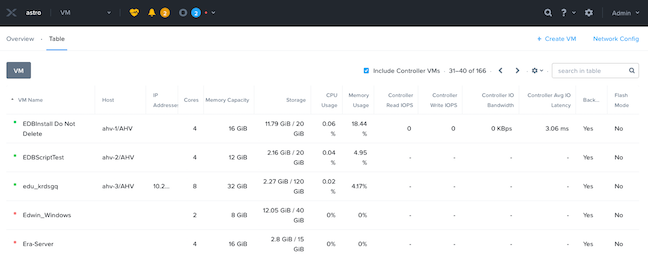
In Prism Element > VM > Table, use the search bar to locate the Linux VM you created in the previous exercise (Initials-Linux_VM).
Note that the Power State column for that VM shows a red dot, indicating that the VM is powered off.
Select the VM, then click Power On.
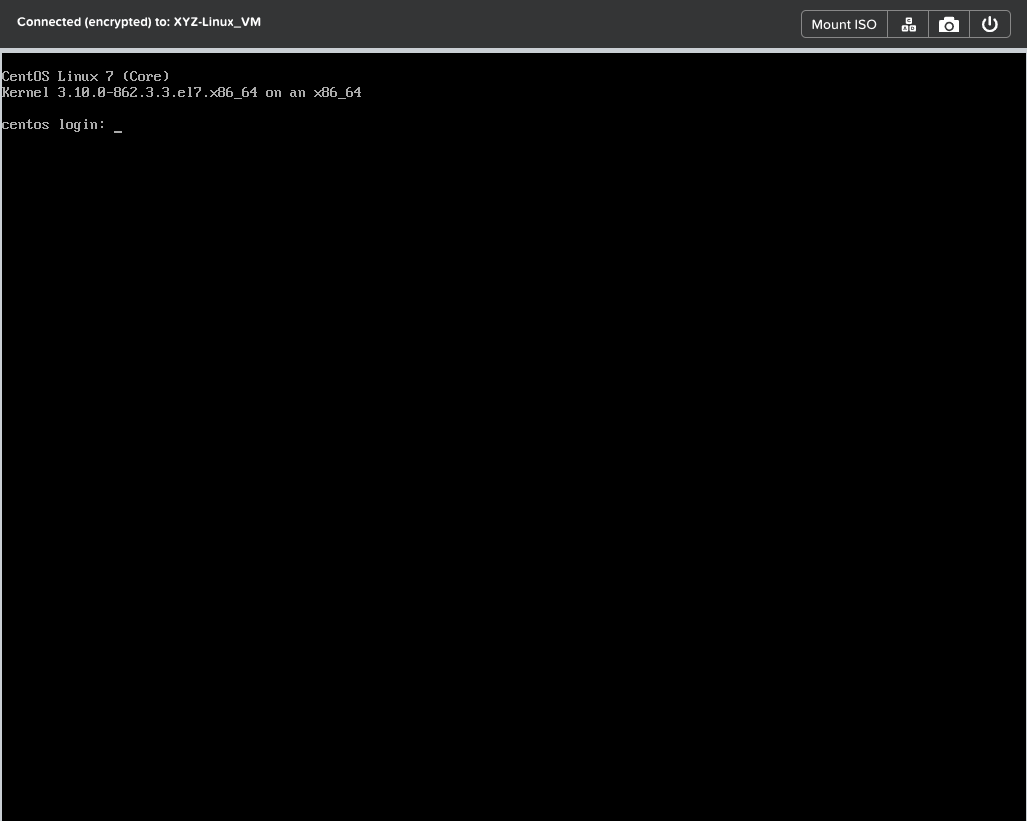
Select the VM, then click Launch Console.
The console window provides 4 actions: Mount ISO, CTRL-ALT-DEL, Take Screen Capture, and Power.
Note
In ESX:
The steps in this exercise could also be done from Prism while using an ESXi cluster that has its VMware vCenter instance registered to Prism.
Cloning VMs
In Prism Element > VM > Table, select your Initials-Linux_VM VM.
Click Clone from the Actions list.
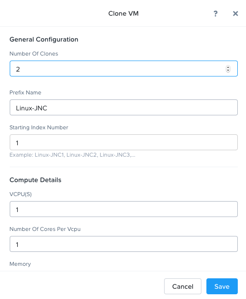
Fill out the following fields and click Save:
Leave other settings at their default values.
Number of Clones - 2
Prefix Name - Initials-Linux-Clone
Starting Index Number - 1
Leave them Powered Off.
Both Nutanix snapshots and clones use a redirect-on-write algorithm to quickly and efficiently create copies of VMs as a metadata operation.
Migrating a VM Between Hosts
VM live migration is a critical feature for any virtualized environment, allowing VMs to move seamlessly across hosts within a cluster to enable infrastructure maintenance or performance balancing.
In Prism Element > VM > Table, select your Initials-Linux_VM VM.
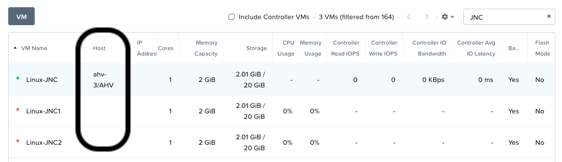
You should see that it has no entry in the Host column when it is powered off.
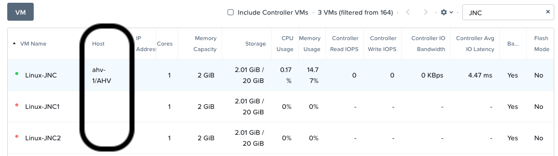
Select the Powered On VM, then click Migrate.
You can either choose one of the other hosts in the cluster as a migration target for the VM, or accept the default and let AHV automatically select a location.
Click Migrate to finalize the action.
When the task completes, verify that your VM host location has changed from the host recorded above to the new location you selected.
Note
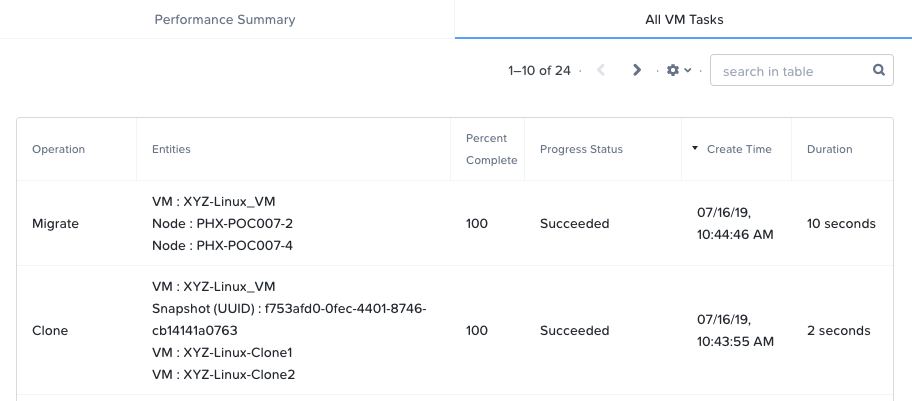
To see the progress of the migration, click on the All VM Tasks tab at the bottom of the screen. Below is a screenshot of a migration.
Configuring Affinity Policies
In Prism Element > VM > Table, select your Initials-Linux_VM VM.
Select a Powered Off VM, then click Update and + Set Affinity.
Select two Hosts to which the VM can have affinity, and click Save and Save to finish.
Note
We select more then one host so the VM has a place to migrate too in the event of a Node failure.
Power on the VM, and verify it is on one of the Hosts you selected in the affinity policy.
Select the VM, then click Migrate.
You should see the following message:
This VM has host affinity with 2 out of the 4 available hosts. It can only be migrated to those hosts.
Click Migrate.
You should see that the VM has moved to the other host.
VM-to-Host affinity rules are commonly used to map VMs to certain hosts for performance or licensing reasons. AHV can also create VM-to-VM anti-affinity rules, commonly used for highly available applications where you need to ensure multiple instances of an application do not run on the same node.
High Availability & Dynamic Scheduling
Unlike ESXi, high availability is enabled by default for AHV and will restart VMs in a best-effort manner in the event of a host failure. Additional configuration can set resource reservations to ensure there is capacity during an HA event.
Note
To enable memory reservation, select Enable HA Reservation under > Manage VM High Availability.
As memory is already limited on the shared cluster resources, please do NOT enable HA memory reservations.
With the Acropolis Dynamic Scheduler service, AHV performs intelligent initial placement of VMs and can dynamically migrate VMs to other hosts within the cluster to optimize workload performance. This is done “out of the box” without additional configuration.
A benefit of a Nutanix AHV solution is being able to make VM placement decisions not based solely on CPU/memory congestion avoidance, but also based on storage performance.
See here for additional details about the Acropolis Dynamic Scheduler.
Prism Search
The Prism search function makes it easier to identify problems or find feature documentation in Prism Central. Use Prism Central’s search capabilities by typing a few search queries to see how easy this can make the tasks above.
Suggestions:
vm cpu > 1
vm mem > 2
vm iops
create vm
powered on
powered on cpu = 8
In Prism Central > .
Note the result types: Entity, Alerts, and Help.
Click the star icon to save a search.
Note
The search hot key (a slash mark, or /) can be used from anywhere in the Prism Central UI to bring up the search function.
Takeaways
In this lab you got to experience first hand how AHV provides a complete set of tools and actions that can be done to manage the VMs in the cluster.
It is possible to register an ESXi cluster (via vCenter) to Prism and be able to perform some of the basic VM management tasks right from Prism as well.