Prism Pro Capacity Runway
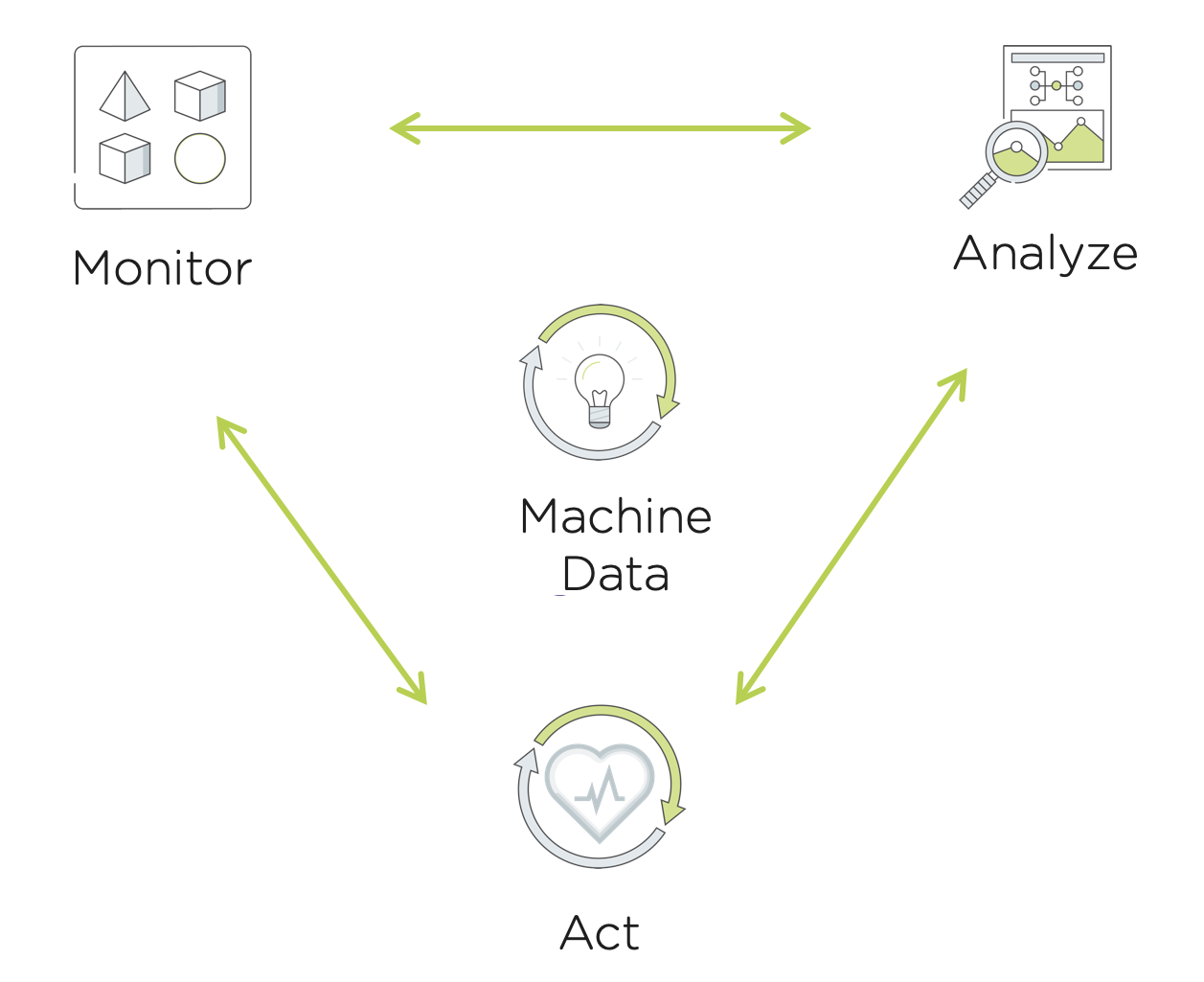
Prism Pro brings smart automation to our customer’s daily IT operations. The typical operations workflow is a continuous cycle of monitoring, analyzing and taking action where necessary. Prism Pro mirrors traditional IT Admin’s workflows to improve operations efficiency. With Prism Pro, IT Admins are able to connect insights from machine data to automate this typical flow using the power of the machine learning engine X-FIT and the X-Play automation engine.
In this lab you will learn how Prism Pro can help IT Admins monitor, analyze and automatically act when cluster runway is low.
Lab Setup
Open your Prism Central and navigate to the VMs page. Note down the IP Address of the PrismOpsLabUtilityServer. You will need to access this IP Address throughout this lab.
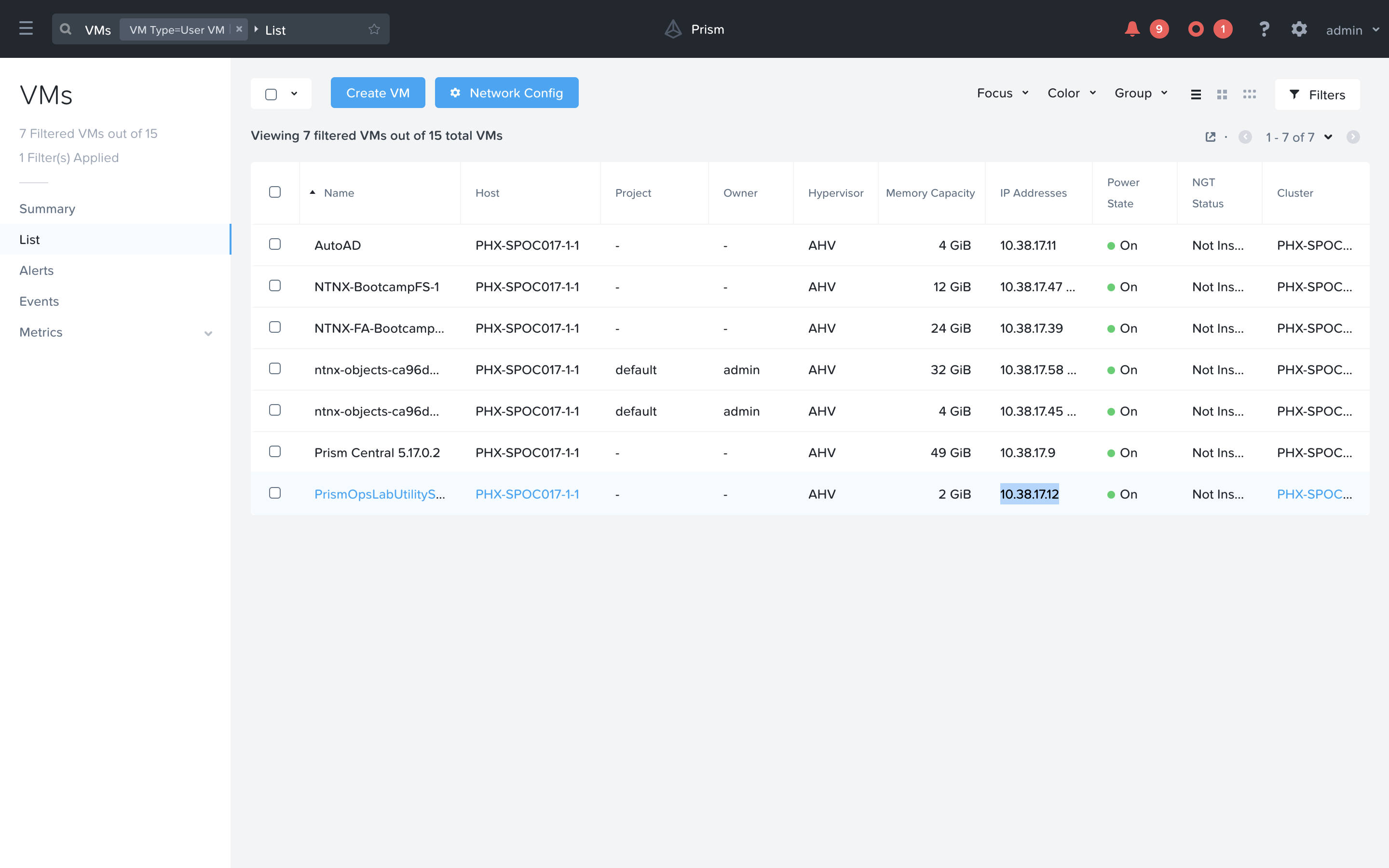
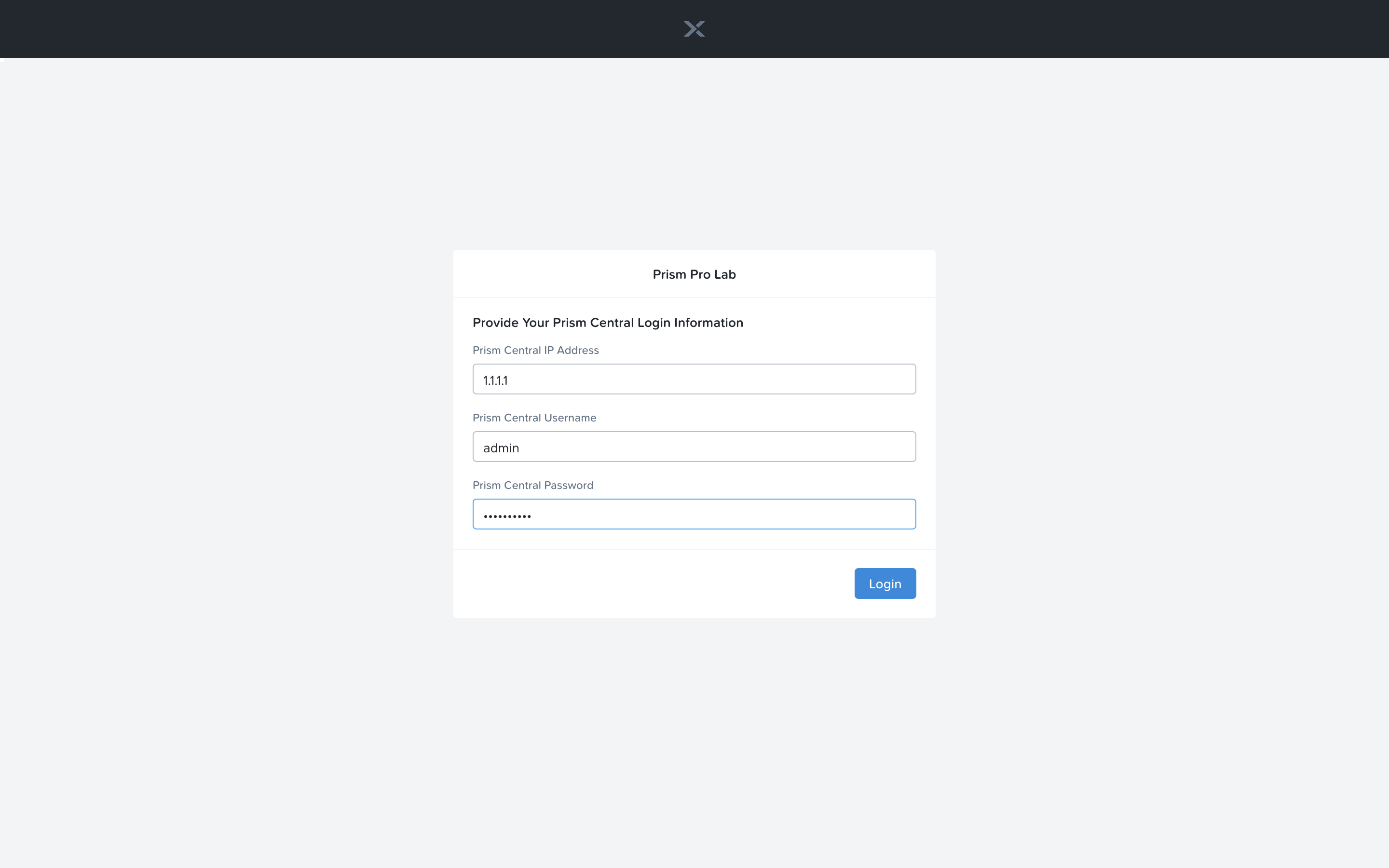
Open a new tab in the browser, and navigate to http://<PrismOpsLabUtilityServer_IP_ADDRESS>/alerts [example http://10.38.17.12/alerts]. It is possible you may need to log into the VM if you are the first one to use it. Just fill out the Prism Central IP, Username and Password and click Login.
Once you have landed on the alerts page, leave the tab open. It will be used in a later portion of this lab.
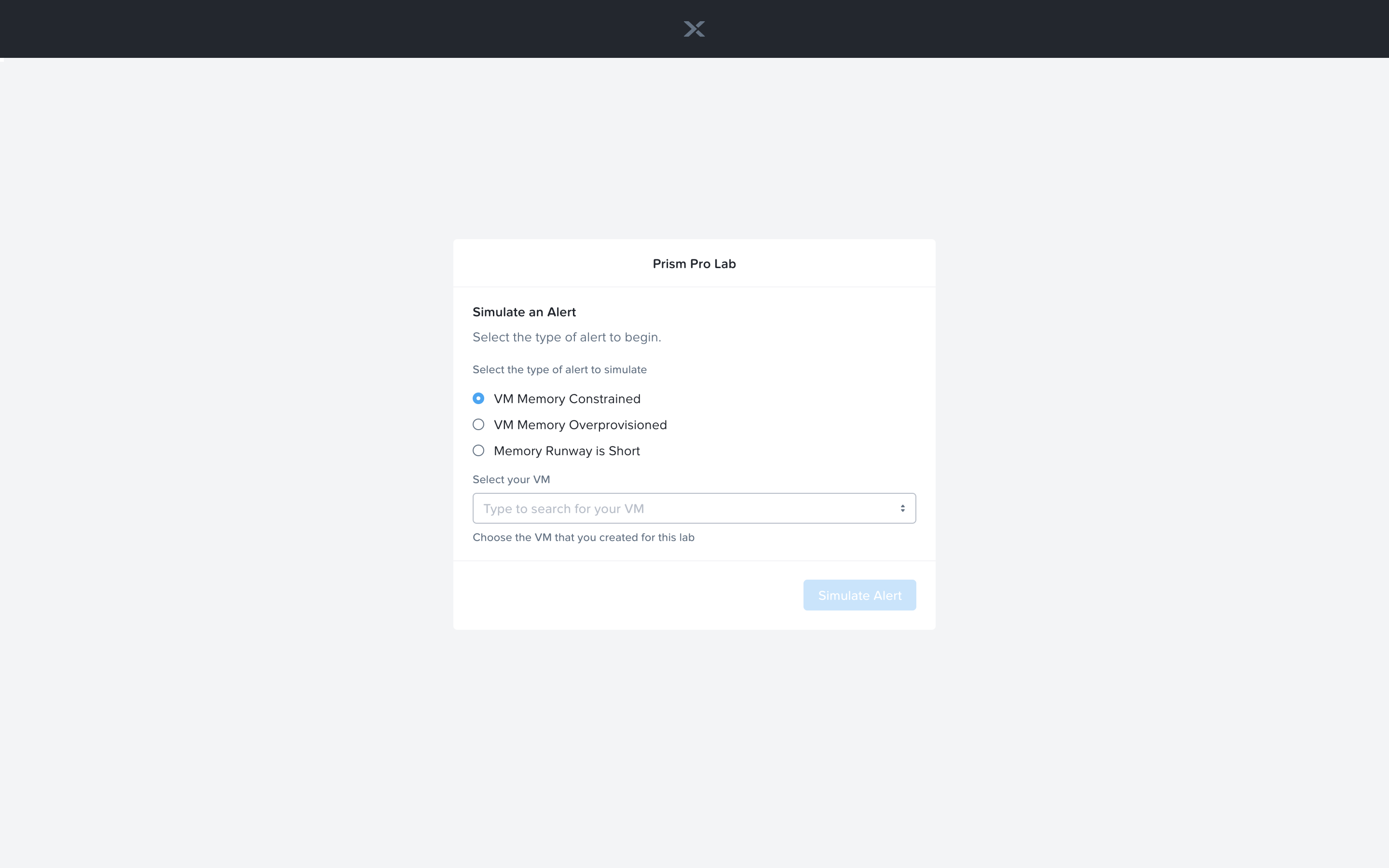
In a separate tab, navigate to http://<PrismOpsLabUtilityServer_IP_ADDRESS>/ to complete the lab from [example http://10.38.17.12/]. Use the UI at this URL to complete the lab.
Capacity Planning Runway Monitoring
Capacity runway is a measure of the remaining capacity left within a given cluster or node. There is an overall cluster runway as well as individual runway measurements for CPU, Memory and storage capacity. The Capacity Runway is calculated using X-FIT, Prism Pro’s machine intelligence engine. Lets view the Capacity Runway of your lab cluster.
In Prism Central > Operations > Planning > Capacity Runway.
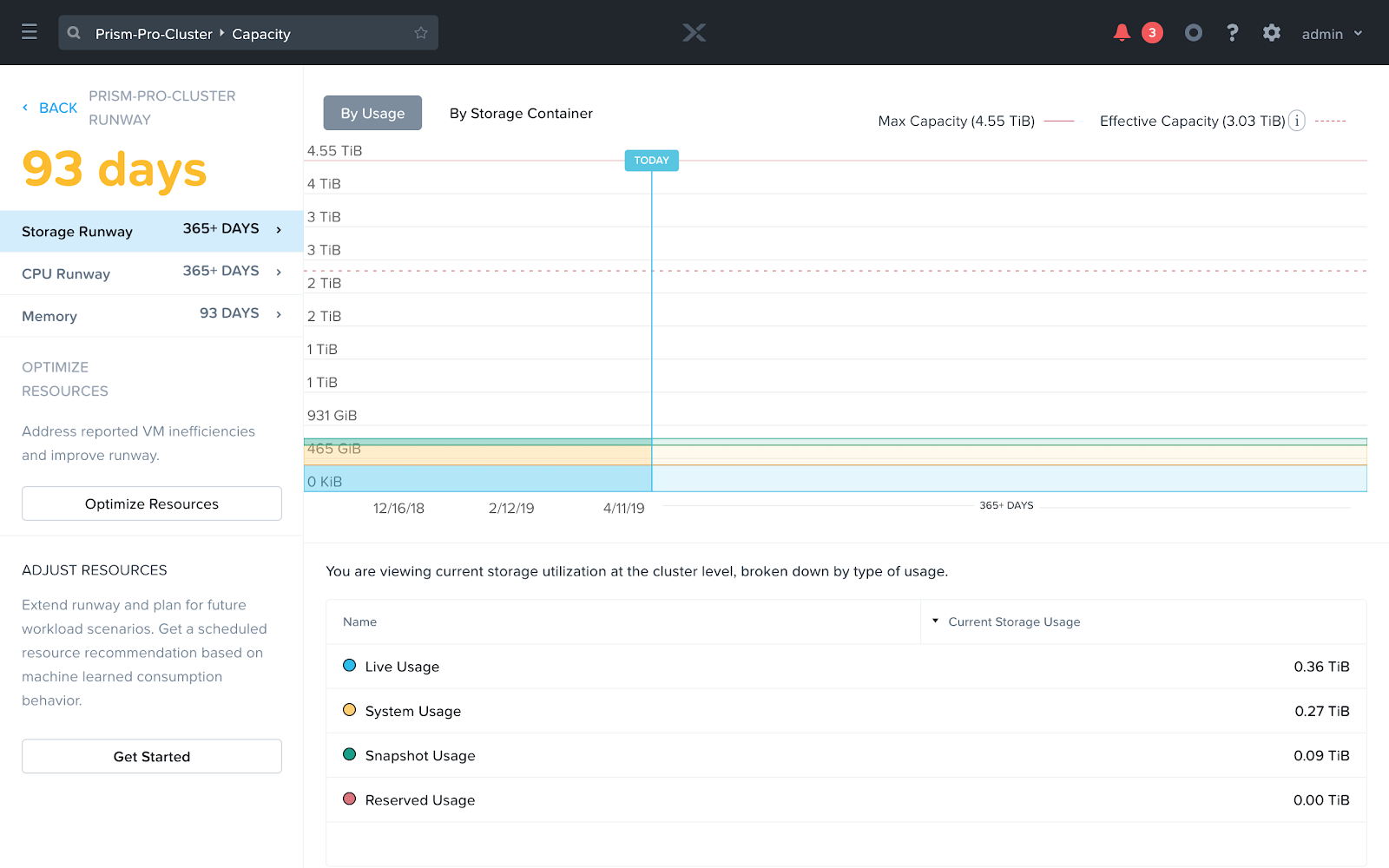
Note the runway summaries showing the days left for each cluster.
How long does the current cluster has before it runs out of memory, CPU, and storage?
Click on the Prism-Pro-Cluster cluster.
. You can now take a look at the Runway for Storage, CPU, and Memory.
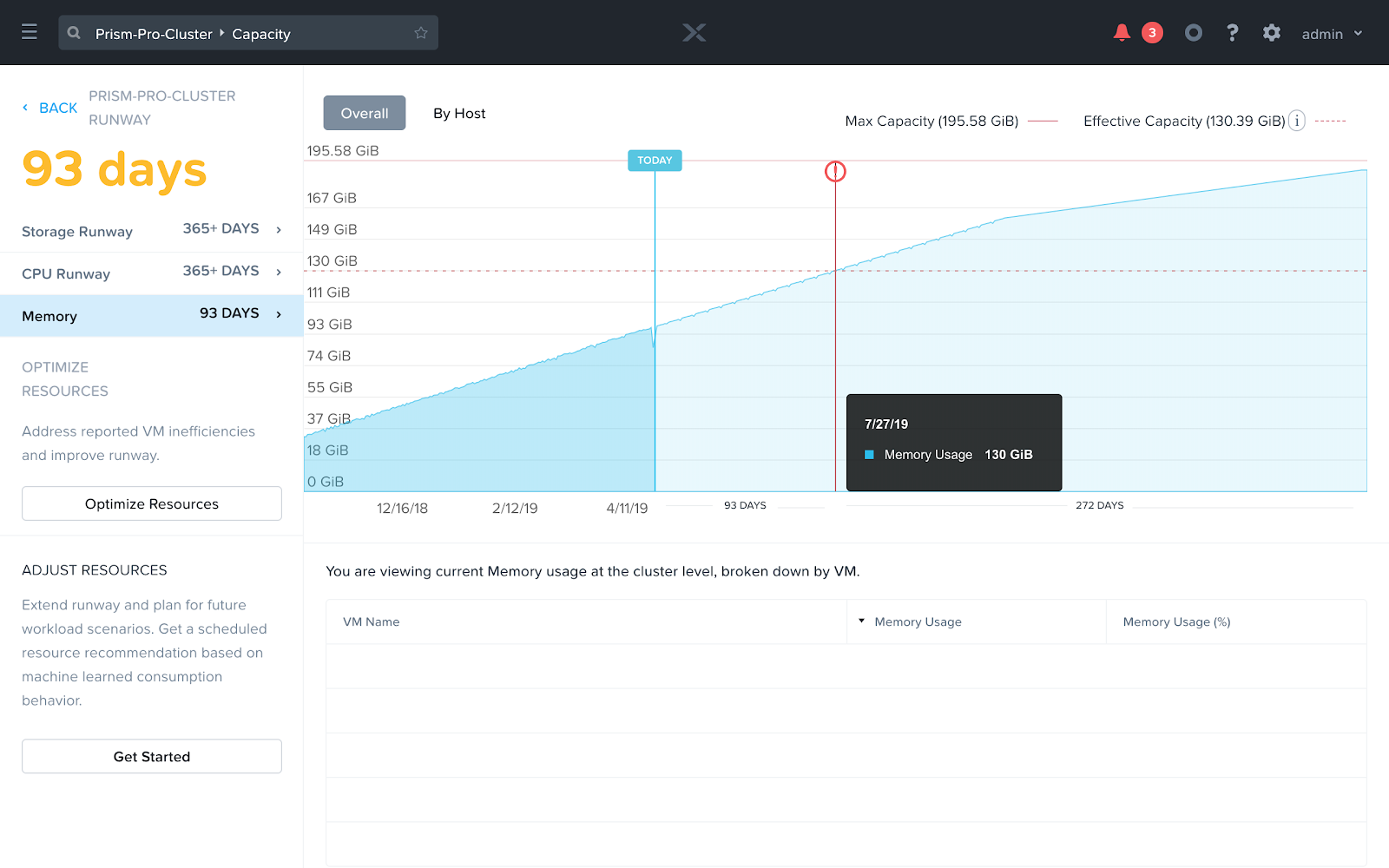
When selecting the Memory tab, you can see a Red Exclamation mark, indicating where this cluster will run out of Memory. You can hover the chart at this point to see on which day this will occur.
Click on the ‘Optimize Resources’ button on left. This is where you can see the inefficient VMs in the environment with suggestions on how you can optimize these resources to be as efficient as possible.
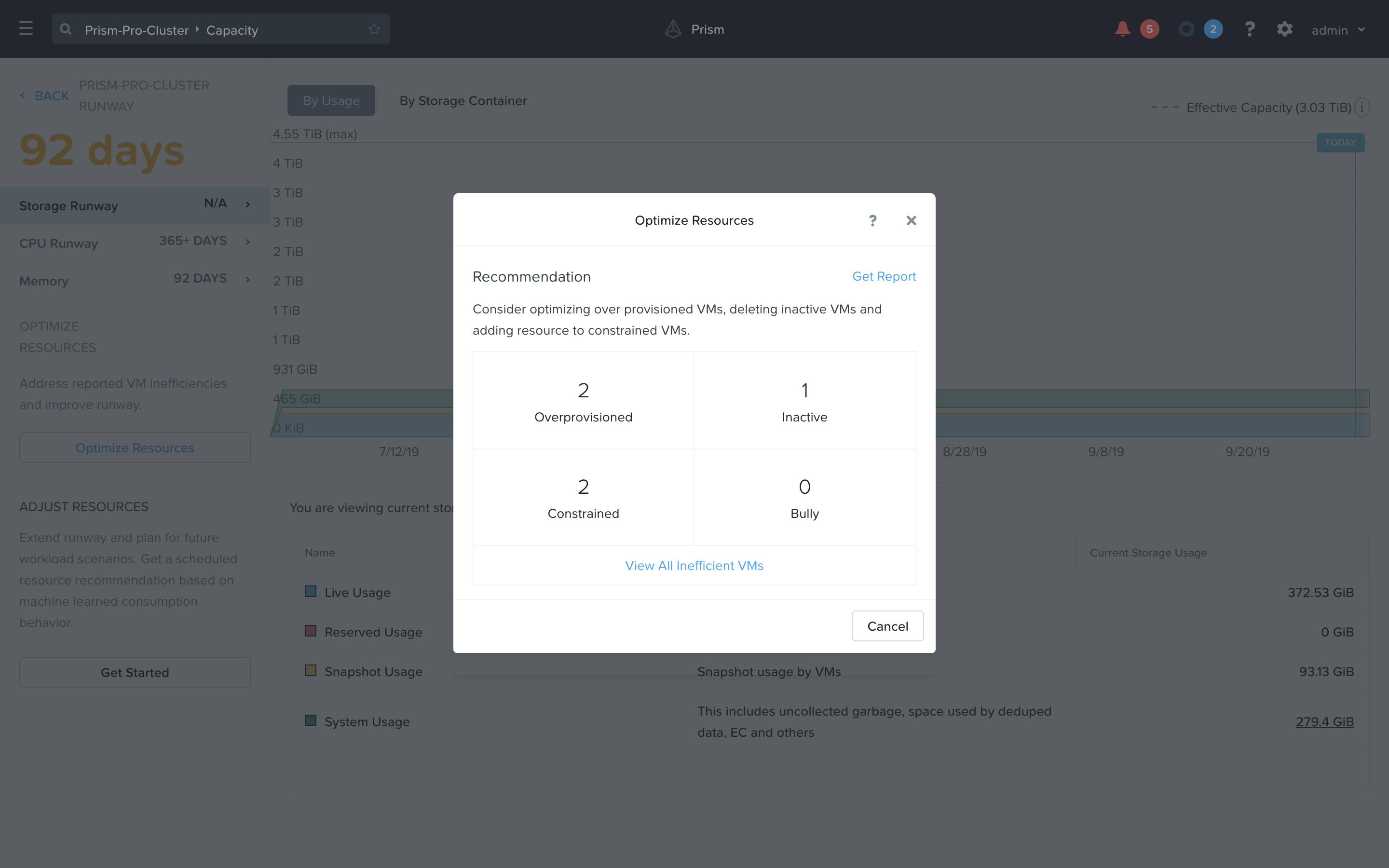
Close the optimize resources popup.
Capacity Planning Runway Analysis
Prism Pro’s X-FIT engine also provides the capability to plan for future workloads and identifies the hardware that can be added to account for the new workloads resource requirements.
Under the ‘Adjust Resources’ section in the left side of this page, click the ‘Get Started’ button. We can now use this to start planning for new workloads and see how runway will need to be extended in the future.
Click the add/adjust button in the left side underneath the ‘Workloads’ item.
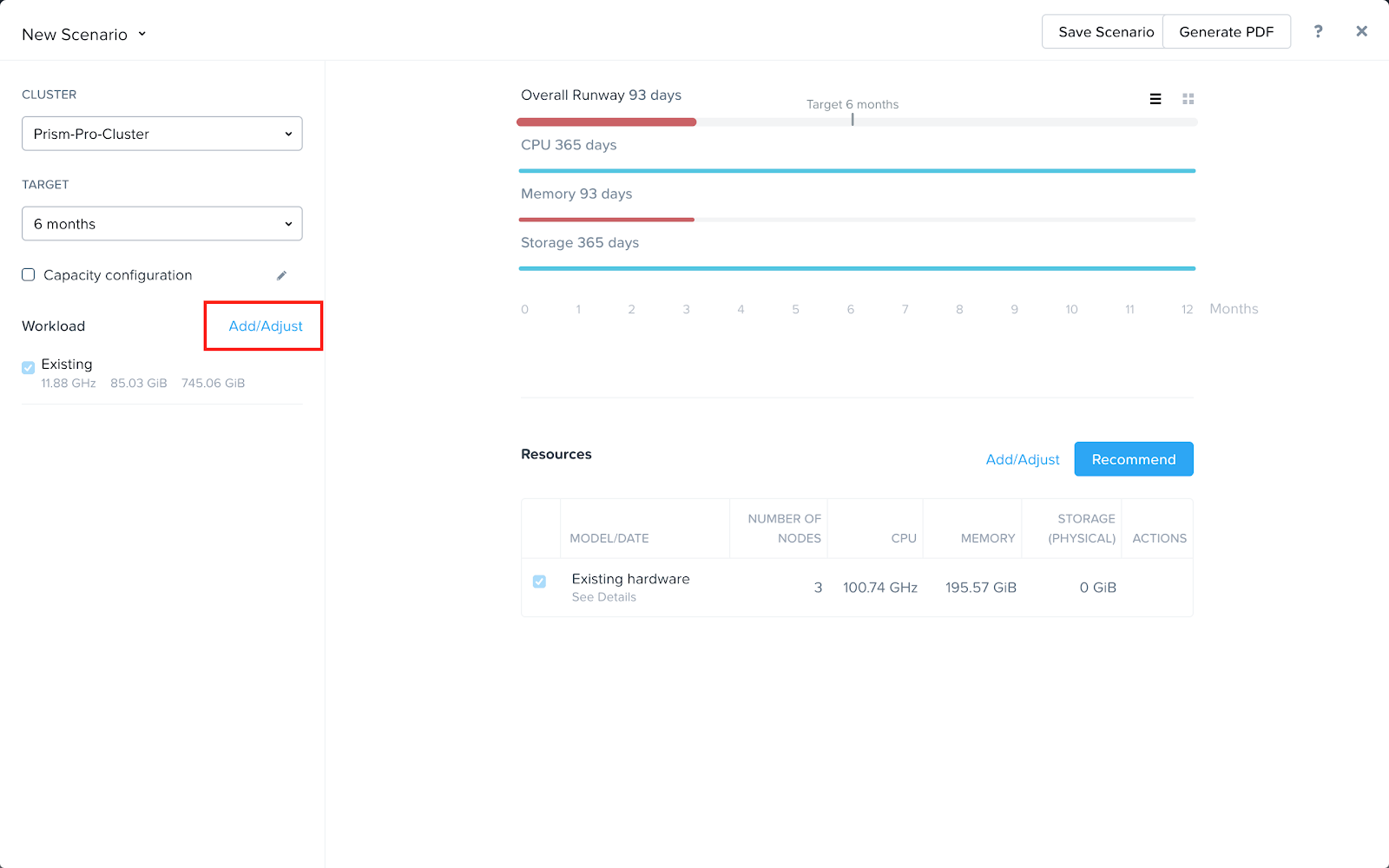
Add one for VDI and select 1000 Users. You can also set a date for when this workload should be added to the system. Save this workload when you are done.
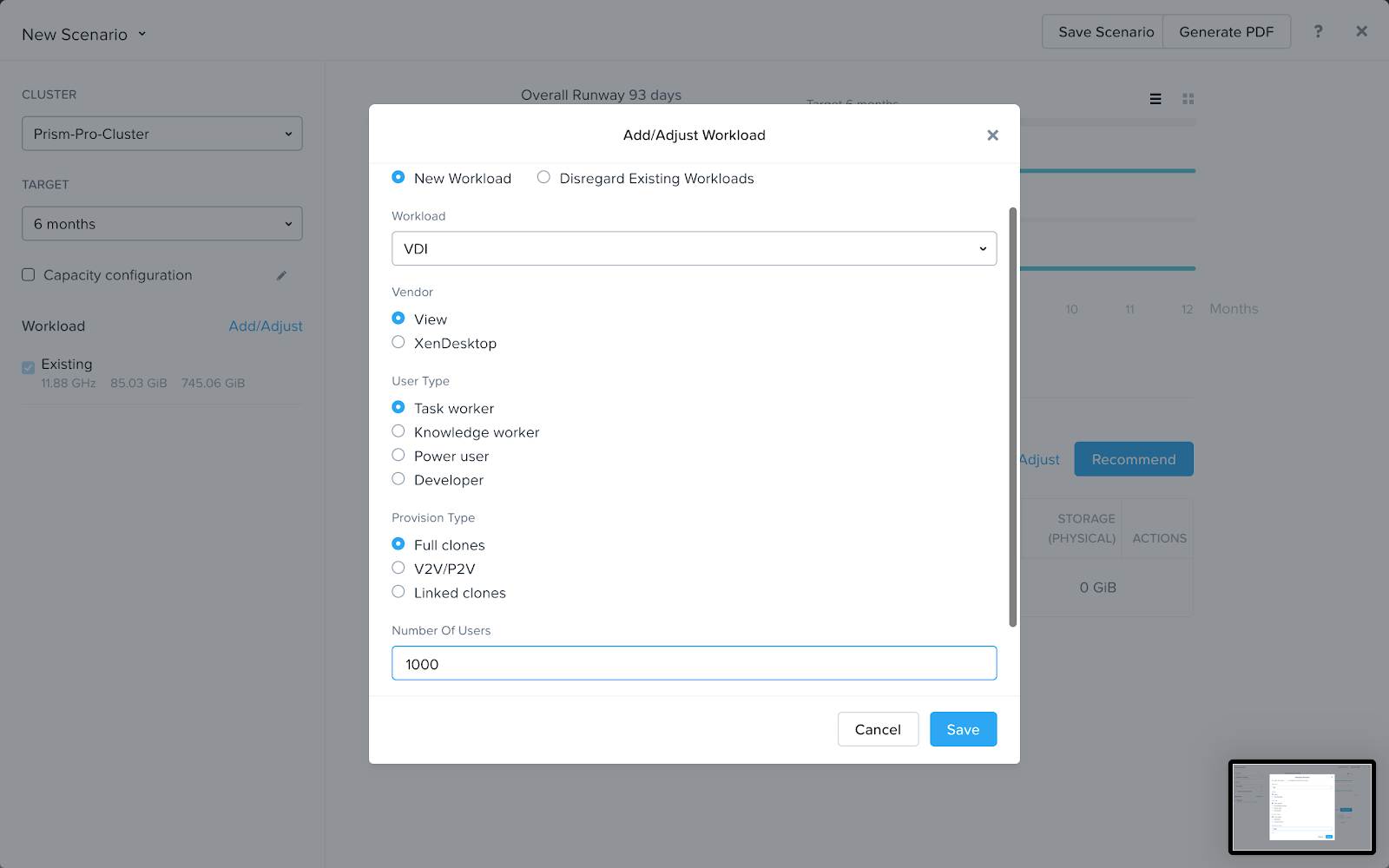
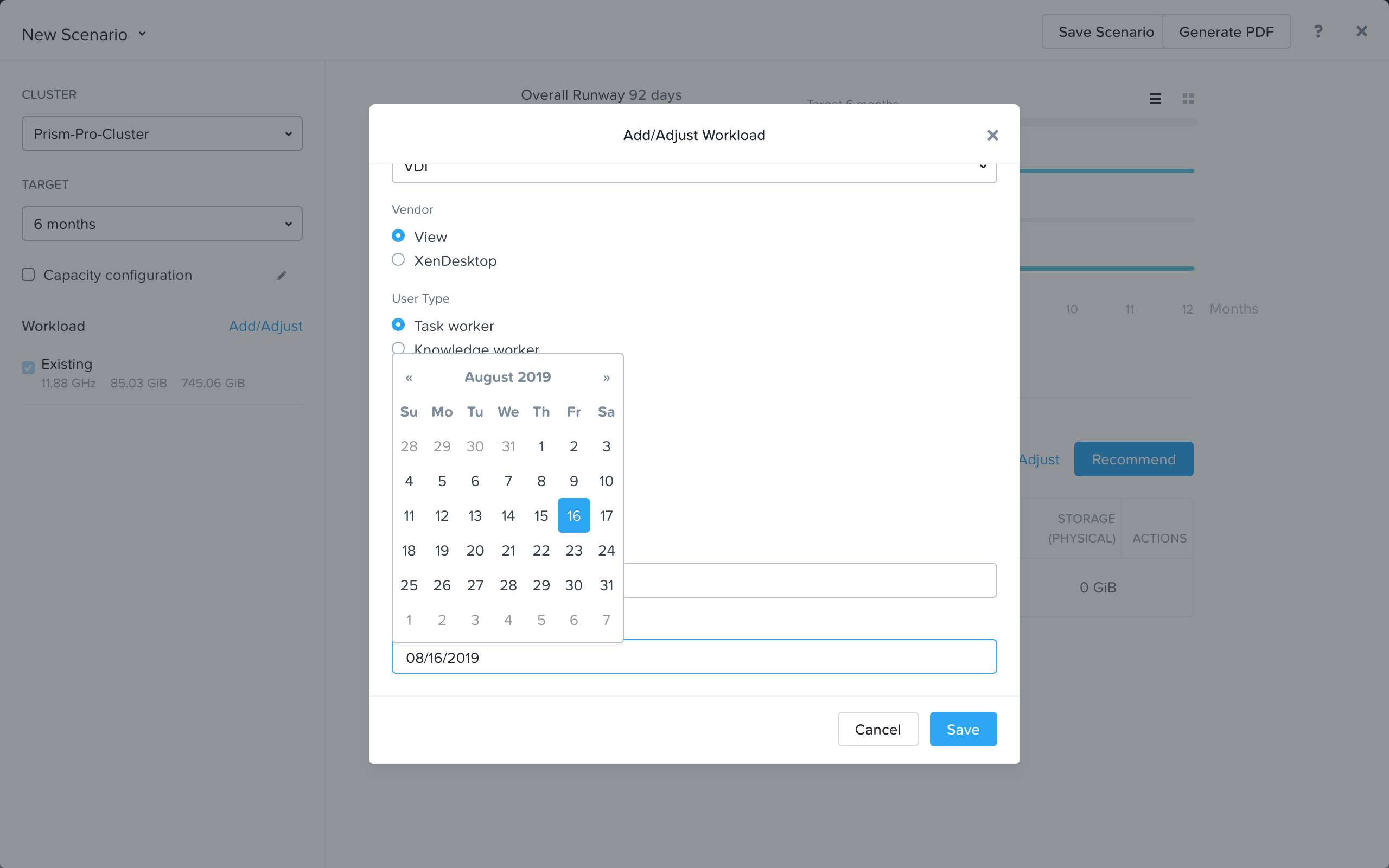
Add another workload of your choice.
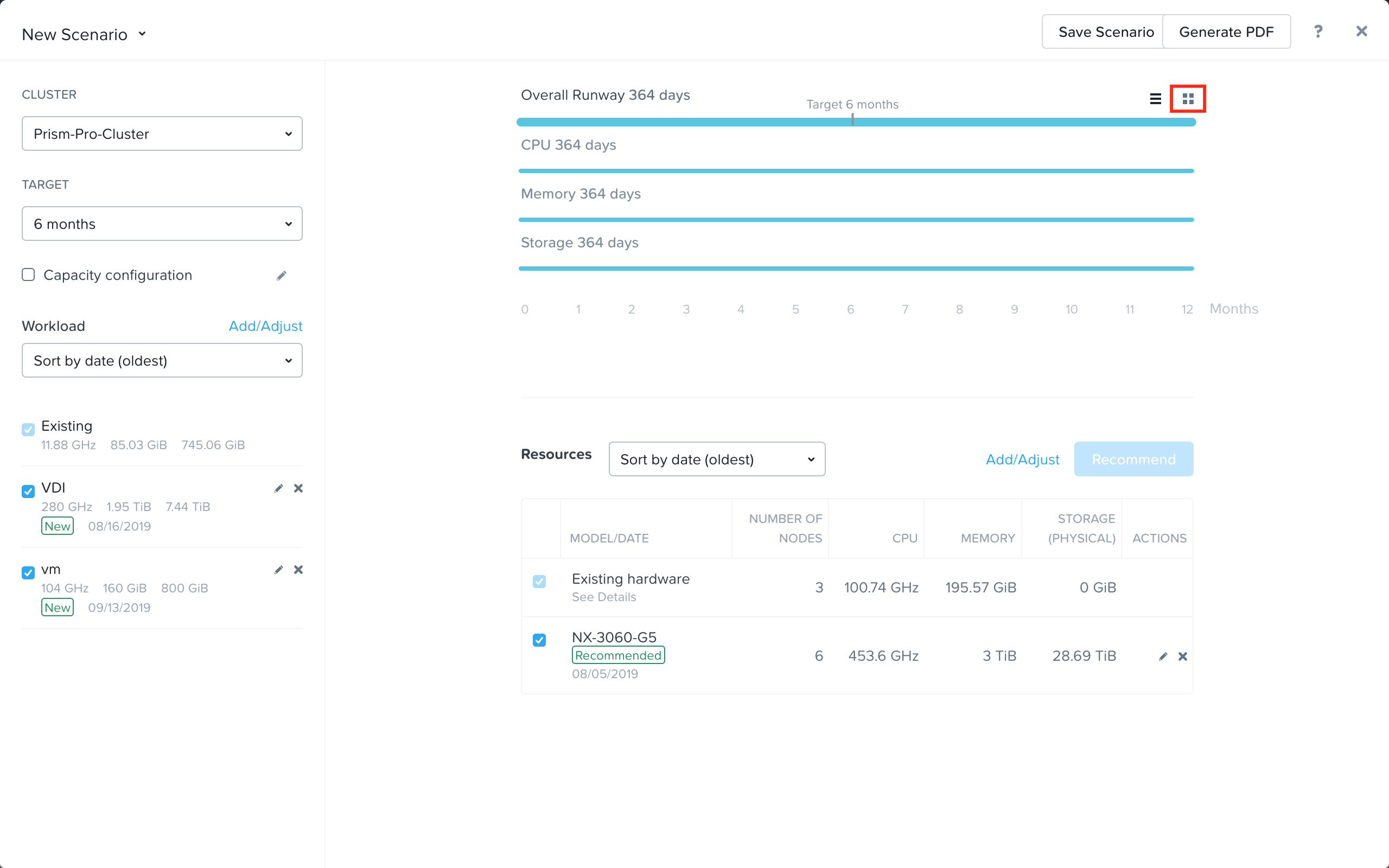
Now click the ‘Recommend’ button on the right side of the page.
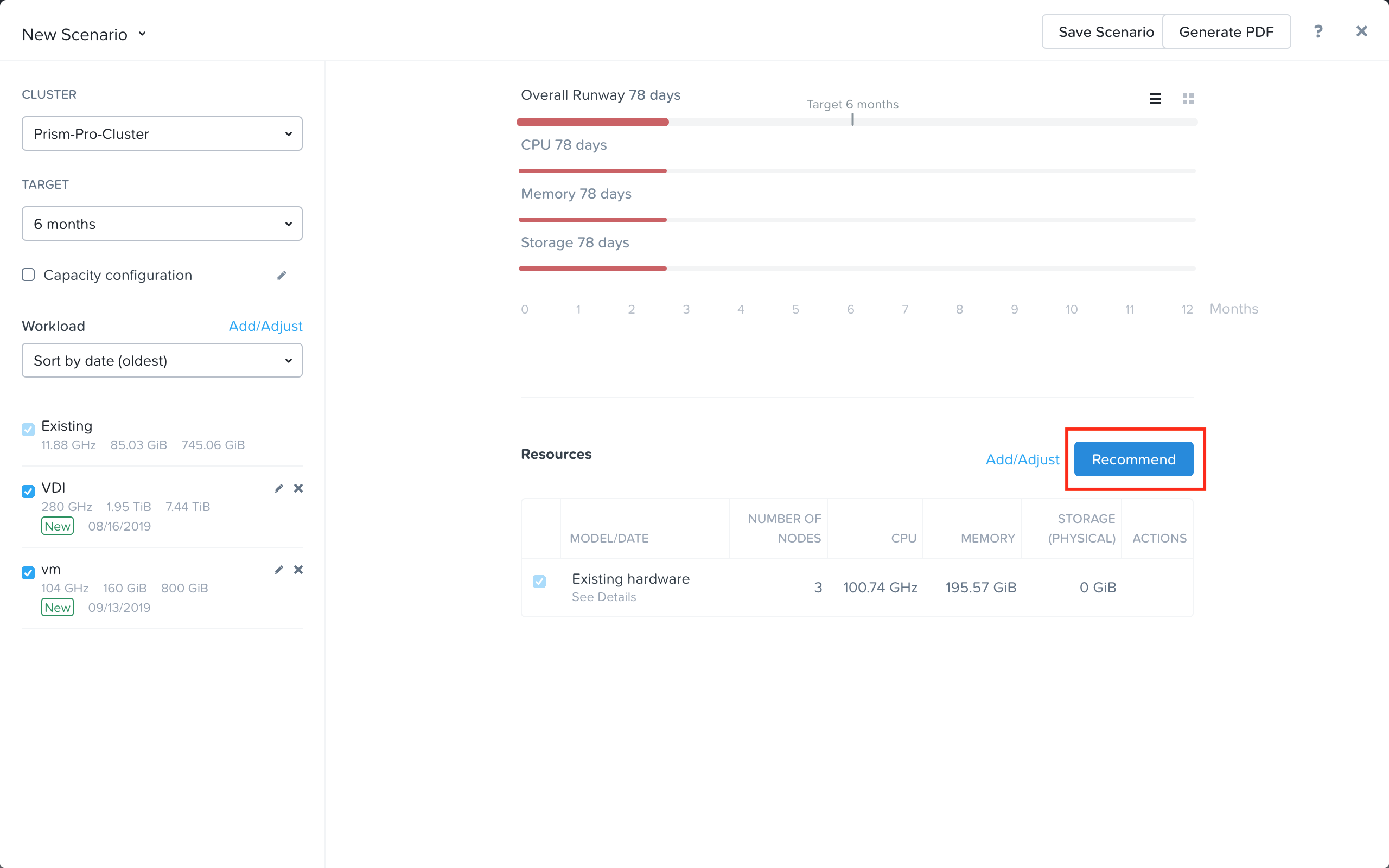
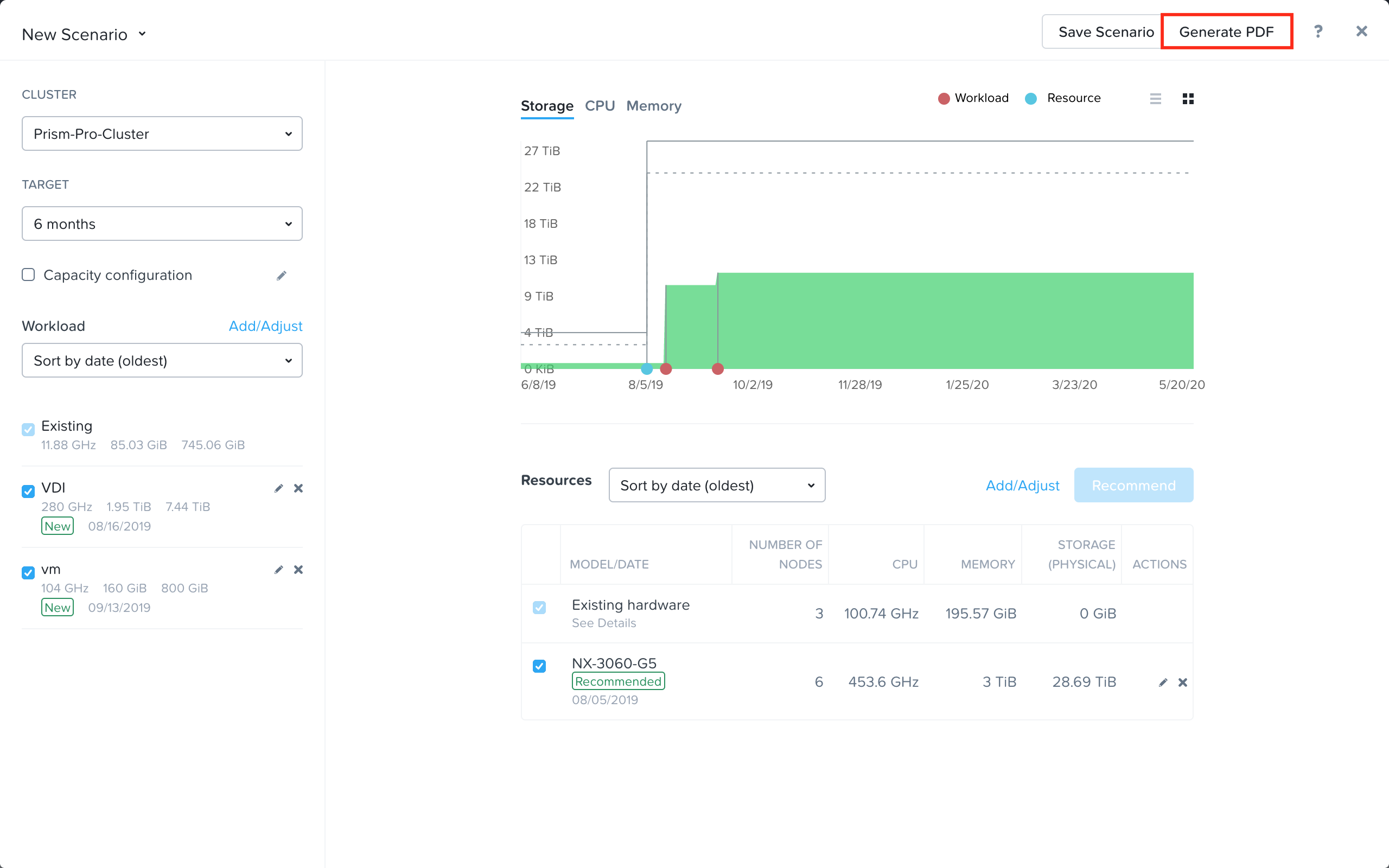
Once the Recommendation is available, toggle between list and chart view to get a better overview of your Scenario.
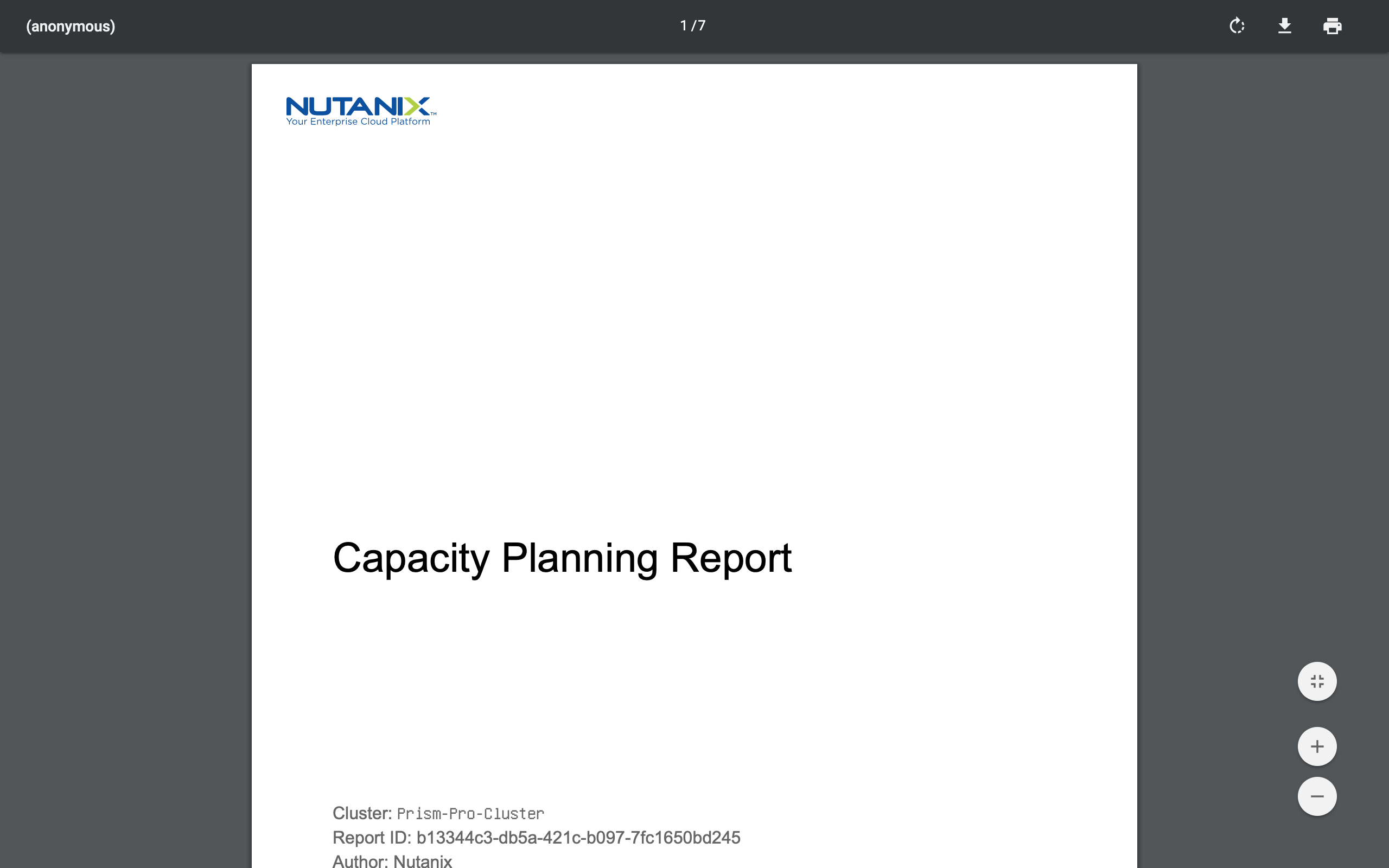
Click the Generate PDF button in the upper right hand corner. This will open a new tab with a PDF report for the scenario/workloads you have created.
View your report.
Automate Capacity Forecast Report Generation with X-Play
Now let’s look at how we can take automated action to generate this report when the Capacity Runway is low. We will use X-Play, Prism Pro’s simple automation engine.
Use the hamburger menu to navigate to Operations > Playbook.
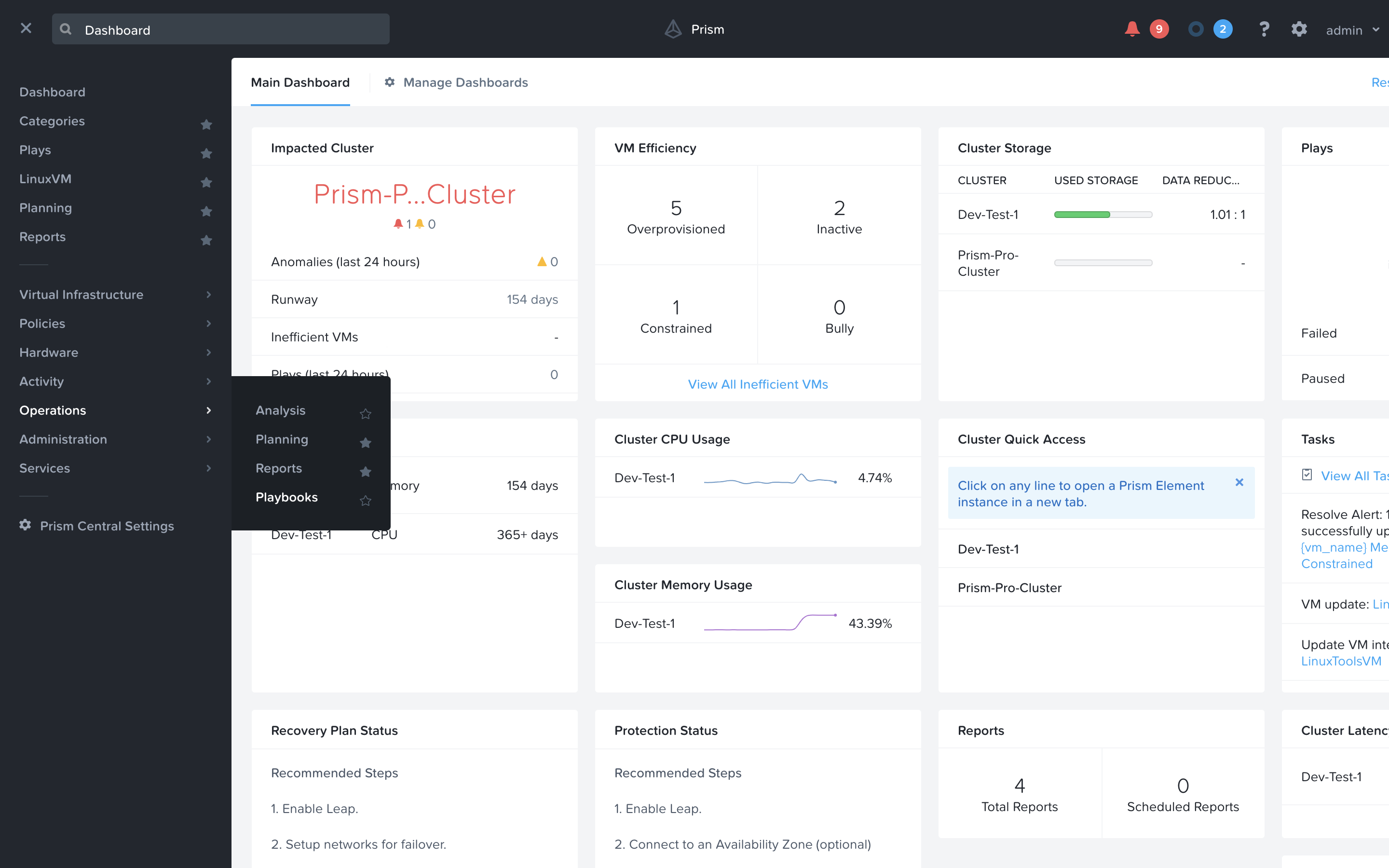
Click Create Playbook at the top of the table view.
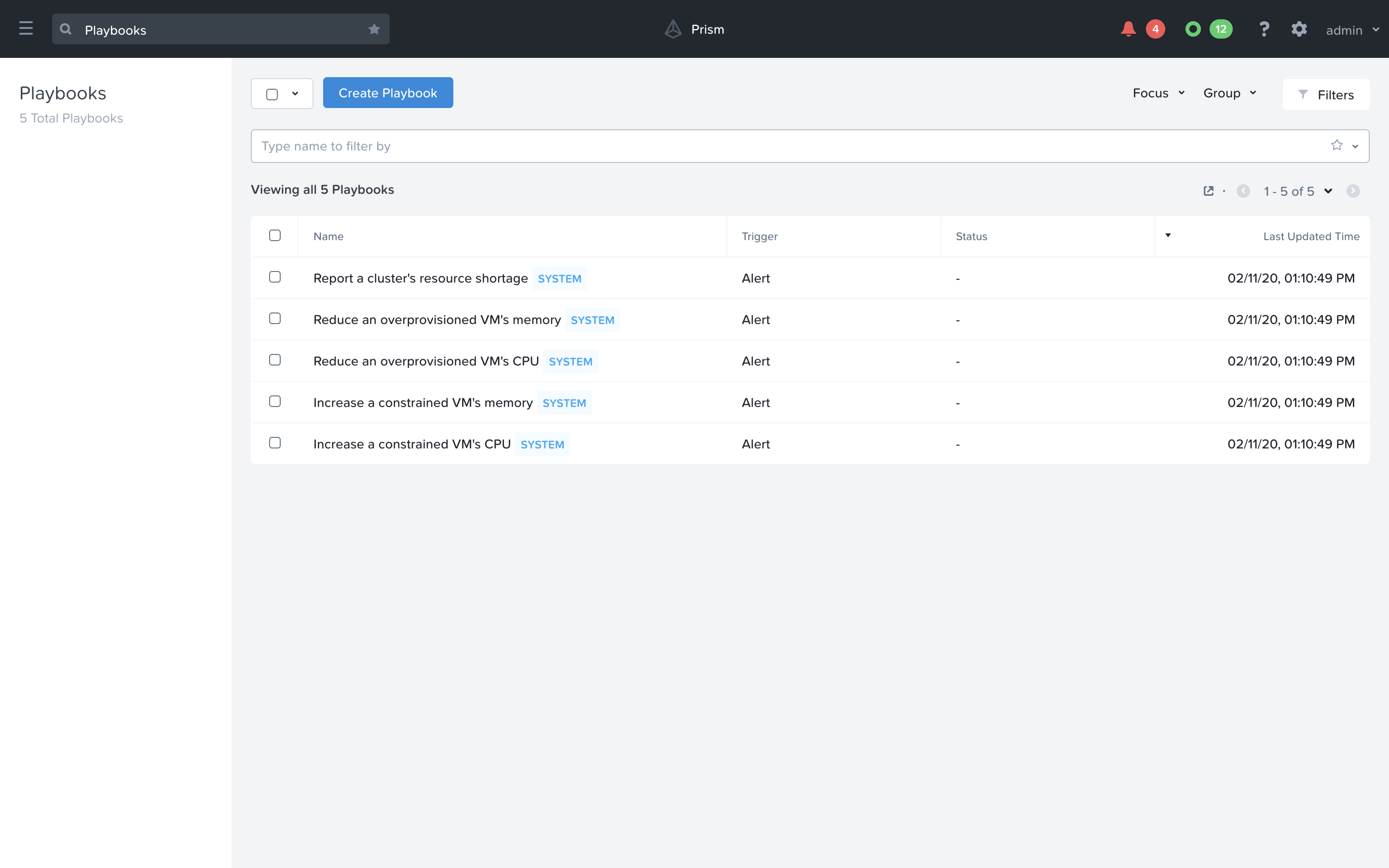
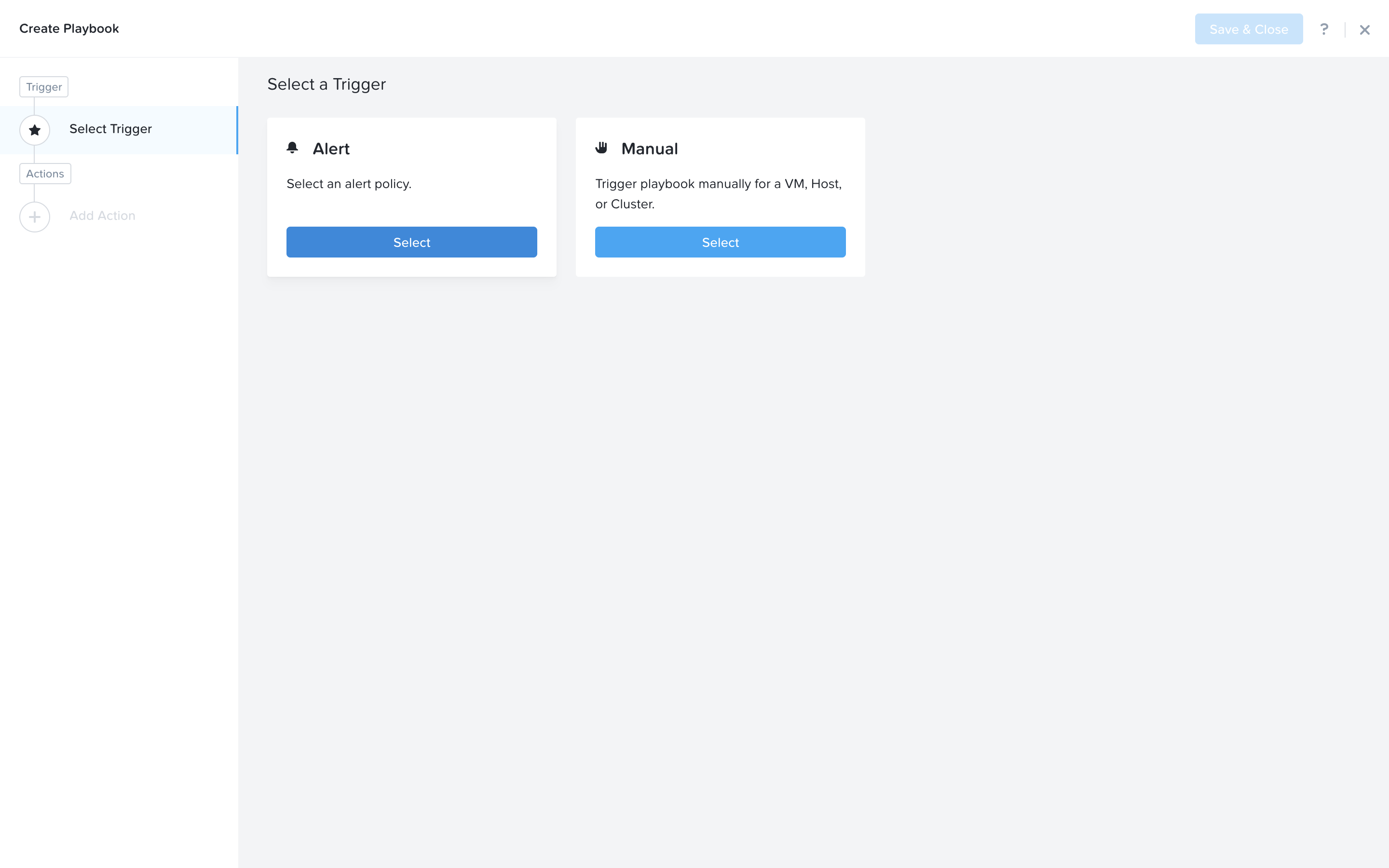
Select the Alerts Matching Criteria as the trigger. Using this trigger allows us to trigger this Playbook for one or more Alert Policies that match the criteria specified.
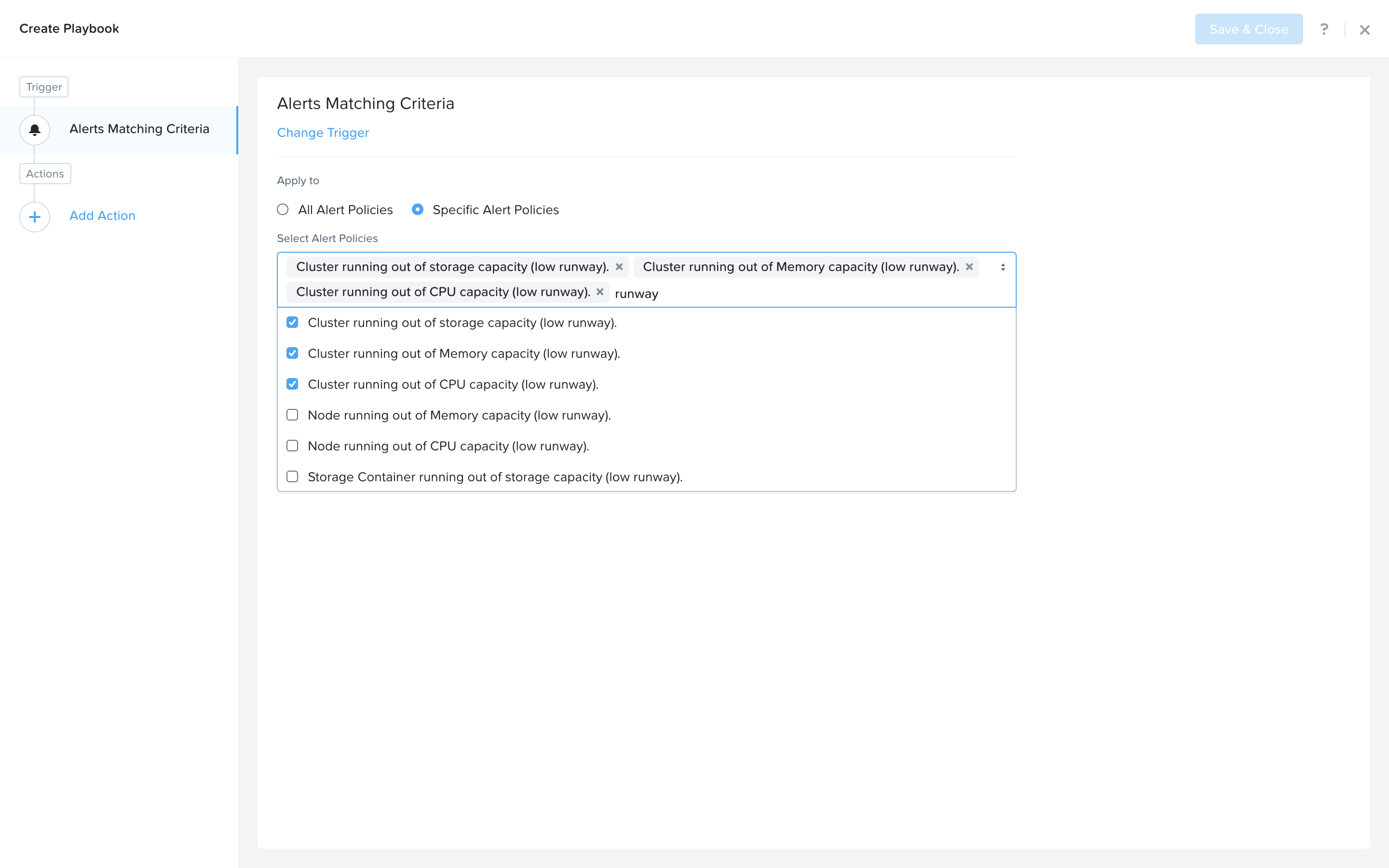
Select the Specific Alert Policies radio button and then search ‘runway’ in the search box. Select Cluster running out of storage Capacity (low runway), Cluster running out of Memory Capacity (low runway), and Cluster running out of CPU Capacity (low runway) from the dropdown, since these are the 3 alerts we would want to generate a report for if Storage, Memory or CPU runway are low.
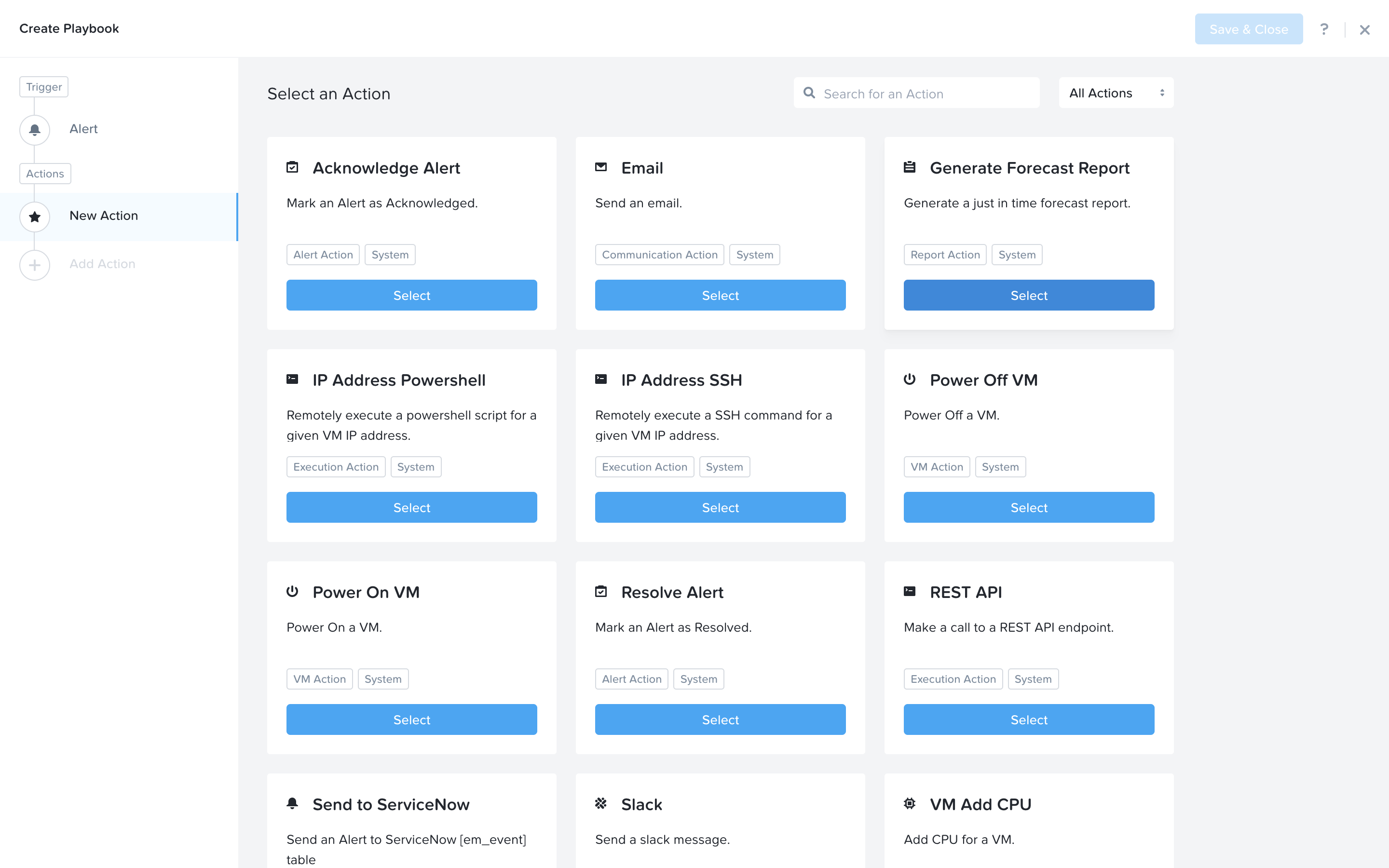
First, we would like to Generate a Forecast report for this alert. Click Add Action on the left side and select the Generate Forecast Report action.
The Alert Source Entity in this case will be the Cluster that the alert is generated on. You can also change the Runway Period if you would like.
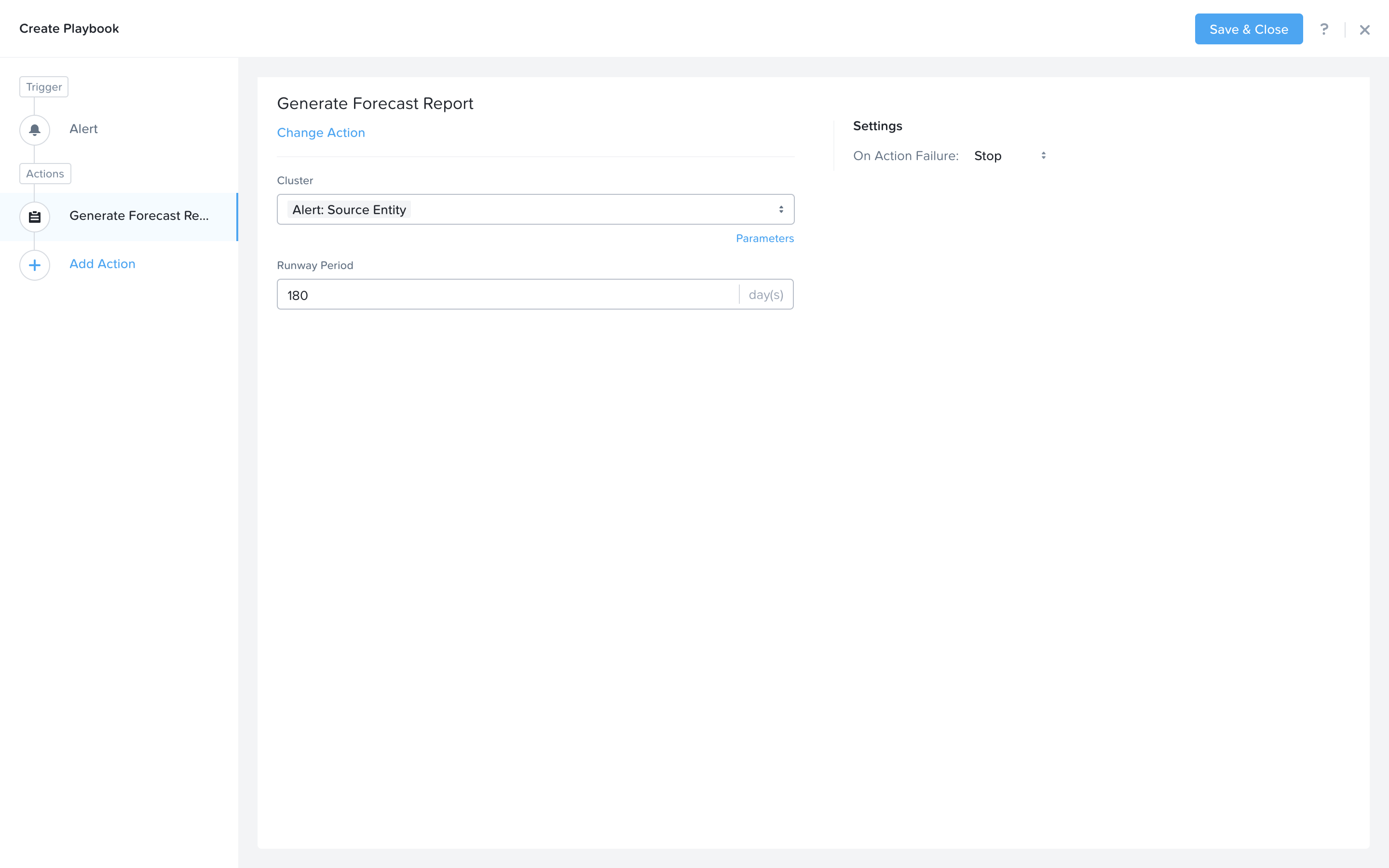
Next we would like to notify someone that the ticket was created by X-Play. Click Add Action and select the Email action.
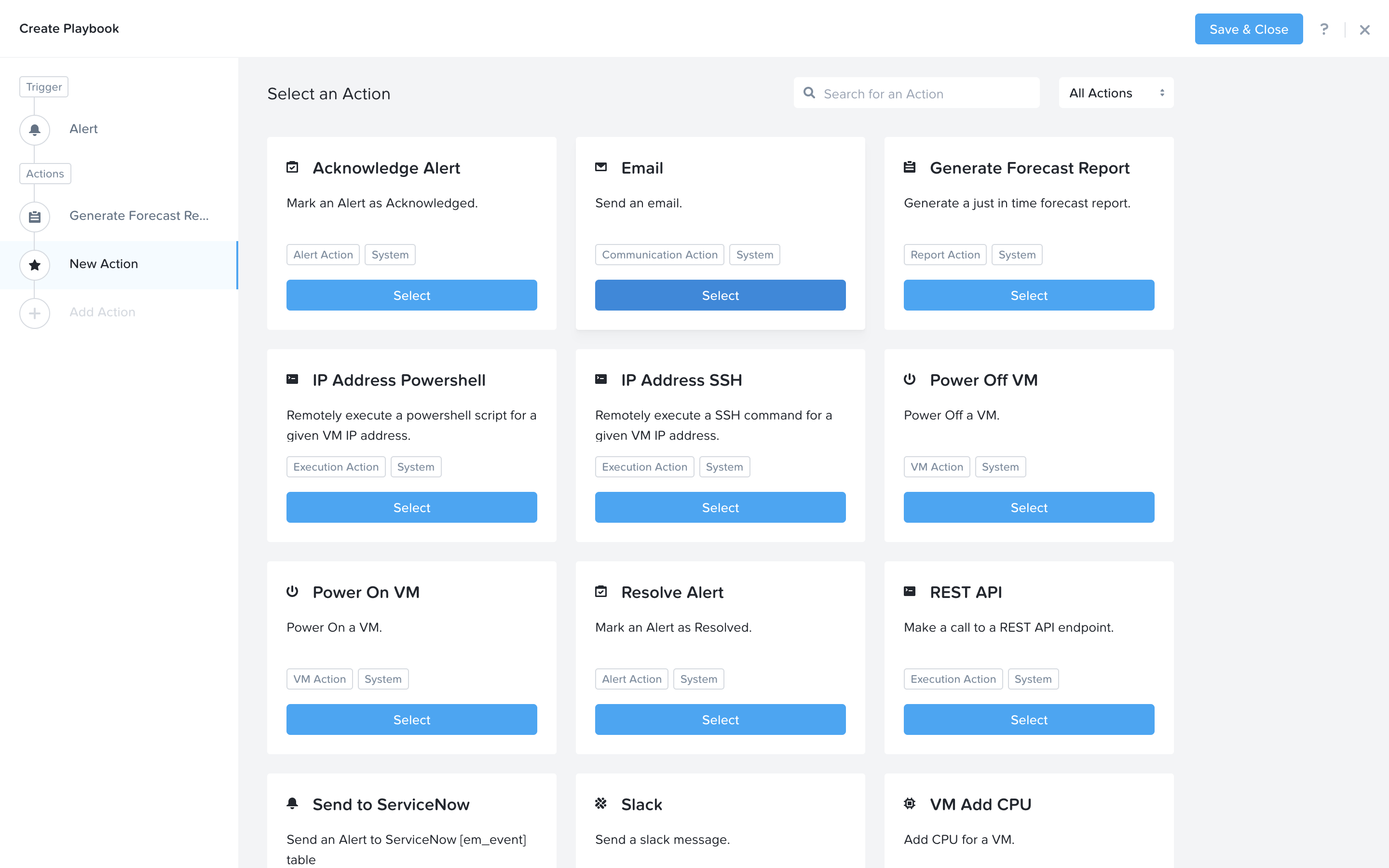
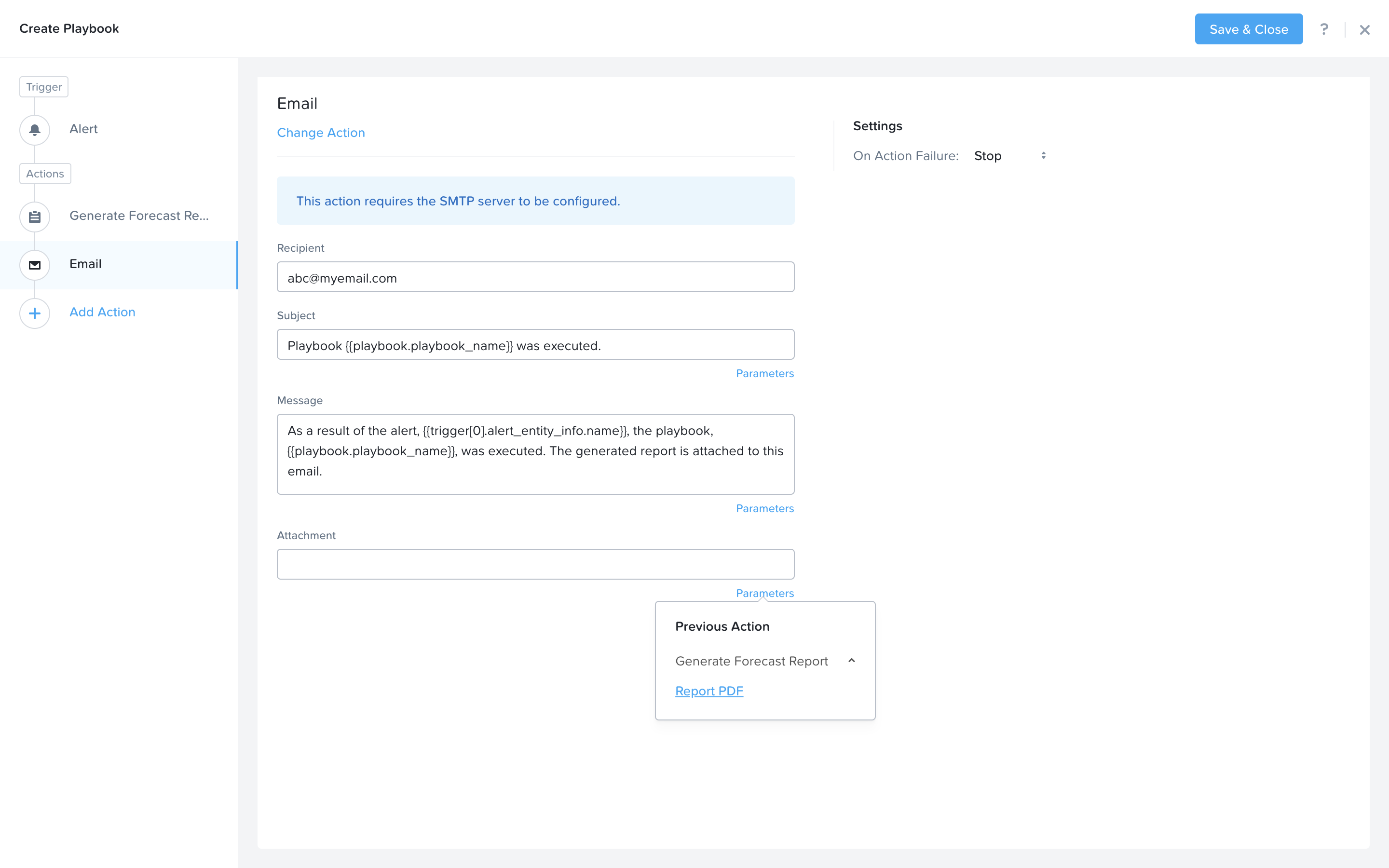
Fill in the field in the email action. Here are the examples
Recipient: - Fill in your email address.
Subject : -
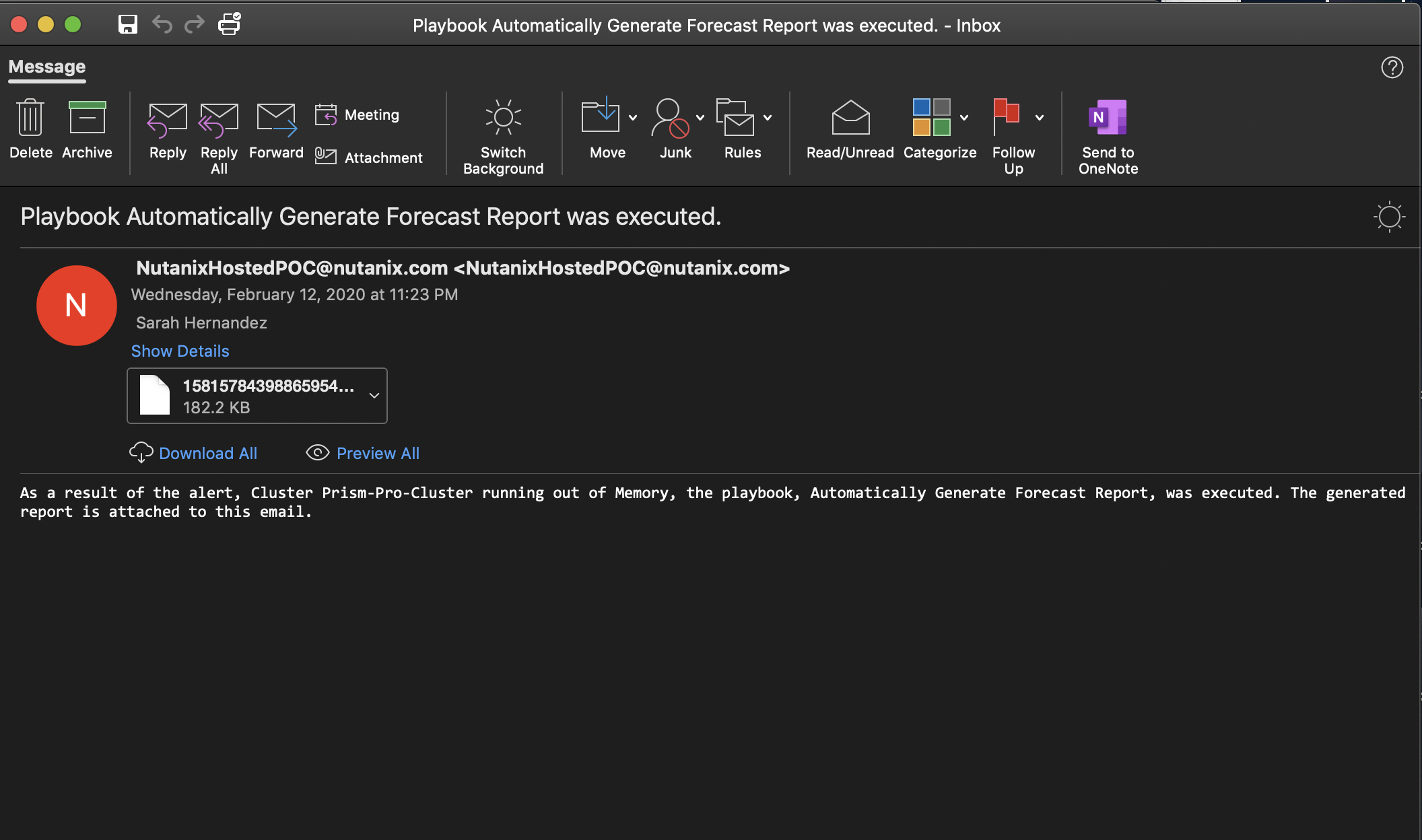
Playbook {{playbook.playbook_name}} was executed.Message: - As a result of the alert, {{trigger[0].alert_entity_info.name}}, the playbook, {{playbook.playbook_name}}, was executed. The generated report is attached to this email.`
Note
You are welcome to compose your own subject message. The above is just an example. You could use the “parameters” to enrich the message.
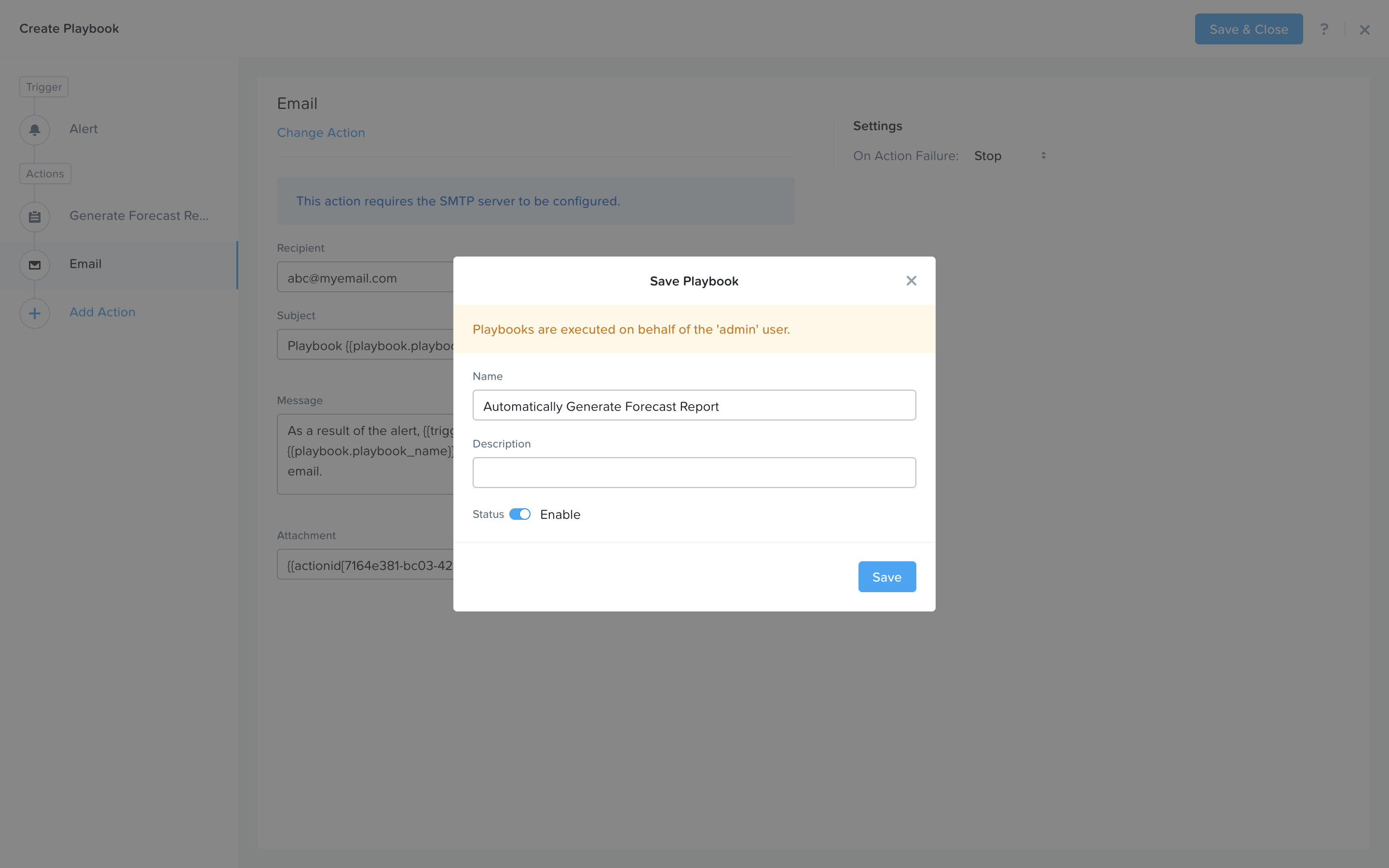
Click Save & Close button and save it with a name “Initials - Automatically Generate Forecast Report”. Be sure to enable the ‘Enabled’ toggle.
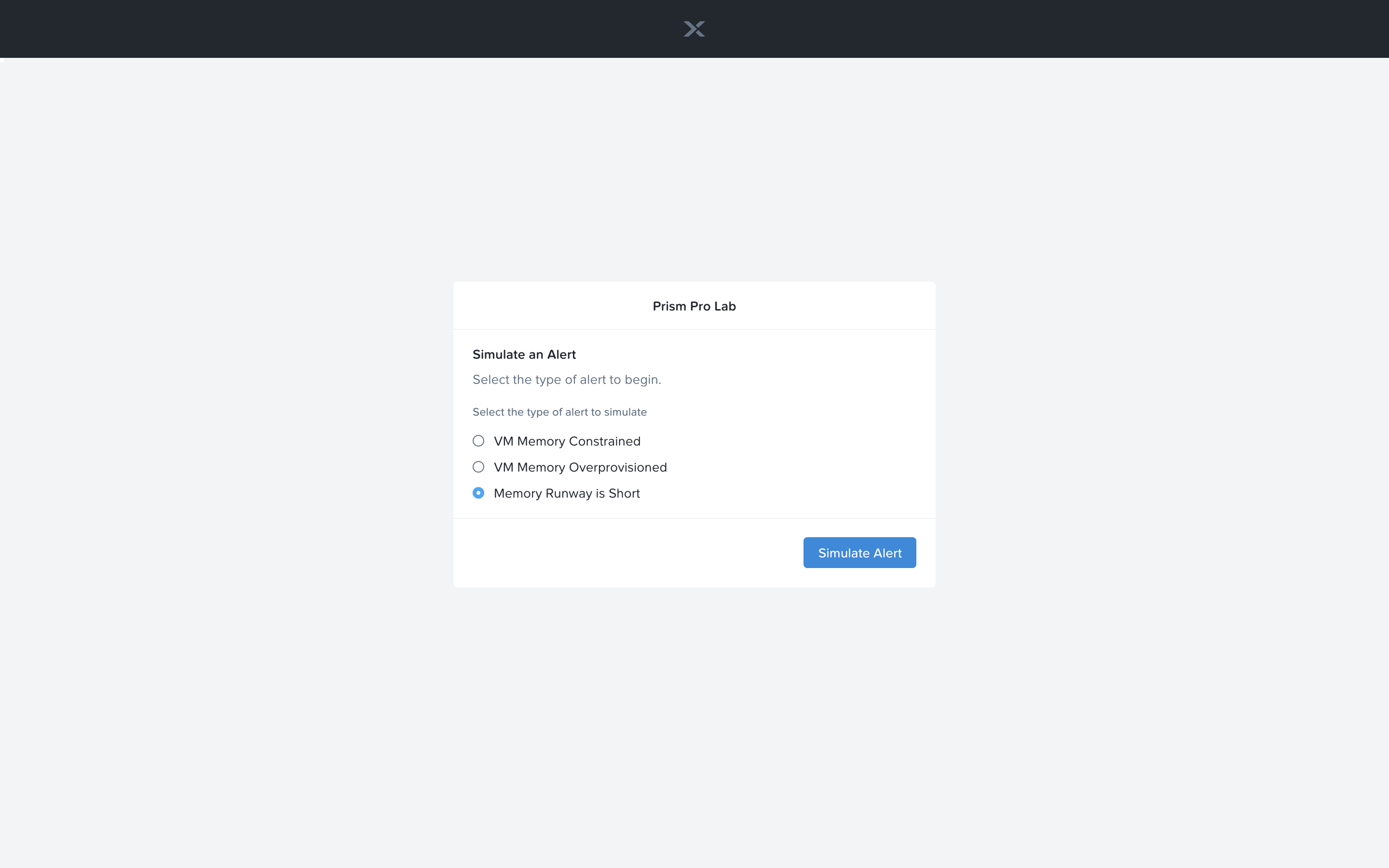
Now let’s trigger the workflow. Switch to the tab you opened in the setup with the /alerts URL [example 10.38.17.12/alerts]. Select the Radio for Memory Runway is Short and click Simulate Alert. This will simulate a memory constrained alert for the Prism-Pro-Cluster.
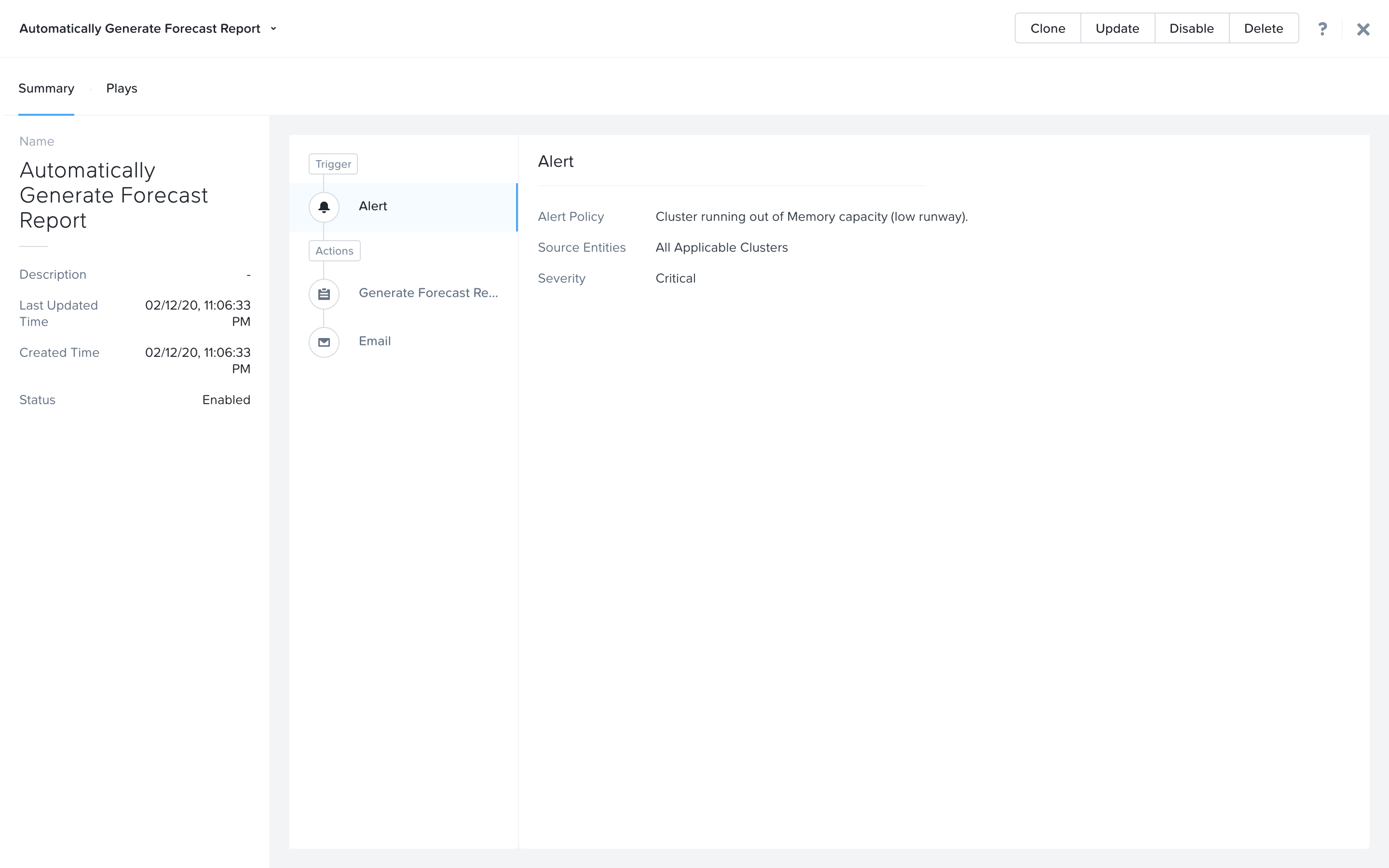
Switch back to the previous tab with the Prism Central console. From the table view click to open the details for the “Initials - Automatically Generate Forecast Report” Playbook.
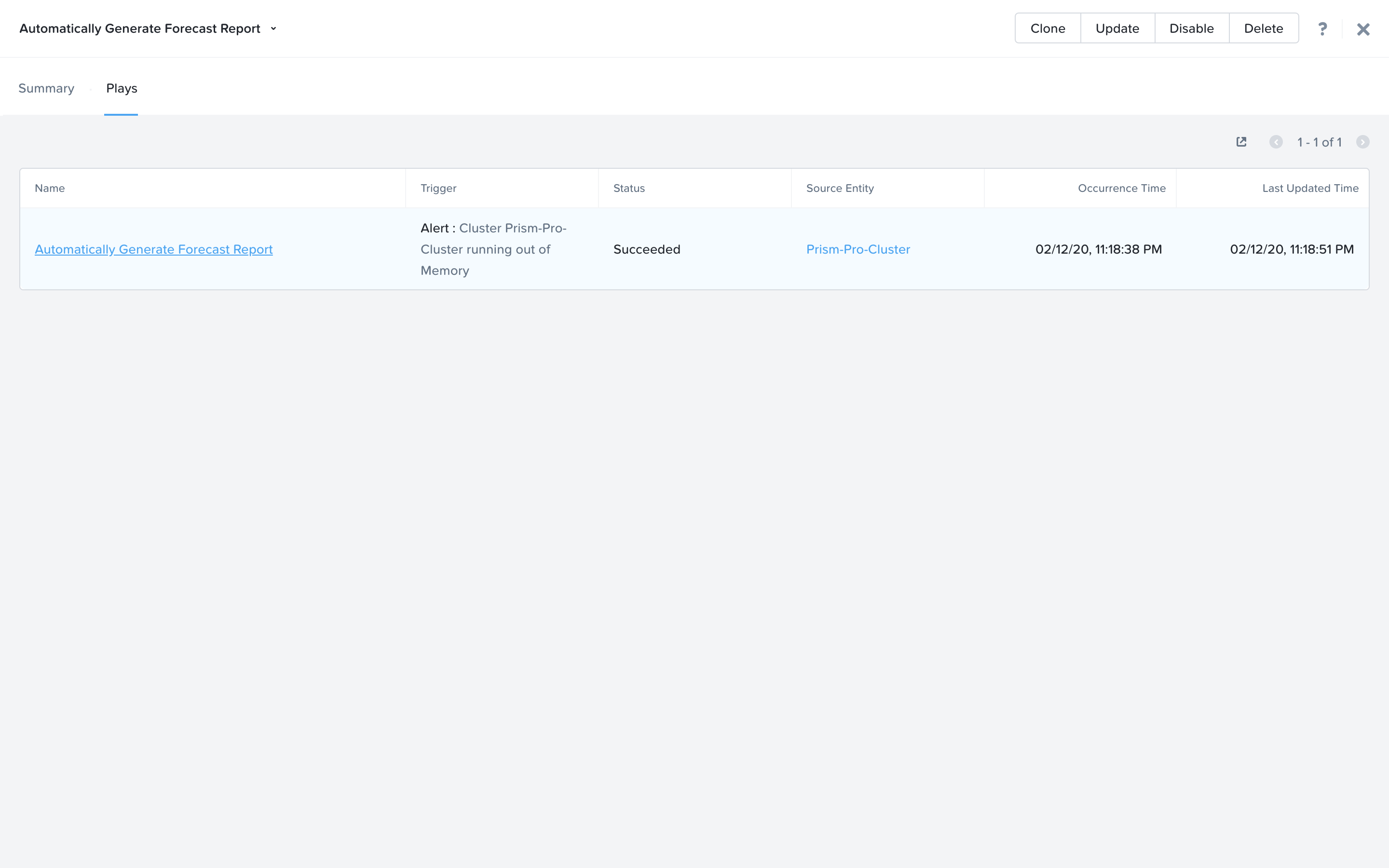
Switch to the Plays tab, and click on the title of the first Play in the table to take a closer look.
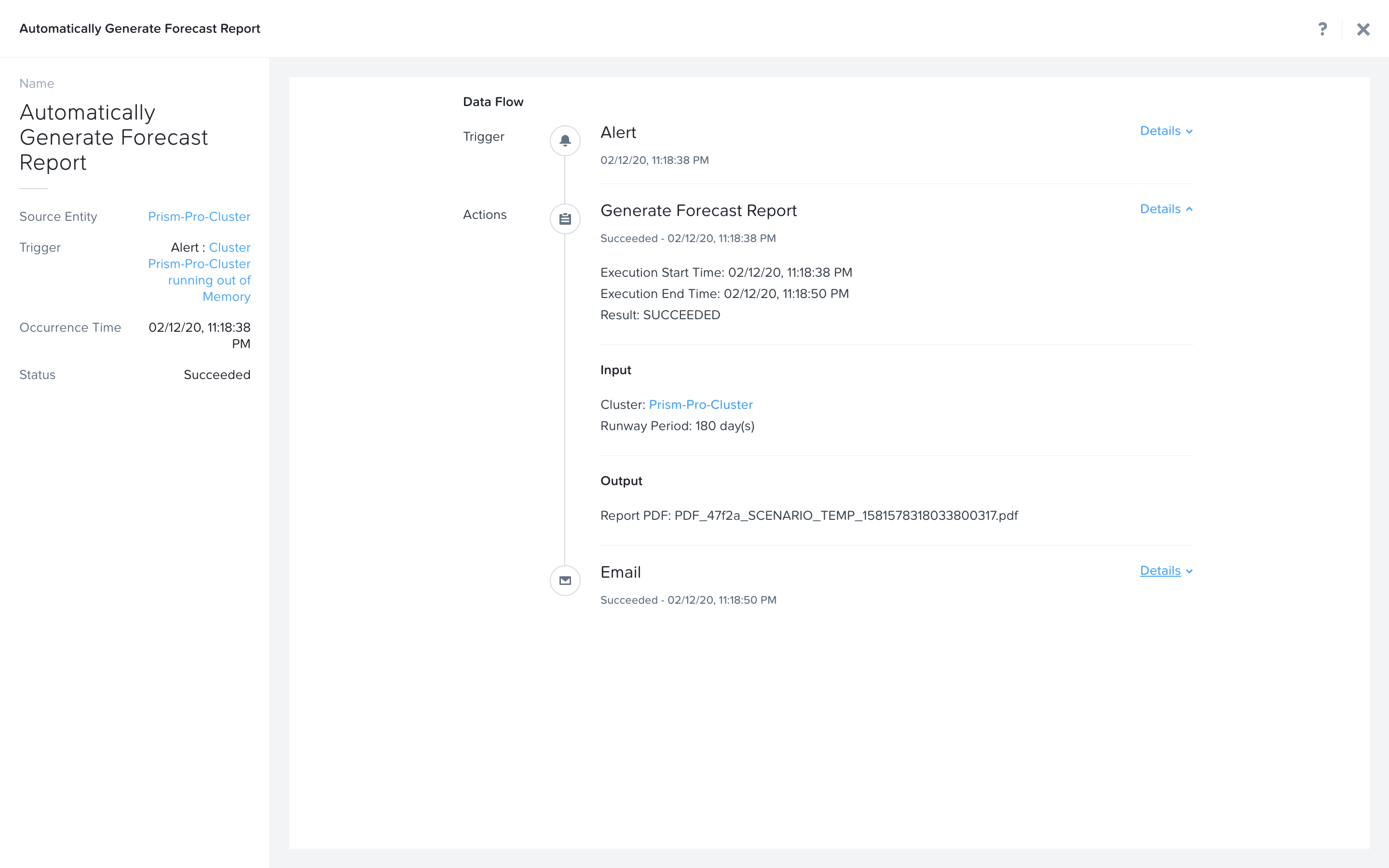
The sections in this view can be expanded to show more details for each item. If there were any errors, they would also be surfaced in this view.
Check your email. You should also get an email with the report attached for you to take a look. Note: In 5.11 the email can sometimes take up to 5 minutes to send.
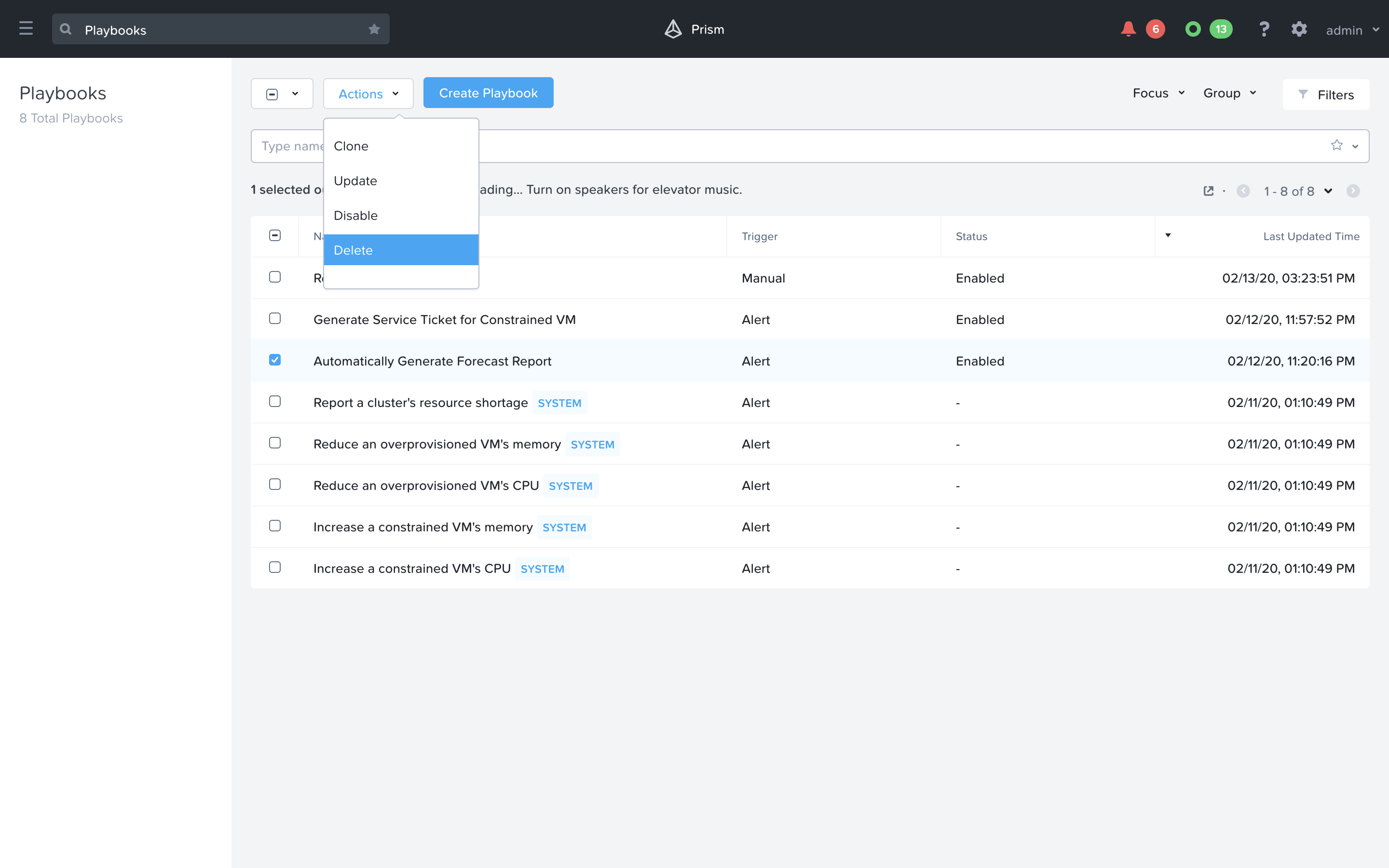
Delete or Disable your Playbook from the Prism Central before moving on to another lab. Since there are multiple users sharing the lab environment, the alerts they generate could cause you to continue to recieve emails as long as this Playbook is enabled.
Takeaways
Prism Pro is our solution to make IT OPS smarter and automated. It covers the IT OPS process ranging from intelligent detection to automated remediation.
X-FIT is our machine learning engine to support smart IT OPS, including capacity forecasting.
X-Play, the IFTTT for the enterprise, is our engine to enable the automation of daily operations tasks, making it so easy that automation can be built by every admin.