File Analytics: Deploy
Overview
In this exercise you will deploy the File Analytics VM and scan the existing shares to build out the dashboard. You will also create anomaly alerts and view the audit details for your file server instance.
Deploy File Analytics
In Prism > File Server > click Deploy File Analytics
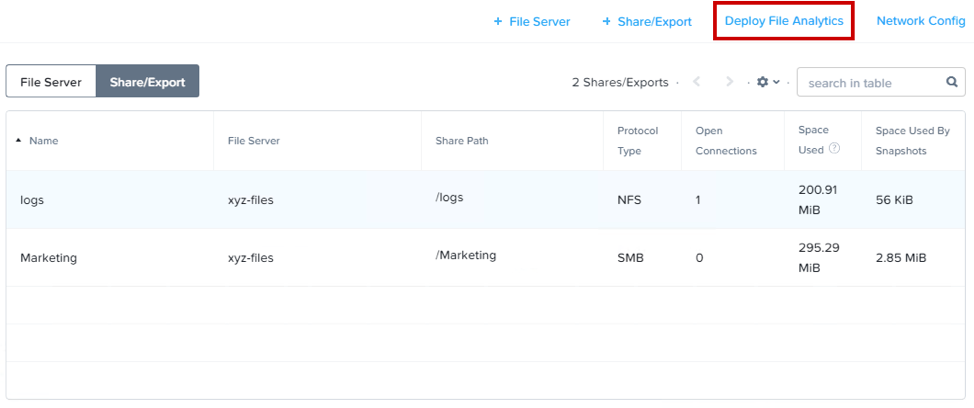
Select Deploy
For the purpose of saving time, the File Analytics 2.0.0 package has already been uploaded to your cluster. Files binaries can be downloaded from the Nutanix Portal and uploaded manually.
After the upload completes select Install
Fill out the details
Name - Initials
Storage Container – Will automatically select the container used by your file server instance
Network List – Primary - Managed
Select Show Advanced Settings
Ensure DNS Resolver IP is set to your Active Directory, ntnxlab.local, domain controller/DNS IP address and ONLY that address.
Choose Deploy
You can monitor the deployment from the Tasks page. The Analytics VM deployment should take ~5 minutes.
In Prism > File Server > click File Analytics
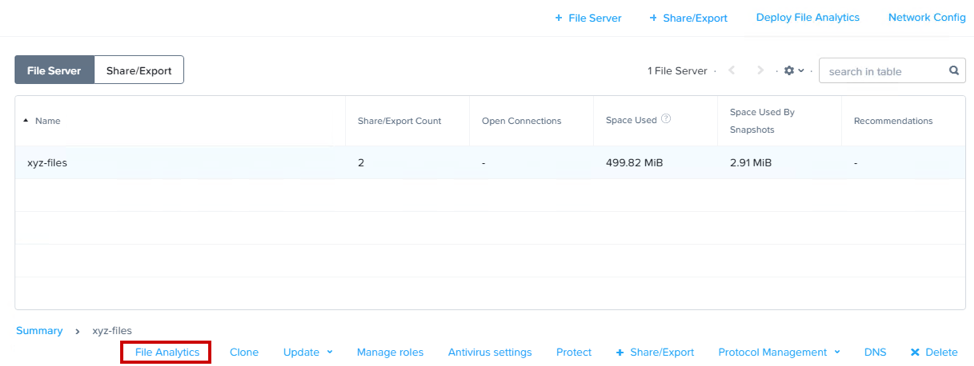
On the Enable File Analytics page enter your domain administrator which is also your file server administrator.
Username: administrator
Password: nutanix/4u
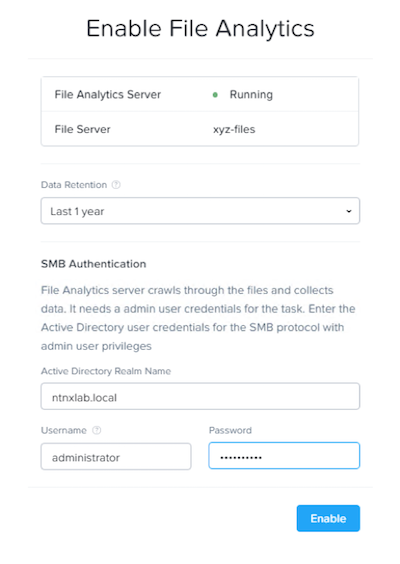
Select Enable