Deploying MS SQL
Traditional database VM deployment resembles the diagram below. The process generally starts with a IT ticket for a database (from Dev, Test, QA, Analytics, etc.). Next one or more teams will need to deploy the storage resources and VM(s) required. Once infrastructure is ready, a DBA needs to provision and configure database software. Once provisioned, any best practices and data protection/backup policies need to be applied. Finally the database can be handed over to the end user. That’s a lot of handoffs, and the potential for a lot of friction.
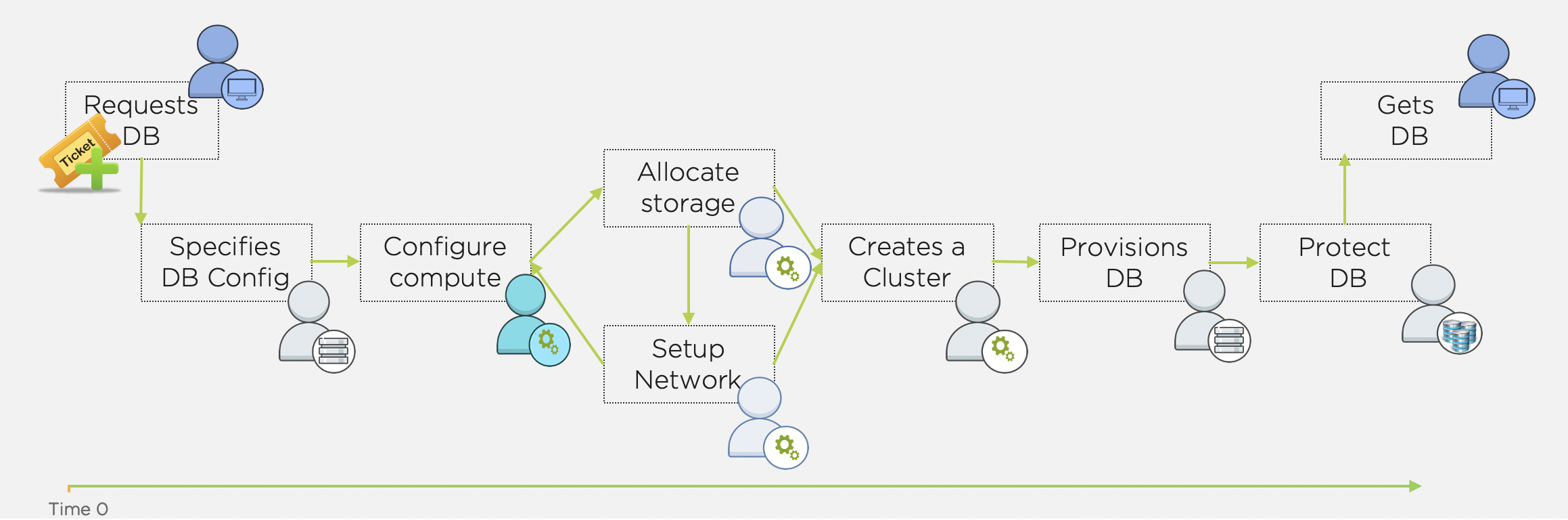
Whereas with a Nutanix cluster and Era, provisioning and protecting a database should take you no longer than it took to read this intro.
Source MSSQL VM
Log in to your UserXX-MSSQLSourceVM (Cancel Shutdown Event Tracker):
Username - Administrator
Password - Nutanix/4u
Note
This is assigned by the SE leading the Bootcamp
Disable Windows Firewall for all.
Open SQL Server Management Studio (SSMS), and Connect using Windows Authentication.
Verify you can browse the SampleDB.
Exploring Era Resources
Era is distributed as a virtual appliance that can be installed on either AHV or ESXi. For the purposes of conserving memory resources, a shared Era server has already been deployed on your cluster.
Note
If you’re interested, instructions for the brief installation of the Era appliance can be found here.
In Prism Central > VMs > List, identify the IP address assigned to the EraServer-* VM using the IP Addresses column.
Open https://ERA-VM-IP:8443/ in a new browser tab.
Login using the following credentials:
Username - admin
Password - <Cluster Password>
From the Dashboard dropdown, select Administration.
Under Cluster Details, note that Era has already been configured for your assigned cluster.
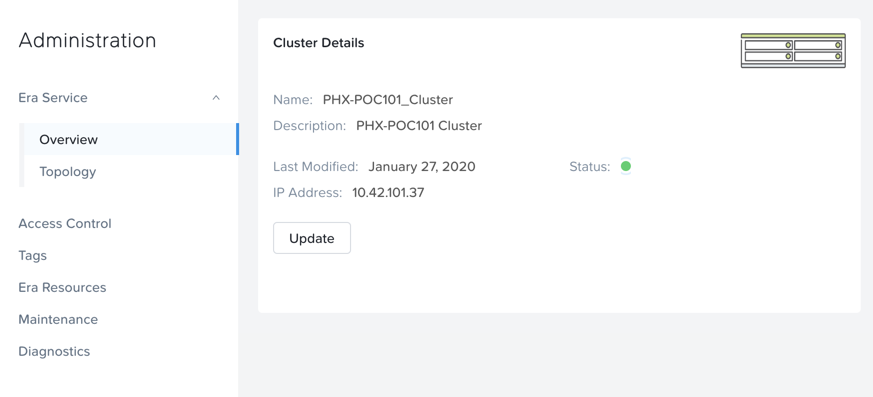
Select Era Resources from the left-hand menu.
From the dropdown menu, select SLAs.
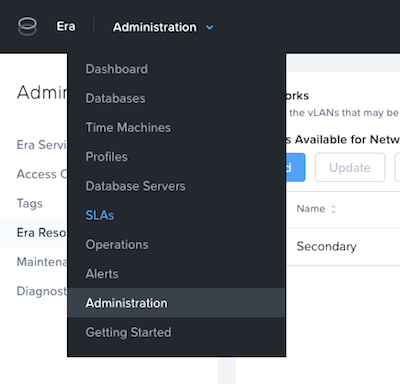
Era has five built-in SLAs (Gold, Silver, Bronze, Zero, and Brass). SLAs control how the database server is backed up. This can be with a combination of Continuous Protection, Daily, Weekly Monthly and Quarterly protection intervals.
From the dropdown menu, select Profiles.
Profiles pre-define resources and configurations, making it simple to consistently provision environments and reduce configuration sprawl. For example, Compute Profiles specifiy the size of the database server, including details such as vCPUs, cores per vCPU, and memory.
Registering Your MSSQL VM
Registering a database server with Era allows you to deploy databases to that resource, or to use that resource as the basis for a Software Profile.
You must meet the following requirements before you register a SQL Server database with Era:
A local user account or a domain user account with administrator privileges on the database server must be provided.
Windows account or the SQL login account provided must be a member of sysadmin role.
SQL Server instance must be running.
Database files must not exist in C:Drive.
Database must be in an online state.
Windows remote management (WinRM) must be enabled
Note
Your XYZ-MSSQL VM meets all of these criteria.
In Era, select Database Servers from the dropdown menu and List from the lefthand menu.
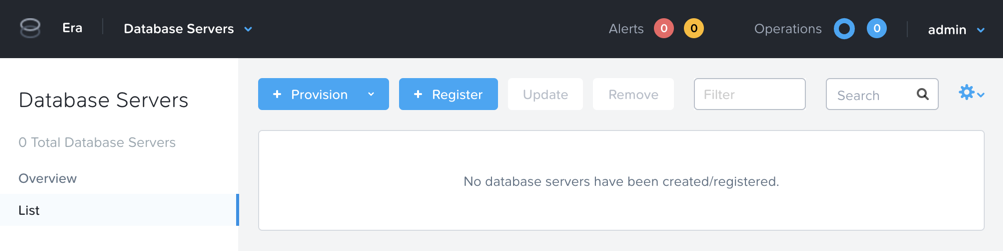
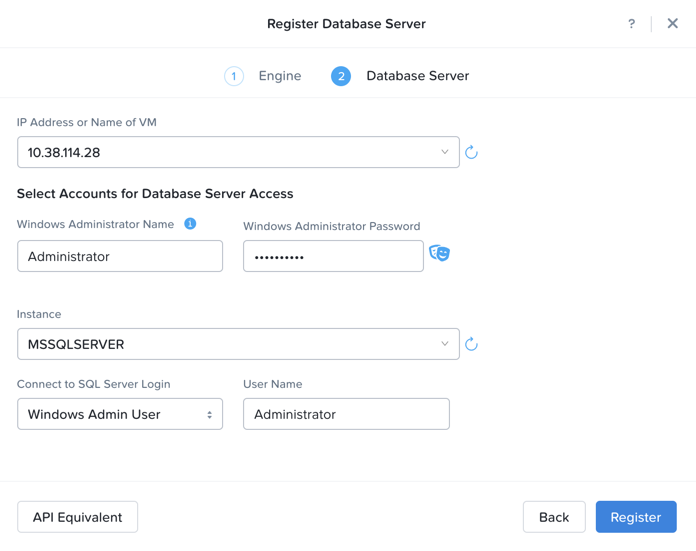
Click + Register and fill out the following fields:
Engine - Microsoft SQL Server
IP Address or Name of VM - UserXX-MSSQLSourceVM
Windows Administrator Name - Administrator
Windows Administrator Password - Nutanix/4u
Instance - MSSQLSERVER (This should auto-populate after providing credentials)
Connect to SQL Server Admin - Windows Admin User
User Name - Administrator
Note
If Instance does not automatically populate, disable the Windows Firewall in your UserXX-MSSQLSourceVM VM.
Note
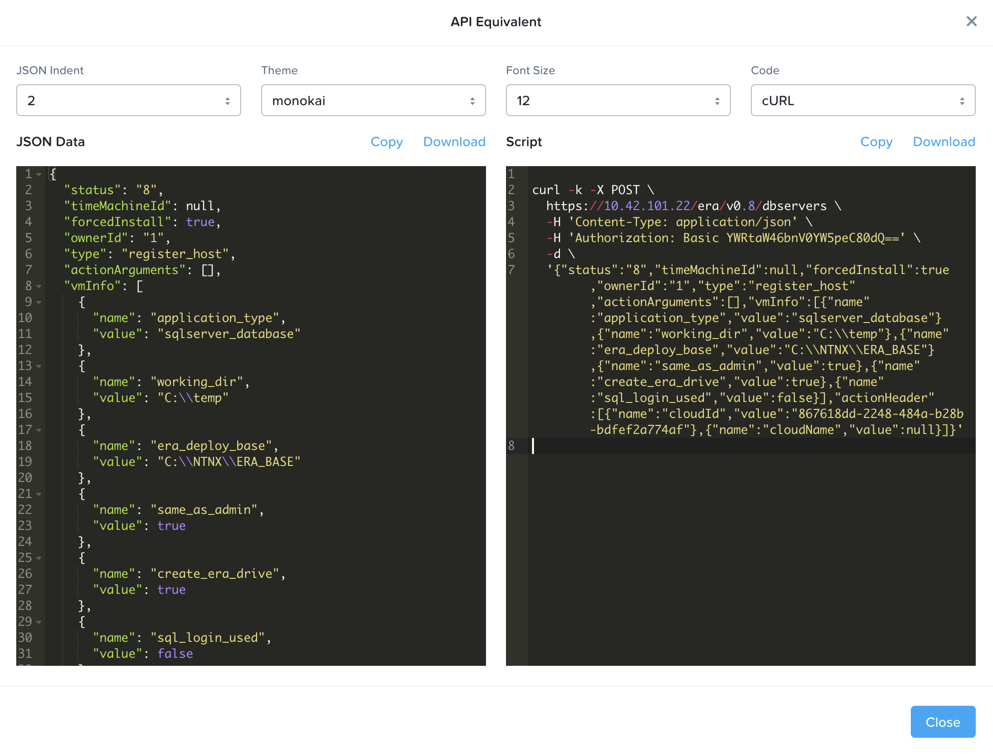
You can click API Equivalent for many operations in Era to enter an interactive wizard providing JSON payload based data you’ve input or selected within the UI, and examples of the API call in multiple languages (cURL, Python, Golang, Javascript, and Powershell).
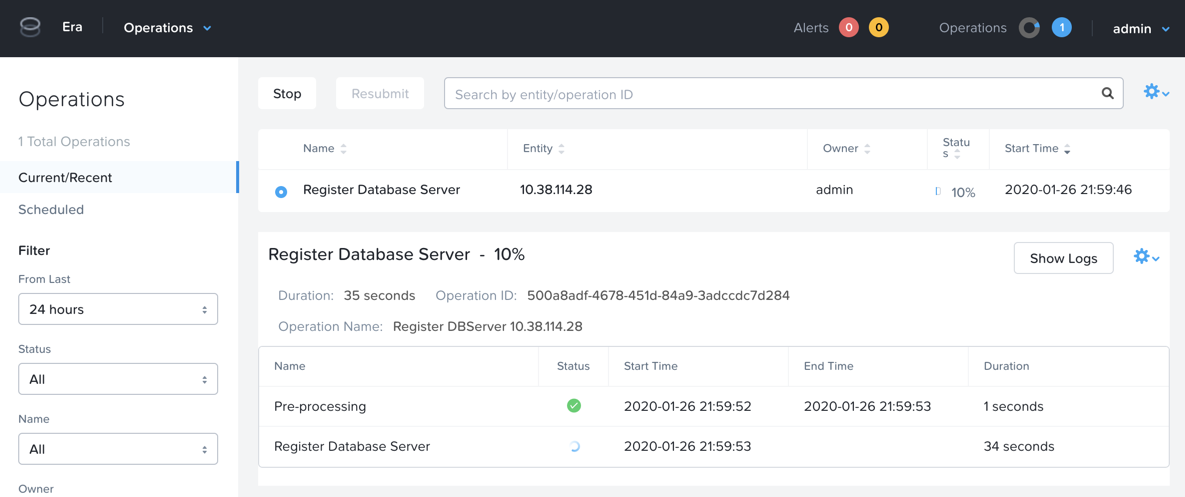
Click Register to begin ingesting the Database Server into Era.
Select Operations from the dropdown menu to monitor the registration. This process should take approximately 5 minutes.
Note
It is also possible to register existing databases on any server, which will also register the database server it is on.
Creating A Software Profile
Before additional SQL Server VMs can be provisioned, a Software Profile must first be created from the database server VM registered in the previous step. A software profile is a template that includes the SQL Server database and operating system. This template exists as a hidden, cloned disk image on your Nutanix storage.
Select Profiles from the dropdown menu and Software from the lefthand menu.
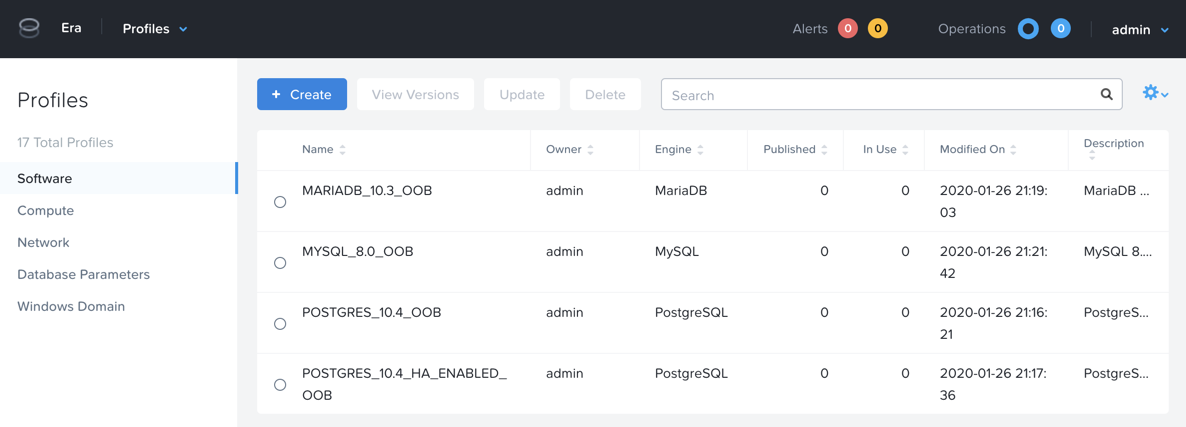
Click + Create and fill out the following fields:
Engine - Microsoft SQL Server
Name - Initials_MSSQL_2016
Description - (Optional)
Database Server - Select your registered Initials-MSSQL VM
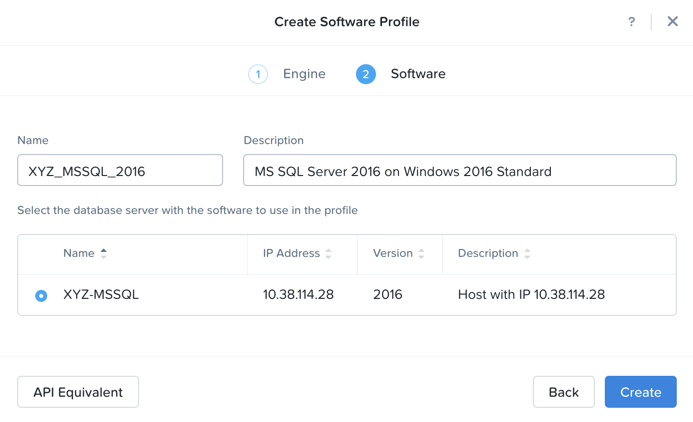
Click Create.
Select Operations from the dropdown menu to monitor the registration. This process should take approximately 5 minutes.
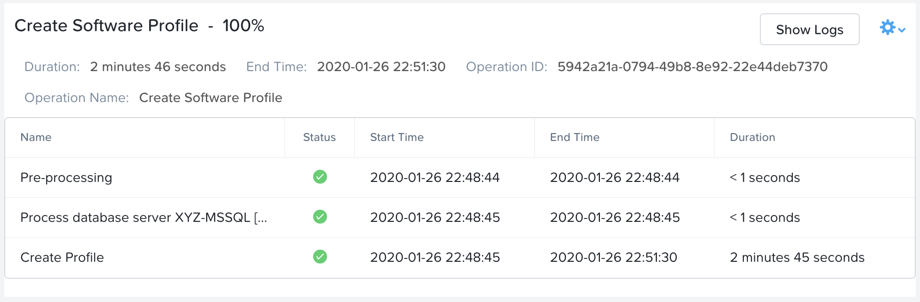
Note
If creating a profile from a not-cleanly shutdown server it may be corrupt or may not provision successfully. Please ensure that the DBServer had a clean shutdown and clean startup before registering profile to Era.