Calm: Linux Workloads
The estimated time to complete this lab is 60 minutes.
Overview
Nutanix Calm allows you to seamlessly select, provision, and manage your business applications across your infrastructure for both the private and public clouds. Nutanix Calm provides App lifecycle, monitoring and remediation to manage your heterogeneous infrastructure, for example, VMs or bare-metal servers. Nutanix Calm supports multiple platforms so that you can use a single self-service and automation interface to manage all your infrastructure.
In this lab you will explore the basics of Nutanix Calm by building and deploying a blueprint that installs and configures a multi-tier Task Manager web app using MySQL, nginix, and HAProxy.
Creating a Blueprint
A blueprint is the framework for every application that you model by using Nutanix Calm. Blueprints are templates that describe all the steps that are required to provision, configure, and execute tasks on the services and applications that are created. You can create a blueprint to represent the architecture of your application and then run the blueprint repeatedly to create an instance, provision, and launch your applications. A blueprint also defines the lifecycle of an application and its underlying infrastructure starting from the creation of the application to the actions that are carried out on a blueprint until the termination of the application.
You can use blueprints to model the applications of various complexities; from simply provisioning a single virtual machine to provisioning and managing a multi-node, multi-tier application.
In Prism Central, select > Services > Calm.
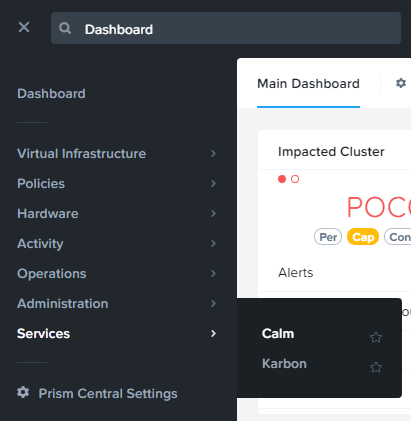
Select
 Blueprints in the left hand toolbar to view and manage Calm blueprints.
Note
Mousing over an icon will display its title.
Click + Create Blueprint > Multi VM/Pod Blueprint.
Fill out the following fields:
Name - Initials-CalmLinuxIntro
Description - [Task Manager Application](http://@@{HAProxy.address}@@/)
Project - Initials-Calm
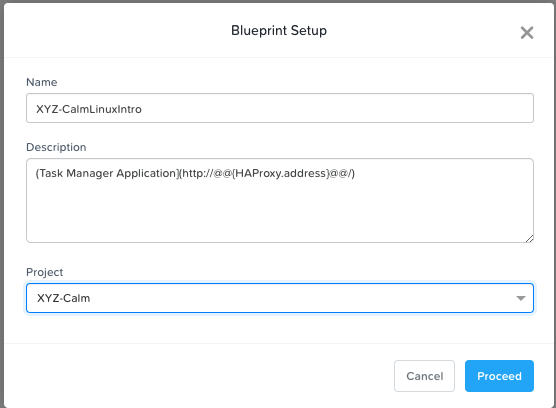
Click Proceed to launch the Blueprint Editor.
The Blueprint Editor provides a graphical representation of various components that enable you to visualize and configure the components and their dependencies in your environment.
Creating Credentials
First you will create a credential that will be used to authenticate Calm to the CentOS VMs you will eventually deploy. Credentials are unique to each Blueprint, and are not exported as part of the Blueprint for security purposes. Each Blueprint requires a minimum of 1 credential.
This exercise uses a “Generic Cloud” CentOS image. This is a common option for multiple popular Linux distributions that is lightweight, supports Cloud-Init based configuration, and utilizes SSH keypair authentication instead of passwords. Keypair based authentication is commonplace in all public cloud environments.
Click Credentials.

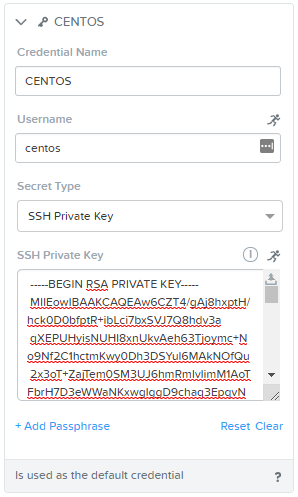
Click Credentials and fill out the following fields:
Credential Name - CENTOS
Username - centos
Secret Type - SSH Private Key
Key - Paste in your own private key, or use:
-----BEGIN RSA PRIVATE KEY-----
MIIEowIBAAKCAQEAii7qFDhVadLx5lULAG/ooCUTA/ATSmXbArs+GdHxbUWd/bNG
ZCXnaQ2L1mSVVGDxfTbSaTJ3En3tVlMtD2RjZPdhqWESCaoj2kXLYSiNDS9qz3SK
6h822je/f9O9CzCTrw2XGhnDVwmNraUvO5wmQObCDthTXc72PcBOd6oa4ENsnuY9
HtiETg29TZXgCYPFXipLBHSZYkBmGgccAeY9dq5ywiywBJLuoSovXkkRJk3cd7Gy
hCRIwYzqfdgSmiAMYgJLrz/UuLxatPqXts2D8v1xqR9EPNZNzgd4QHK4of1lqsNR
uz2SxkwqLcXSw0mGcAL8mIwVpzhPzwmENC5OrwIBJQKCAQB++q2WCkCmbtByyrAp
6ktiukjTL6MGGGhjX/PgYA5IvINX1SvtU0NZnb7FAntiSz7GFrODQyFPQ0jL3bq0
MrwzRDA6x+cPzMb/7RvBEIGdadfFjbAVaMqfAsul5SpBokKFLxU6lDb2CMdhS67c
1K2Hv0qKLpHL0vAdEZQ2nFAMWETvVMzl0o1dQmyGzA0GTY8VYdCRsUbwNgvFMvBj
8T/svzjpASDifa7IXlGaLrXfCH584zt7y+qjJ05O1G0NFslQ9n2wi7F93N8rHxgl
JDE4OhfyaDyLL1UdBlBpjYPSUbX7D5NExLggWEVFEwx4JRaK6+aDdFDKbSBIidHf
h45NAoGBANjANRKLBtcxmW4foK5ILTuFkOaowqj+2AIgT1ezCVpErHDFg0bkuvDk
QVdsAJRX5//luSO30dI0OWWGjgmIUXD7iej0sjAPJjRAv8ai+MYyaLfkdqv1Oj5c
oDC3KjmSdXTuWSYNvarsW+Uf2v7zlZlWesTnpV6gkZH3tX86iuiZAoGBAKM0mKX0
EjFkJH65Ym7gIED2CUyuFqq4WsCUD2RakpYZyIBKZGr8MRni3I4z6Hqm+rxVW6Dj
uFGQe5GhgPvO23UG1Y6nm0VkYgZq81TraZc/oMzignSC95w7OsLaLn6qp32Fje1M
Ez2Yn0T3dDcu1twY8OoDuvWx5LFMJ3NoRJaHAoGBAJ4rZP+xj17DVElxBo0EPK7k
7TKygDYhwDjnJSRSN0HfFg0agmQqXucjGuzEbyAkeN1Um9vLU+xrTHqEyIN/Jqxk
hztKxzfTtBhK7M84p7M5iq+0jfMau8ykdOVHZAB/odHeXLrnbrr/gVQsAKw1NdDC
kPCNXP/c9JrzB+c4juEVAoGBAJGPxmp/vTL4c5OebIxnCAKWP6VBUnyWliFhdYME
rECvNkjoZ2ZWjKhijVw8Il+OAjlFNgwJXzP9Z0qJIAMuHa2QeUfhmFKlo4ku9LOF
2rdUbNJpKD5m+IRsLX1az4W6zLwPVRHp56WjzFJEfGiRjzMBfOxkMSBSjbLjDm3Z
iUf7AoGBALjvtjapDwlEa5/CFvzOVGFq4L/OJTBEBGx/SA4HUc3TFTtlY2hvTDPZ
dQr/JBzLBUjCOBVuUuH3uW7hGhW+DnlzrfbfJATaRR8Ht6VU651T+Gbrr8EqNpCP
gmznERCNf9Kaxl/hlyV5dZBe/2LIK+/jLGNu9EJLoraaCBFshJKF
-----END RSA PRIVATE KEY-----
Click Save, and then Back.
Note
If you don’t see the Save and Back buttons, make sure your browser screen is maximized.
Defining Variables
Variables allow extensibility of Blueprints, meaning a single Blueprint can be used for multiple purposes and environments depending on the configuration of its variables. Variables can either be static values saved as part of the Blueprint or they can be specified at Runtime (when the Blueprint is launched). Variables are specific to a given Application Profile, which is the platform on which the blueprint will be deployed. For example, a blueprint capable of being deployed to both AHV and AWS would have 2 Application Profiles. Each profile could have individual variables and VM configurations.
By default, variables are stored as a String and are visible in the Configuration Pane. Setting a variable as Secret will mask the value and is ideal for variables such as passwords. In addition to the String and Secret options, there are Integer, Multi-line String, Date, Time, and Date Time Data Types, and more advanced Input Types, however these are outside the scope of this lab.
Variables can be used in scripts executed against objects using the @@{variable_name}@@ construct. Calm will expand and replace the variable with the appropriate value before sending to the VM.
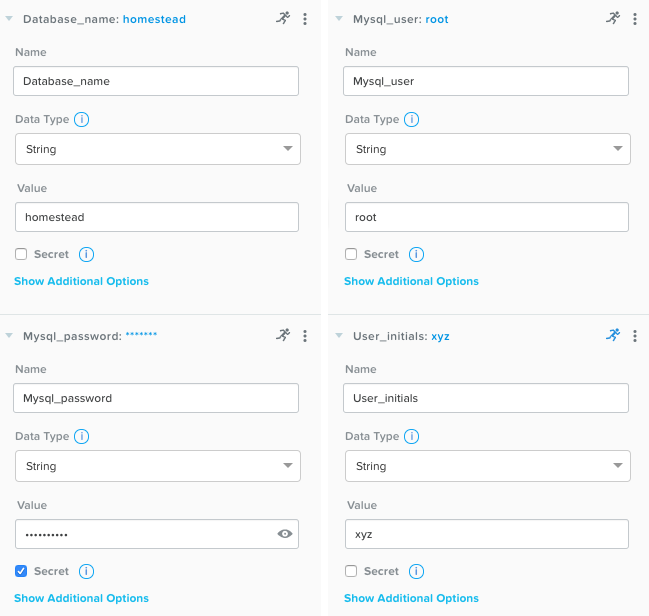
In the Configuration Pane on the right side of the Blueprint Editor, under Variables, add the following variables by clicking on the + sign (Runtime is specified by toggling the Running Man icon to Blue):
Variable Name
Data Type | Value
Secret
Runtime
User_initials
String | xyz
X
Mysql_user
String | root
Mysql_password
String | nutanix/4u
X
Database_name
String | homestead
Click Save.
Adding a Downloadable Image
VMs in AHV can be deployed based on a disk image. With Calm, you can select a Downloadable Image via a URI. During the application deployment, Prism Central will automatically download and create the image specified. If an image with the same URI already exists on the cluster, it will skip the download and use the local image instead.
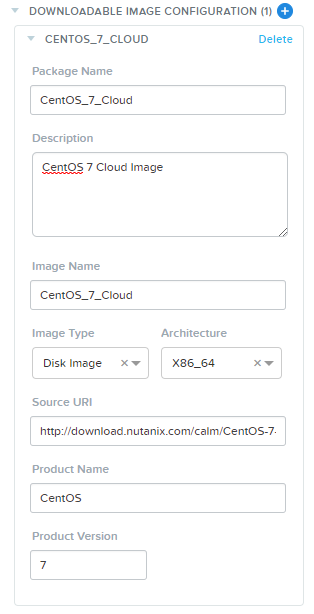
From the top toolbar, click Configuration > Downloadable Image Configuration and fill out the following fields:
Package Name - CentOS_7_Cloud
Description - CentOS 7 Cloud Image
Image Name - CentOS_7_Cloud
Image Type - Disk Image
Architecture - X86_64
Source URI - http://download.nutanix.com/calm/CentOS-7-x86_64-GenericCloud.qcow2
Product Name - CentOS
Product Version - 7
Note
This Generic Cloud image is the same that’s used for the majority of the Nutanix Pre-Seeded Application Blueprints.
Click Save, and then Back.
Creating Services
Services are the virtual machine instances, existing machines or bare-metal machines, that you can provision and configure by using Nutanix Calm.
In this exercise you will create the database, webserver, and load balancer services that comprise your application.
Creating the Database Service
In Application Overview > Service, click to add a new Service.
Note
The pane within the Blueprint Editor used to create and manage Blueprint Layers is called the Application Overview. Blueprint Layers consist of Services, Actions, and Application Profiles.
By default, the Application Overview is located in the lower left-hand corner of the Blueprint Editor and is used to create and manage Blueprint layers such as Services, Application Profiles, and Actions.
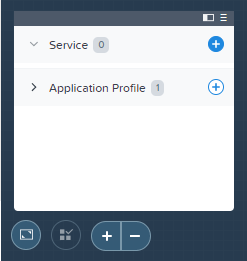
Note Service1 appears in the Workspace and the Configuration Pane reflects the configuration of the selected Service.
Fill out the following fields:
Service Name - MySQL
Name - MySQLAHV
Note
This defines the name of the substrate within Calm. Names can only contain alphanumeric characters, spaces, and underscores.
Cloud - Nutanix
OS - Linux
VM Name - @@{User_initials}@@-MYSQL-@@{calm_array_index}@@-@@{calm_time}@@
Note
This will use the Runtime User_initials variable you previously provided to prepend the VM name with your initials. It will also use built-in macros to provide the array index (for scale out services) and a time stamp.
vCPUs - 2
Cores per vCPU - 1
Memory (GiB) - 4
Select Guest Customization
Type - Cloud-init
Script -
#cloud-config
users:
  - name: centos
    ssh-authorized-keys:
      - @@{CENTOS.public_key}@@
    sudo: ['ALL=(ALL) NOPASSWD:ALL']
Note
When using an SSH Private Key Credential, Calm is able to decode that private key into the matching public key, and makes the decoded value accessable via the @@{Credential_Name.public_key}@@ macro. Cloud-Init is then leveraged to populate the SSH public key value as an authorized key, allowing for the corresponding private key to be used to authenticate to the host.
Under DISK section:
Device Type - Disk
Device Bus - SCSI
Image - CentOS_7_Cloud
Select Bootable
Under Network section:
Select under Network Adapters (NICs)
NIC 1 - Primary
Private IP - Dynamic
Under Connection section:
Credential - CENTOS
Click Save.
Note
If errors or warnings are presented after saving the blueprint, hover over the icon in the top toolbar to see a list of issues. Resolve any issues and Save the blueprint again.
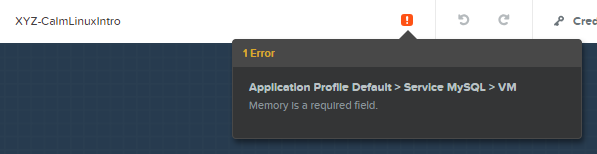
Now that you have completed the deployment details for the VM associated with the service, the next step is to tell Calm how the application will be installed on the VM.
Creating the MySQL Server Service
With the MySQL service icon selected in the Workspace pane (the blue background area), scroll to the top of the Configuration Panel, and select the Package tab.
The Package is the configuration and application(s) installed on the Service, and is typically accomplished by executing a script on the Service VM.
Specify MySQL_PACKAGE as the Package Name and click Configure install.
Package Name - MYSQL_PACKAGE
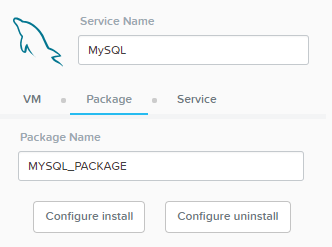
Note the Package install field that appears on the MySQL service in the Workspace pane.
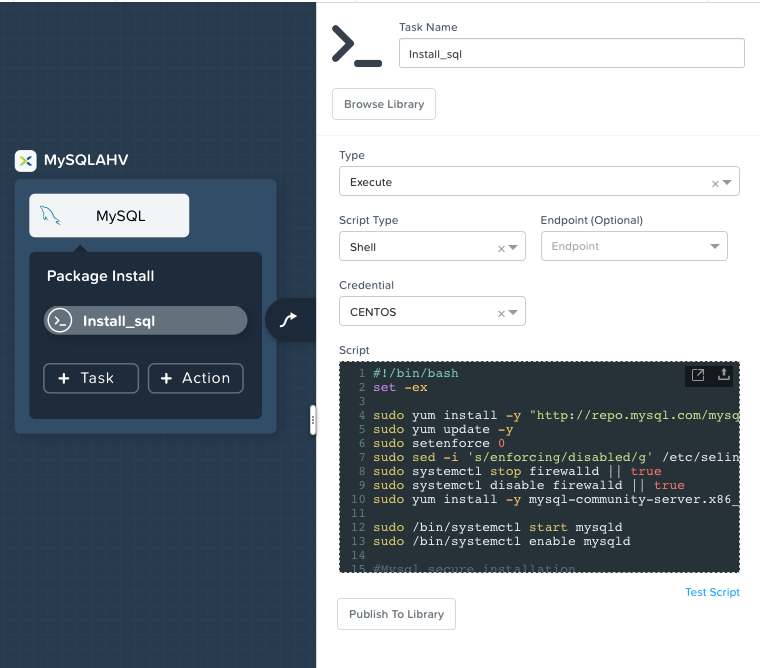
Select + Task, and fill out the following fields in the Configuration Panel to define the script that Calm will remotely execute on the MySQL Service VM:
Task Name - Install_sql
Type - Execute
Script Type - Shell
Endpoint (Optional) - Leave default
Credential - CENTOS
Script -
#!/bin/bash
set -ex

sudo yum install -y "http://repo.mysql.com/mysql-community-release-el7-5.noarch.rpm"
sudo yum update -y
sudo setenforce 0
sudo sed -i 's/enforcing/disabled/g' /etc/selinux/config /etc/selinux/config
sudo systemctl stop firewalld || true
sudo systemctl disable firewalld || true
sudo yum install -y mysql-community-server.x86_64

sudo /bin/systemctl start mysqld
sudo /bin/systemctl enable mysqld

#Mysql secure installation
mysql -u root<<-EOF

UPDATE mysql.user SET Password=PASSWORD('@@{Mysql_password}@@') WHERE User='@@{Mysql_user}@@';
DELETE FROM mysql.user WHERE User='@@{Mysql_user}@@' AND Host NOT IN ('localhost', '127.0.0.1', '::1');
DELETE FROM mysql.user WHERE User='';
DELETE FROM mysql.db WHERE Db='test' OR Db='test\_%';

FLUSH PRIVILEGES;
EOF

mysql -u @@{Mysql_user}@@ -p@@{Mysql_password}@@ <<-EOF
CREATE DATABASE @@{Database_name}@@;
GRANT ALL PRIVILEGES ON homestead.* TO '@@{Database_name}@@'@'%' identified by 'secret';

FLUSH PRIVILEGES;
EOF
Note
You can click the Pop Out icon on the script field for a larger window to view/edit scripts.
Reviewing the script you can see the package will install MySQL, configure the credentials and create a database based on the variables specified earlier in the exercise.
Select the MySQL service icon in the Workspace pane again, select the Package tab in the Configuration Panel.
Click Configure uninstall.
Select + Task, and fill out the following fields in the Configuration Panel:
Task Name - Uninstall_sql
Type - Execute
Script Type - Shell
Endpoint (Optional) - Leave default
Credential - CENTOS
Script -
#!/bin/bash
echo "Goodbye!"
Note
The uninstall script can be used for removing packages, updating network services like DHCP and DNS, removing entries from Active Directory, etc. It is not being used for this simple example.
Click Save. You will be prompted with specific errors if there are validation issues such as missing fields or unacceptable characters.
Creating the Web Server Service
You will now follow similar steps to define a web server service.
In Application Overview > Services, add an additional service by clicking on the + sign.
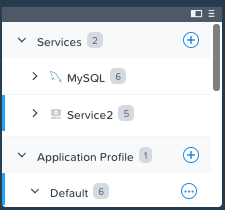
Select the new service and fill out the following VM fields in the Configuration Panel:
Service Name - WebServer
Name - WebServerAHV
Cloud - Nutanix
OS - Linux
VM Name - @@{User_initials}@@-WebServer-@@{calm_array_index}@@
vCPUs - 2
Cores per vCPU - 1
Memory (GiB) - 4
Select Guest Customization
Type - Cloud-init
Script -
#cloud-config
users:
  - name: centos
    ssh-authorized-keys:
      - @@{CENTOS.public_key}@@
    sudo: ['ALL=(ALL) NOPASSWD:ALL']
Under DISK section:
Device Type - Disk
Device Bus - SCSI
Image - CentOS_7_Cloud
Select Bootable
Under Network section:
Select under Network Adapters (NICs)
NIC 1 - Primary
Private IP - Dynamic
Under Connection section:
Credential - CENTOS
Select the Package tab.
Specify a Package Name and click Configure install.
Package Name - WebServer_PACKAGE
Select + Task, and fill out the following fields in the Configuration Panel:
Name Task - Install_WebServer
Type - Execute
Script Type - Shell
Endpoint (Optional) - Leave default
Credential - CENTOS
Script -
#!/bin/bash
set -ex

sudo yum update -y
sudo yum -y install epel-release
sudo setenforce 0
sudo sed -i 's/enforcing/disabled/g' /etc/selinux/config /etc/selinux/config
sudo systemctl stop firewalld || true
sudo systemctl disable firewalld || true
sudo rpm -Uvh https://mirror.webtatic.com/yum/el7/webtatic-release.rpm
sudo yum update -y
sudo yum install -y nginx php56w-fpm php56w-cli php56w-mcrypt php56w-mysql php56w-mbstring php56w-dom git unzip

sudo mkdir -p /var/www/laravel
echo "server {
 listen 80 default_server;
 listen [::]:80 default_server ipv6only=on;
root /var/www/laravel/public/;
 index index.php index.html index.htm;
location / {
 try_files \$uri \$uri/ /index.php?\$query_string;
 }
 # pass the PHP scripts to FastCGI server listening on /var/run/php5-fpm.sock
 location ~ \.php$ {
 try_files \$uri /index.php =404;
 fastcgi_split_path_info ^(.+\.php)(/.+)\$;
 fastcgi_pass 127.0.0.1:9000;
 fastcgi_index index.php;
 fastcgi_param SCRIPT_FILENAME \$document_root\$fastcgi_script_name;
 include fastcgi_params;
 }
}" | sudo tee /etc/nginx/conf.d/laravel.conf
sudo sed -i 's/80 default_server/80/g' /etc/nginx/nginx.conf
if `grep "cgi.fix_pathinfo" /etc/php.ini` ; then
 sudo sed -i 's/cgi.fix_pathinfo=1/cgi.fix_pathinfo=0/' /etc/php.ini
else
 sudo sed -i 's/;cgi.fix_pathinfo=1/cgi.fix_pathinfo=0/' /etc/php.ini
fi

sudo systemctl enable php-fpm
sudo systemctl enable nginx
sudo systemctl restart php-fpm
sudo systemctl restart nginx

if [ ! -e /usr/local/bin/composer ]
then
 curl -sS https://getcomposer.org/installer | php
 sudo mv composer.phar /usr/local/bin/composer
 sudo chmod +x /usr/local/bin/composer
fi

sudo git clone https://github.com/ideadevice/quickstart-basic.git /var/www/laravel
sudo sed -i 's/DB_HOST=.*/DB_HOST=@@{MySQL.address}@@/' /var/www/laravel/.env

sudo su - -c "cd /var/www/laravel; composer install"
if [ "@@{calm_array_index}@@" == "0" ]; then
 sudo su - -c "cd /var/www/laravel; php artisan migrate"
fi

sudo chown -R nginx:nginx /var/www/laravel
sudo chmod -R 777 /var/www/laravel/
sudo systemctl restart nginx
This script installs PHP and Nginx to create a web server, and then a Laravel based web application. It then configures the web application settings, including updating the DB_HOST with the MySQL IP address, accessed via the @@{MySQL.address}@@ macro.
Select the Package tab and click Configure uninstall.
Select + Task, and fill out the following fields in the Configuration Panel:
Name Task - Uninstall_WebServer
Type - Execute
Script Type - Shell
Endpoint (Optional) - Leave default
Credential - CENTOS
Script -
#!/bin/bash
set -ex

sudo rm -rf /var/www/laravel
sudo yum erase -y nginx
For many applications it is common to need to scale out a given service, such as the web tier in order to handle more concurrent users. Calm makes it simple to turn deploy an array containing multiple copies of a given service.
With the WebServer service icon selected in the Workspace pane, scroll to the top of the Configuration Panel, and select the Service tab.
Under Deployment Config > Number of Replicas, increase the Default and Min value from 1 to 2 and the Max value from 1 to 4.
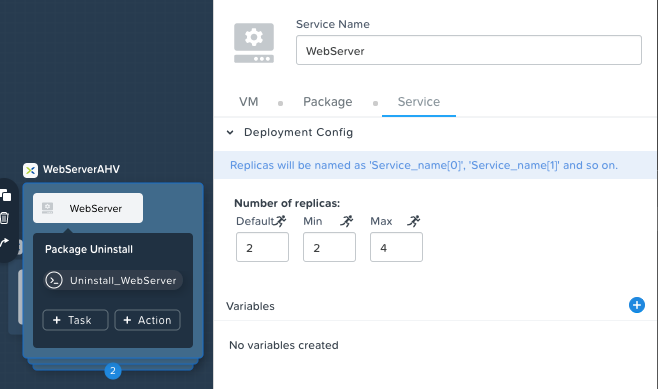
This change will provision a minimum of 2 WebServer VMs for each deployment of the application, and allow the array to grow up to a total of 4 WebServer VMs.
Note
Scaling an application in and out will require additional scripting so that the application understands how to leverage the additional VMs.
Click Save.
Creating the Load Balancer Service
To take advantage of a scale out web tier, your application needs to be able to load balance connections across multiple web server VMs. HAProxy is a free, open source TCP/HTTP load balancer used to distribute workloads across multiple servers. It can be used anywhere from small, simple deployments to large web-scale environments such as GitHub, Instagram, and Twitter.
In Application Overview > Services, add an additional service.
Select the new service and fill out the following VM fields in the Configuration Panel:
Service Name - HAProxy
Name - HAProxyAHV
Cloud - Nutanix
OS - Linux
VM Name - @@{User_initials}@@-HAProxy-@@{calm_array_index}@@
vCPUs - 2
Cores per vCPU - 1
Memory (GiB) - 4
Select Guest Customization
Type - Cloud-init
Script -
#cloud-config
users:
  - name: centos
    ssh-authorized-keys:
      - @@{CENTOS.public_key}@@
    sudo: ['ALL=(ALL) NOPASSWD:ALL']
Under DISK section:
Device Type - Disk
Device Bus - SCSI
Image - CentOS_7_Cloud
Select Bootable
Under Network section:
Select under Network Adapters (NICs)
NIC 1 - Primary
Private IP - Dynamic
Under Connection section:
Credential - CENTOS
Select the Package tab.
Specify a Package Name and click Configure install.
Package Name - HAProxy_PACKAGE
Select + Task, and fill out the following fields in the Configuration Panel:
Name Task - Install_HAProxy
Type - Execute
Script Type - Shell
Endpint (optional) - Leave default
Credential - CENTOS
Script -
#!/bin/bash
set -ex

sudo yum update -y
sudo yum install -y haproxy
sudo setenforce 0
sudo sed -i 's/enforcing/disabled/g' /etc/selinux/config /etc/selinux/config
sudo systemctl stop firewalld || true
sudo systemctl disable firewalld || true

echo "global
 log 127.0.0.1 local0
 log 127.0.0.1 local1 notice
 maxconn 4096
 quiet
 user haproxy
 group haproxy
defaults
 log global
 mode http
 retries 3
 timeout client 50s
 timeout connect 5s
 timeout server 50s
 option dontlognull
 option httplog
 option redispatch
 balance roundrobin
# Set up application listeners here.
listen admin
 bind 127.0.0.1:22002
 mode http
 stats uri /
frontend http
 maxconn 2000
 bind 0.0.0.0:80
 default_backend servers-http
backend servers-http" | sudo tee /etc/haproxy/haproxy.cfg

hosts=$(echo "@@{WebServer.address}@@" | tr "," "\n")
port=80

for host in $hosts
  do echo " server host-${host} ${host}:${port} weight 1 maxconn 100 check" | sudo tee -a /etc/haproxy/haproxy.cfg
done

sudo systemctl daemon-reload
sudo systemctl enable haproxy
sudo systemctl restart haproxy
Note
Note the use of the @@{WebServer.address}@@ macro in the script above. The macro returns a comma delimited list of all IPs of the VMs within that service. The script then uses the tr command to replace commas with carriage returns. The result is an array, $hosts, containing strings of all WebServer IP addresses. Those addresses are then each added to the HAProxy configuration file.
Select the Package tab and click Configure uninstall.
Select + Task, and fill out the following fields in the Configuration Panel:
Name Task - Uninstall_HAProxy
Type - Execute
Script Type - Shell
Credential - CENTOS
Script -
#!/bin/bash
set -ex

sudo
yum -y erase haproxy
Click Save.
Adding Dependencies
As our application will require the database to be running before the web server starts, our Blueprint requires a dependency to enforce this ordering. There are a couple of ways to do this, one of which you’ve already done without likely realizing it.
In the Application Overview > Application Profile section, expand the Default Application Profile and click the Create Action.
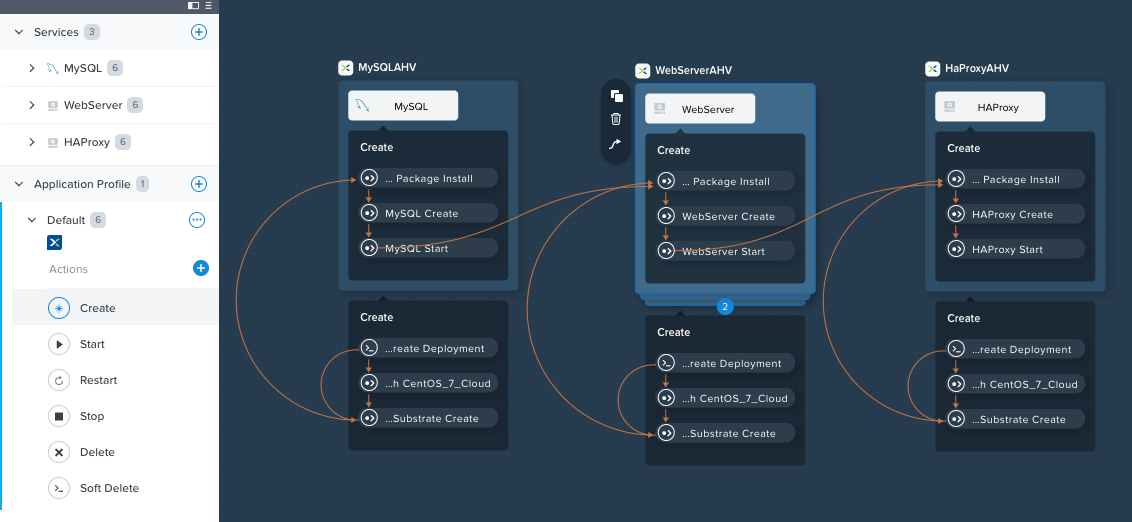
Take note of the Orange Orchestration Edge going from the MySQL Start task to the WebServer Package Install task. This edge was automatically created by Calm due to the @@{MySQL.address}@@ macro reference in the WebServer Package Install task. Since the system needs to know the IP Address of the MySQL service prior to being able to proceed with the WebServer Install task, Calm intelligently creates the orchestration edge for you. This requires the MySQL service to be started prior to moving on to the WebServer Install task.
Return to the HAProxy Package Install task, why are orchestration edges automatically created between the WebServer and HAProxy services?
Next, select the Stop Profile Action.
Note that lack of orchestration edges between services when stopping an application. Why might issuing shutdown commands to all services within the application simultaneously create an issue?
Click on each Profile Action to take note of the current presence (or lack thereof) of the orchestration edges.
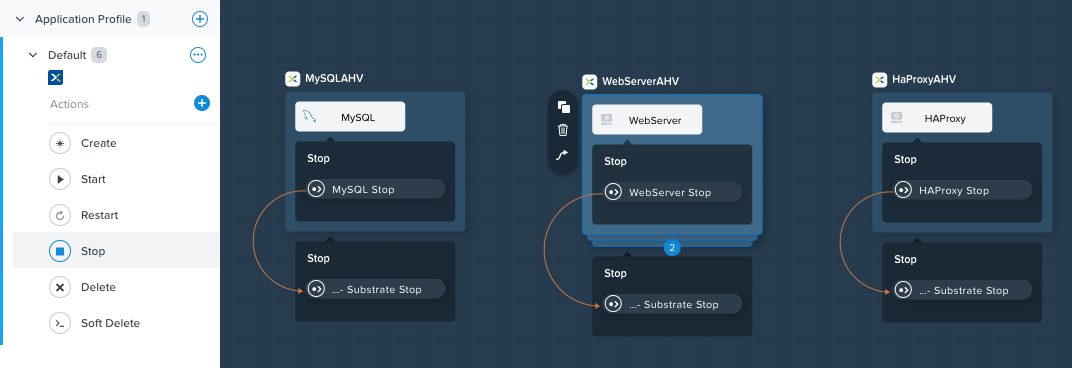
To resolve this, you’ll manually define a dependencies between services.
Select the WebServer Service and click the Create Dependency icon that appears above the Service icon, and then click on the MySQL service.
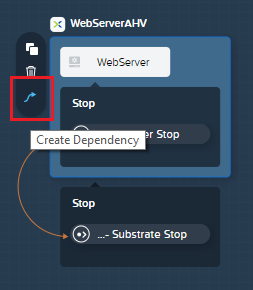
This represents that the WebServer service “depends” upon the MySQL service, meaning the MySQL service will start before, and stop after, the WebServer service.
Now create a dependency for the HAProxy service to depend on the WebServer service.
Click Save.
Re-visit the Profile Actions and confirm the edges now properly reflect the dependencies between the services, as shown below:
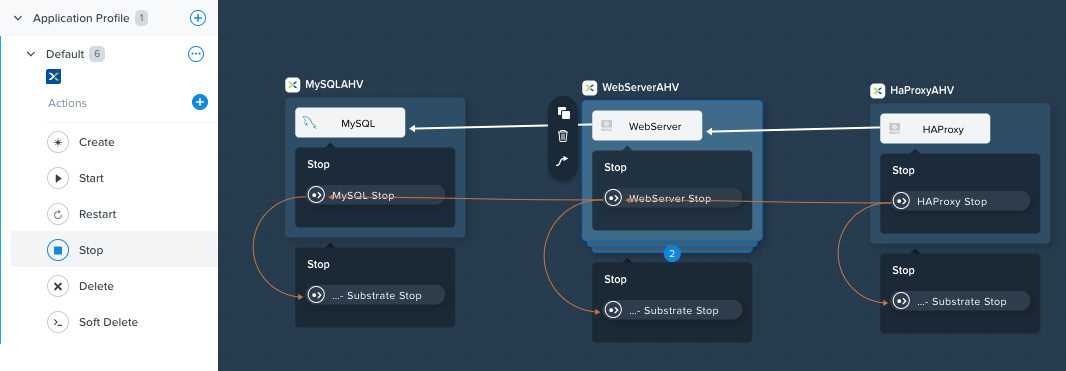
Drawing the white dependency arrows will cause Calm to create orchestration edges for all System Defined Profile Actions (Create, Start, Restart, Stop, Delete, and Soft Delete).
Launching and Managing the Application
From the upper toolbar in the Blueprint Editor, click Launch.
Specify a unique Application Name (e.g. Initials-CalmLinuxIntro1) and your User_initials Runtime variable value for VM naming.
Click Create.
The Audit tab can be used to monitor the deployment of the application.
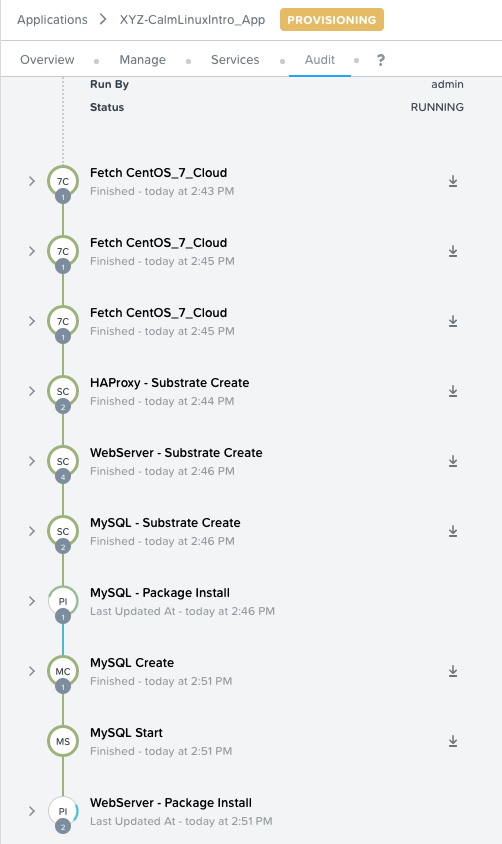
Why don’t all of the CentOS based services deploy at the same time following the download of the disk image? Look at the Adding Dependencies part of this module for the answer…
Once the application reaches a Running status (approx. 20 minutes after you have launched the Blueprint),

navigate to the Services tab and select the HAProxy service to determine the IP address of your load balancer.
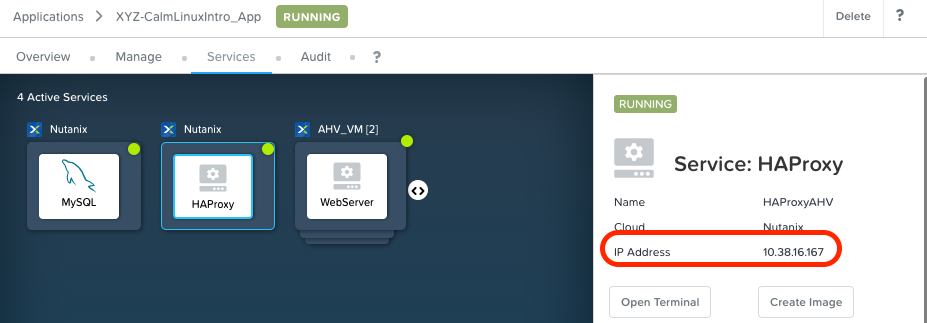
In a new browser tab or window, navigate to http://<HAProxy-IP>, and verify your Task Manager application is functioning.
Note
You can also click the link in the Description of the Application. Or click the
 icon and click on your application you just created.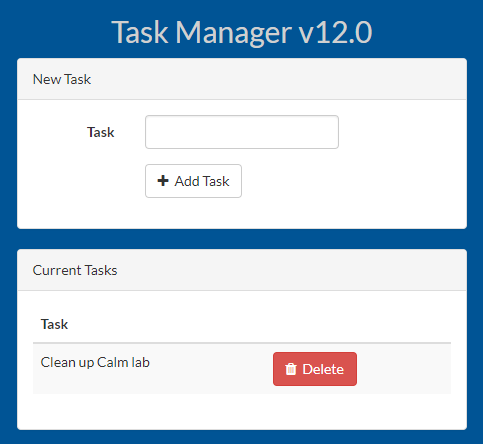
Takeaways
What are the key things you should know about Nutanix Calm?
Nutanix Calm, as a native component of Prism, is built on and carries forward the benefits of the platform. The simplicity provided by Acropolis lets Calm focus on applications, rather than trying to mask the complexity of the underlying infrastructure management.
Calm blueprints are easy to use. In 60 minutes you went from nothing to a full infrastructure stack deployment. Because Calm uses standard tools for configuration - bash, PowerShell, Python, etc. - there’s no new language to learn and you can immediately apply skills and code you already have.
The Blueprint Editor provides a simple UI for modeling potentially complex applications.
Blueprints are tied to Projects which can be used to enforce quotas and role based access control.
Having a Blueprint install and configure binaries means no longer creating specific images for individual applications. Instead the application can be modified through changes to the Blueprint or installation script, both of which can be stored in source code repositories.
Variables allow another dimension of customizing an application without having to edit the underlying Blueprint.
There are multiple ways of authenticating to a VM (keys or passwords), which is dependent upon the source image.
Application status can be monitored in real time.
Applications typically span across multiple VMs, each responsible for different services. Calm is capable of automated and orchestrating full applications.
Dependencies between services can be easily modeled in the Blueprint Editor.
Users can quickly provision entire application stacks for production or testing for repeatable results without time lost to manual configuration.
Interested in using Calm for more app lifecycle operations? Check out the Calm: Day 2 Operations!