Calm: Marketplace
Overview
Calm Marketplace Part 1
In this exercise you will learn how to manage Calm Blueprints within the Nutanix Marketplace. As part of the exercise you will publish a pre-configured Blueprint to the local Marketplace, clone the Blueprint from the Marketplace for editing, and launch the application.
Publishing Blueprints from Marketplace Manager
By default, Calm comes pre-seeded with validated Blueprints for multiple open source and enterprise applications. Marketplace Manager acts as a staging area for publishing default and user-created Blueprints to your local Marketplace. The Marketplace acts as an application store, providing end users with a catalog of available applications.
From Prism Central > Calm, select
 Marketplace Manager from the sidebar.
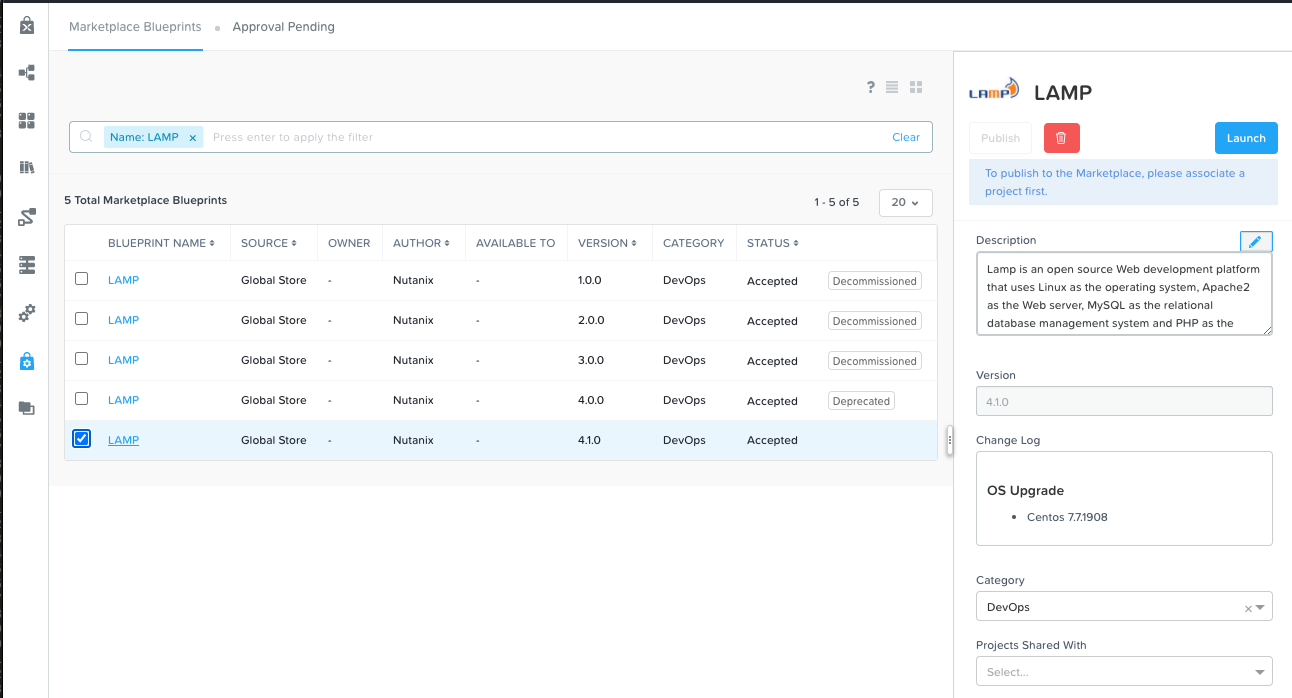
Under Marketplace Blueprints, select LAMP.
Note
The Blueprint description contains key information including licensing, hardware requirements, OS, supported platforms, and limitations.
Select the <Initials>-Calm project from the right-hand side drop down, click Apply and Click Publish.
Note
If the Projects Shared With drop down menu is unavailable, refresh your browser.
Wait for the Blueprint Status to appear as Published.

Cloning Blueprints from Marketplace
From Prism Central > Calm, select
 Marketplace from the sidebar. All Blueprints published in Marketplace Manager are visible here.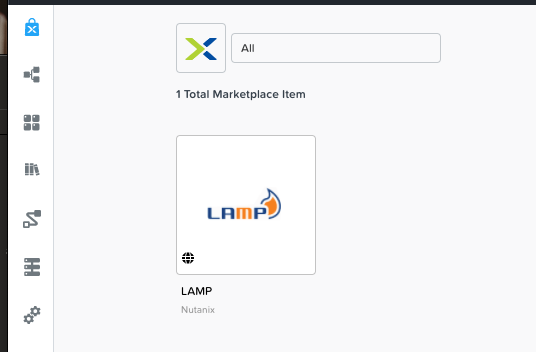
Select the LAMP Blueprint and click Clone.
Note
Selecting Actions Included for a Blueprint will display the actions that have been implemented for a given Blueprint, such as Create, Start, Stop, Delete, Update, Scale Up, Scale Down, etc.
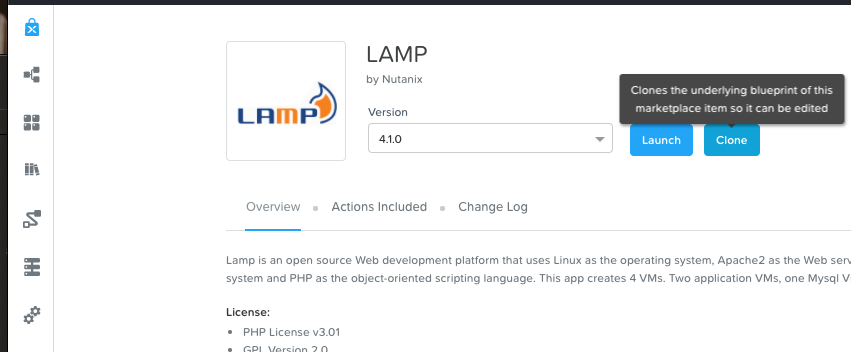
Fill out the following fields and click Clone:
Blueprint Name - LAMP-<INITIALS>
Project - <INITIALS>-Calm
Editing Cloned Blueprint
Note
After the clone action you will see the Blueprint editor screen. If not please follow the next step.
Select
 Blueprints from the sidebar and click your LAMP-<INITIALS> Blueprint to open the Blueprint Editor.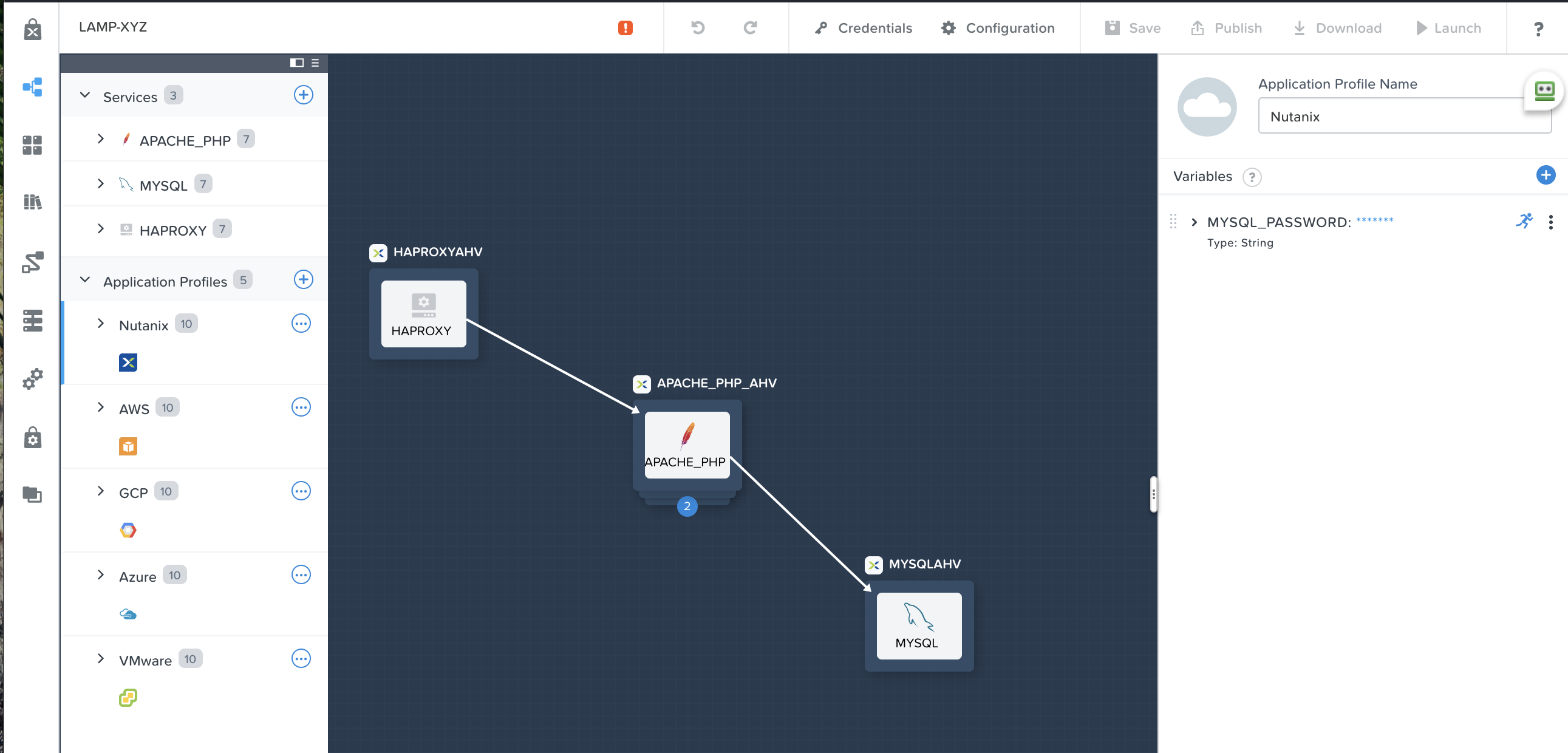
Click to review the list of errors that would prevent a successful deployment of the Blueprint.
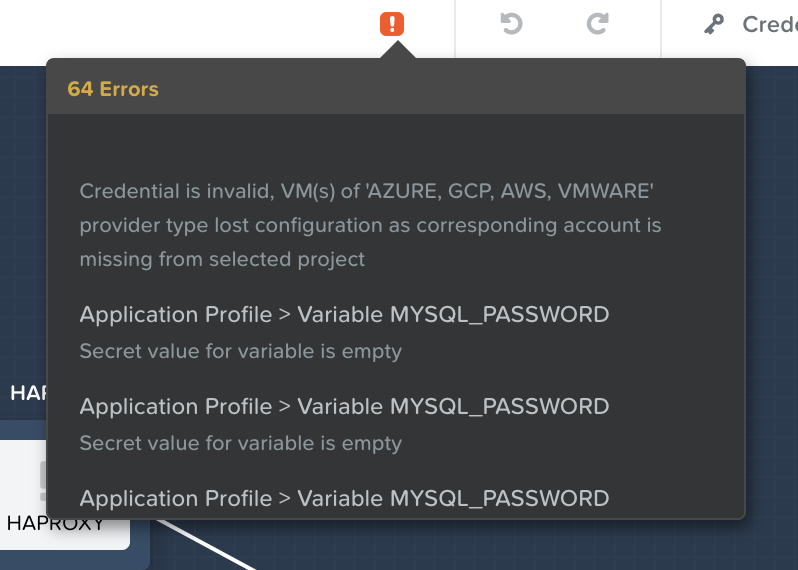
Set the variable MYSQL_PASSWORD to nutanix/4u and make sure the running an is colored blue.
Click Credentials and select CENTOS (Default).
Fill out the following fields and click Back:
Username - root
Secret - Password
Password - nutanix/4u
Select the HAPROXYAHV Service and make the following changes in the Configuration Pane:
Uncheck Guest Customization
Update the VM Configuration > Image to CentOS.
Update the Network Adapters > NIC to Primary and Dynamic.
Update the Connection > Credential to CENTOS.
Repeat these steps for the APACHE_PHP_AHV and MYSQLAHV Services.
Now we need to clean the Bleprint from unused Providers. To do this, and making it ourselves easy maximize the Application Configuration pane by clicking the icon in the right top corner.
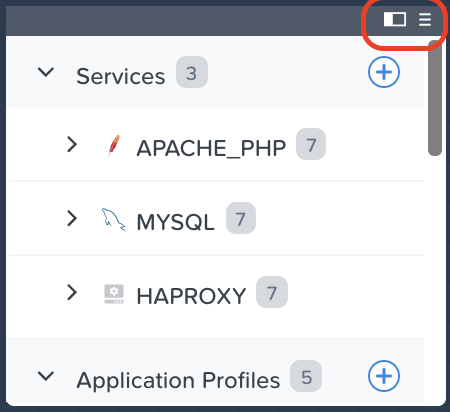
Click on the
 icon next to the Provider to open a menu and select Delete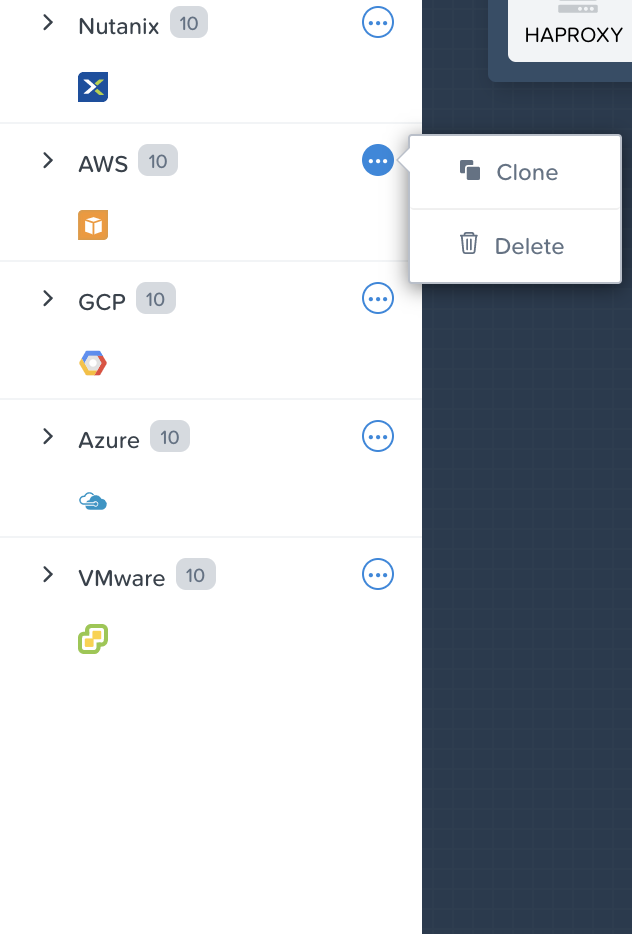
Click Save.
Note
If after the Save action you still have the exclamation mark, make sure to solve all issues before trying to Launch the Blueprint. The exclamation mark is preventing a launch.
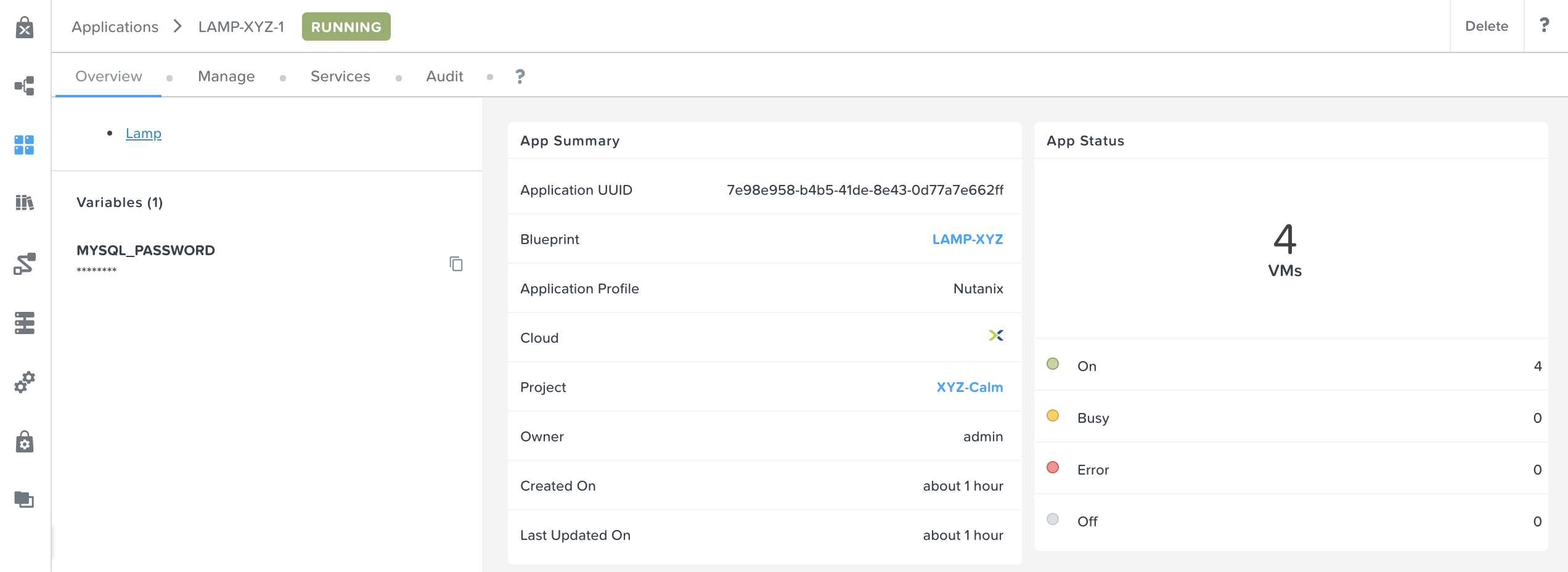
Click Launch. Specify a unique Application Name (e.g. LAMP-<INITIALS>-1) and click Create.
After the Blueprint has the status Running you have Cloned a Blueprint from the Nutanix Marketplace, updated to reflect your environment and deployed the application.
Note
The deployment of the application takes approx 15-20 minutes.
Calm Marketplace Part 2
Note
This exercise assumes you have a Blueprint available from a previous exercise.
In this exercise you will learn how to manage Calm Blueprints within the Nutanix Marketplace. As part of the exercise you will publish a Blueprint from the Blueprint Editor, use Marketplace Manager to approve, assign roles and projects, and publish to the Marketplace. Finally you will edit a project environment so your Blueprint can be launched directly from the Marketplace.
Publishing Blueprints
From Prism Central > Apps, select
Blueprints from the sidebar.Open your LAMP-<Initilas> Blueprint by clicking on its Name.
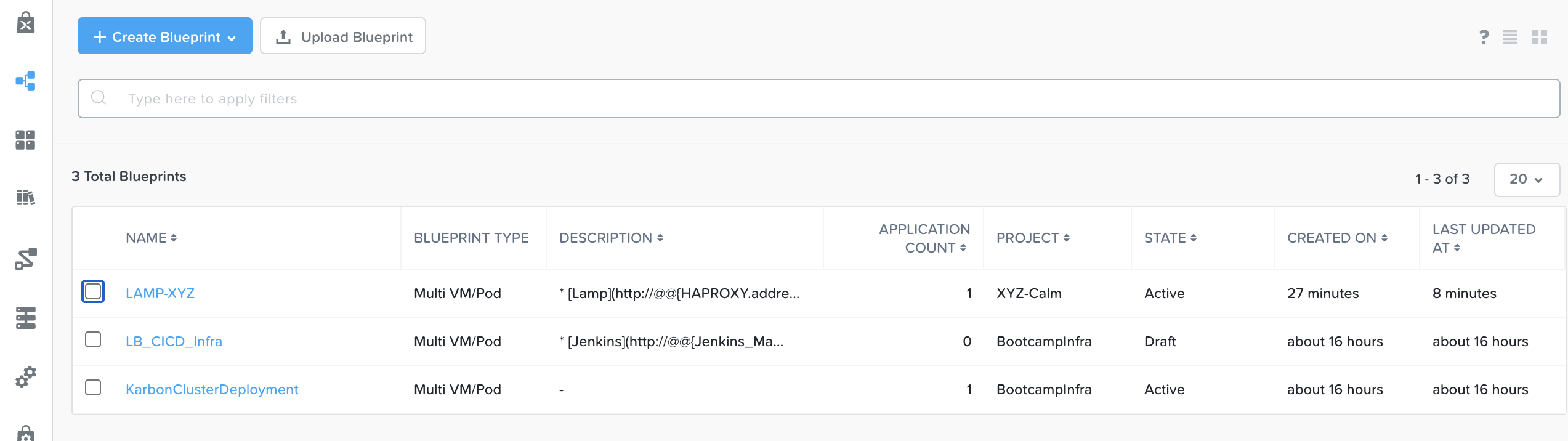
Click Publish button at the top in the ribbon.
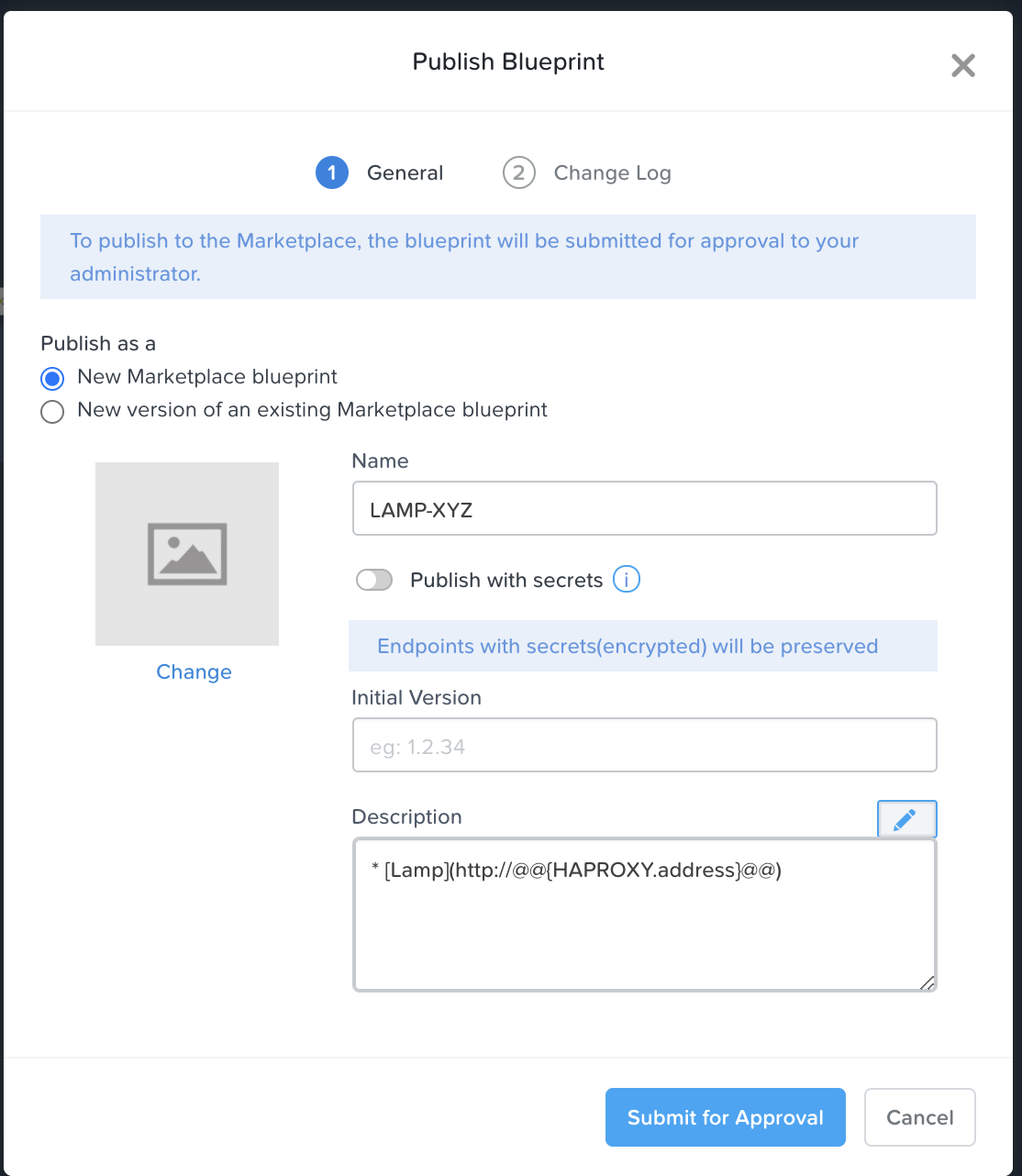
Provide the following details:
Name (e.g. Blueprint Name LAMP-<INITIALS>)
Publish as a - New Marketplace blueprint
Publish with secrets - Optional to also save the credentials
Initial Version - 1.0.0
Description - Finished MySQL app
Click Submit for Approval.
Approving Blueprints
From Prism Central > Apps, select
Marketplace Manager from the sidebar.Note
You must be logged in as a Cluster Admin user to access the Marketplace Manager.
Note your Blueprint does not appear in the list of Marketplace Items.
Select the Approval Pending tab.
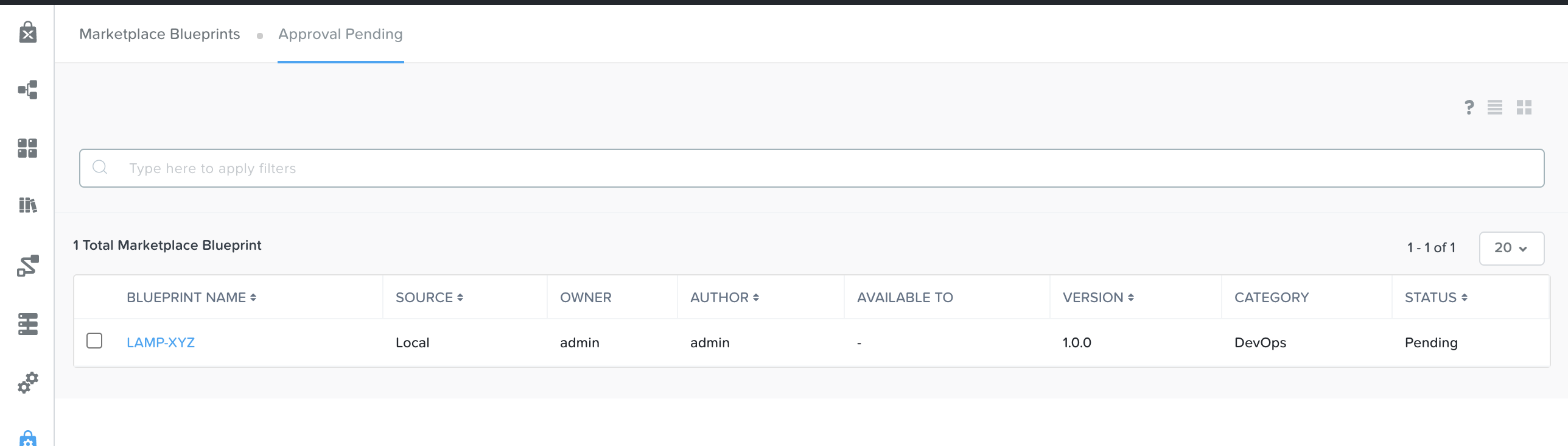
Select your Pending Blueprint.
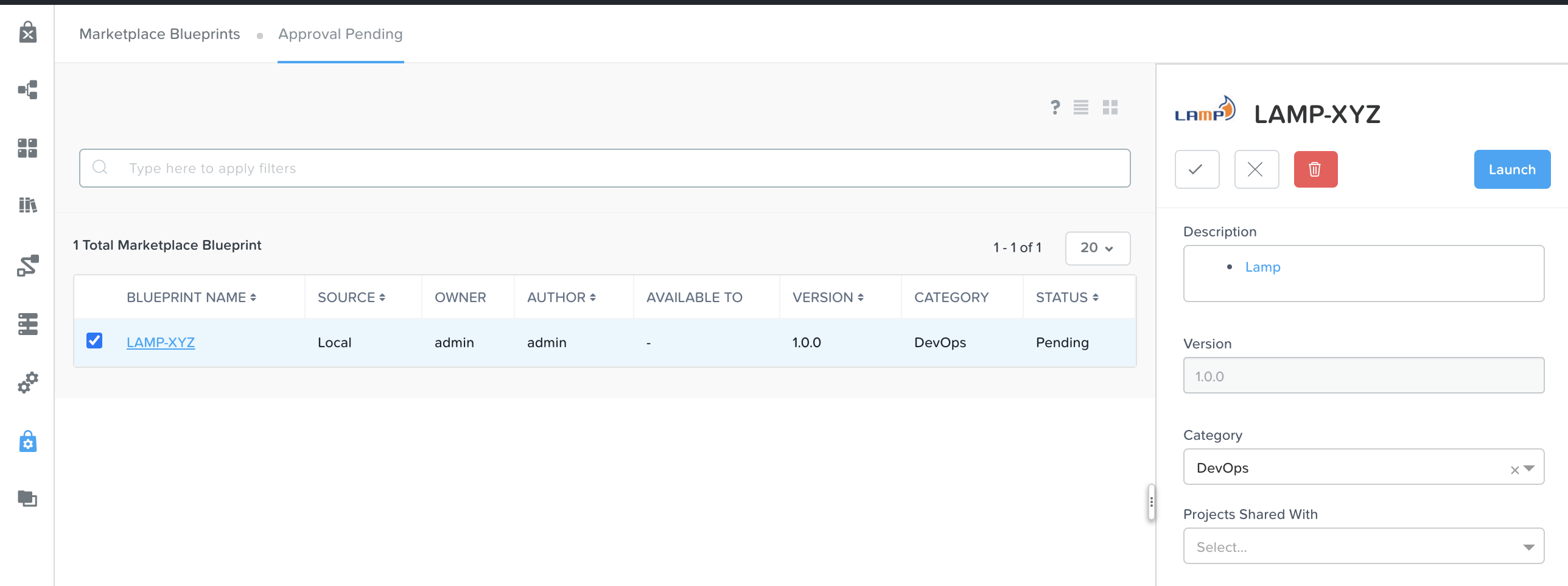
Review the available actions:
Cross Symbol (Reject) - Prevents Blueprint from being launched or published in the Marketplace. The Blueprint will need to be submitted again after being rejected before it can be published.
Check Symbol (Approve) - Approves the Blueprint for publication to the Marketplace.
Bin Symbol (Delete) - Delete the Blueprint from the Marketplace
Launch - Launches the Blueprint as an application, similar to launching from the Blueprint Editor.
Approve Blueprint by clicking on the Check Symbol.
Once the application has been successfully approved, it will appear under the Marketplace Blueprints tabs. Find it and assign the appropriate Category and Project Shared With. Click Apply.
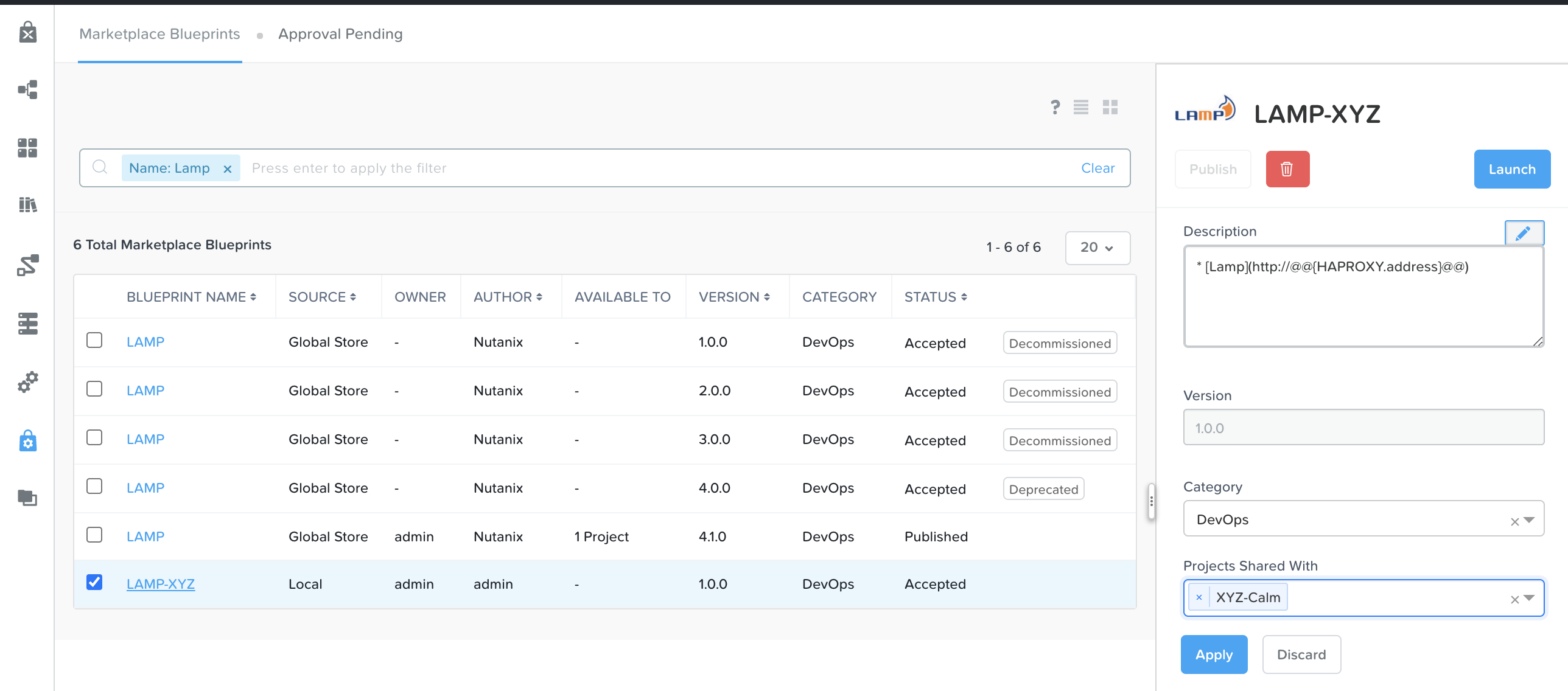
Select your Blueprint from the Marketplace Blueprints tab and click Publish.
Verify the Blueprint’s Status is now shown as Published.

From Prism Central > Apps, select
Marketplace from the sidebar. Verify your Blueprint is available for launching as an application.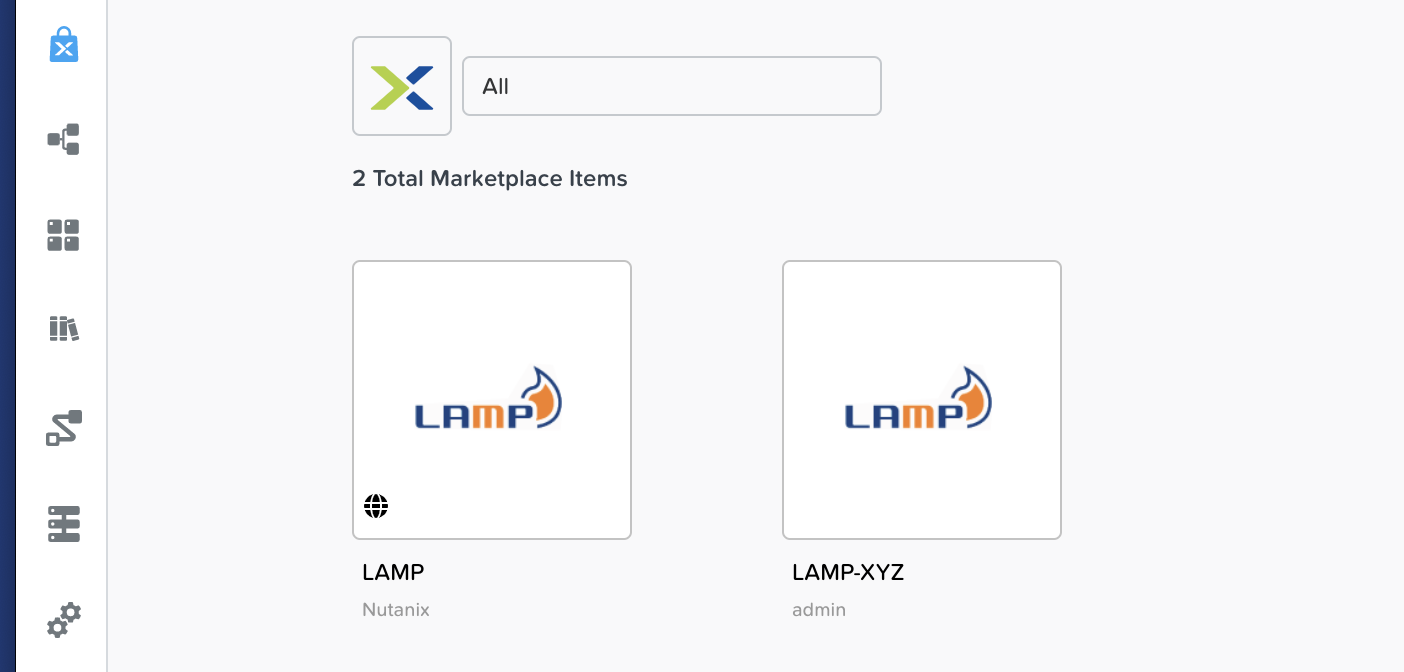
Launching Blueprint from the Marketplace
From Prism Central > Calm, select
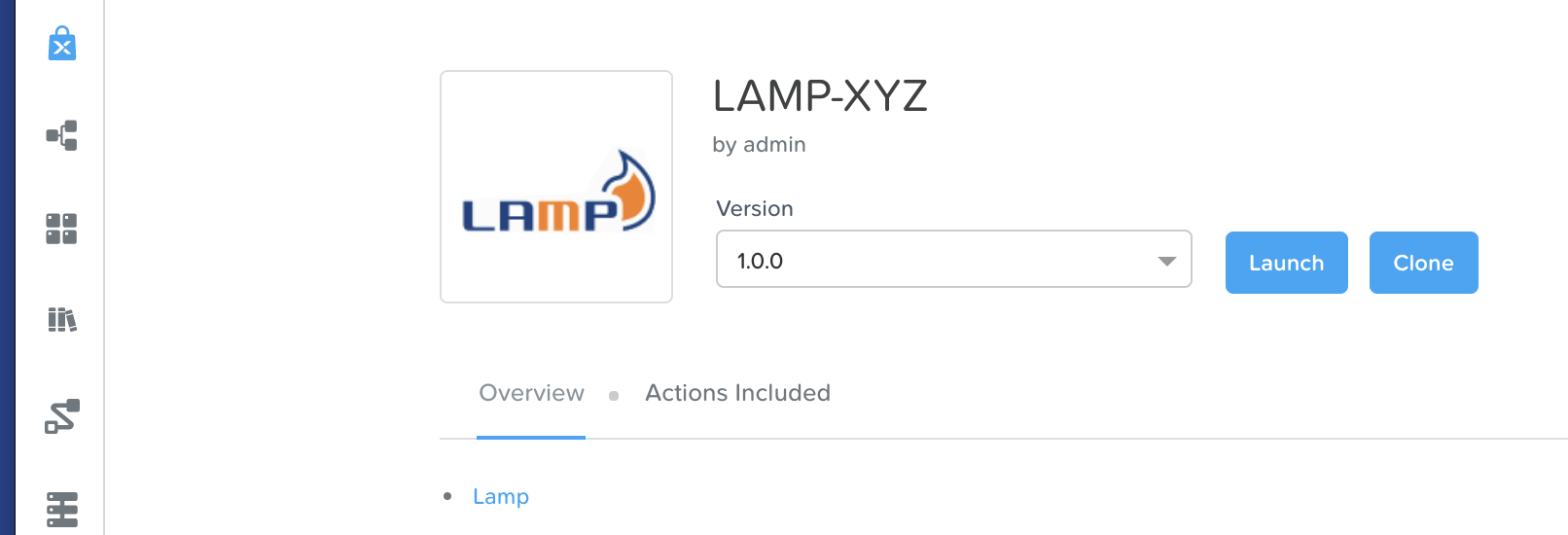
Marketplace from the sidebar.Select the Blueprint you just created LAMP-<Initials> which was published and click Launch.
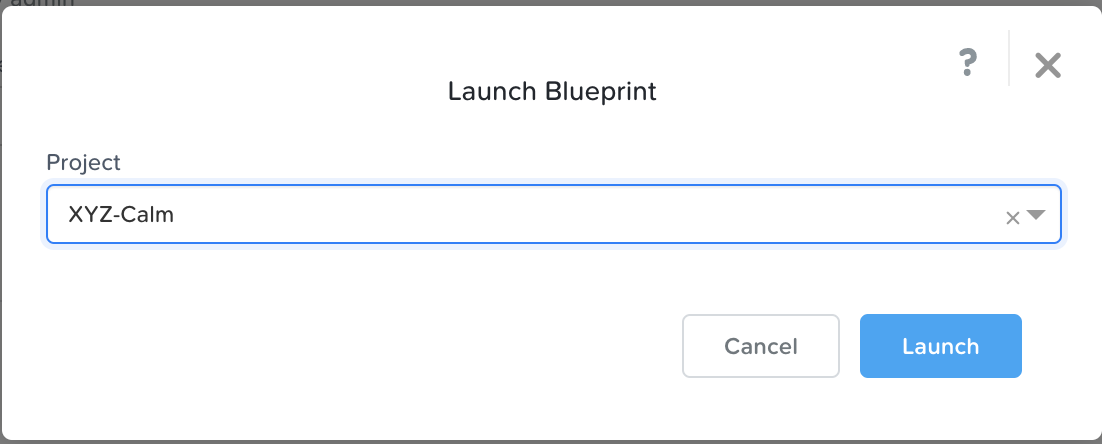
Select the <Initials>-Calm Project and click Launch.
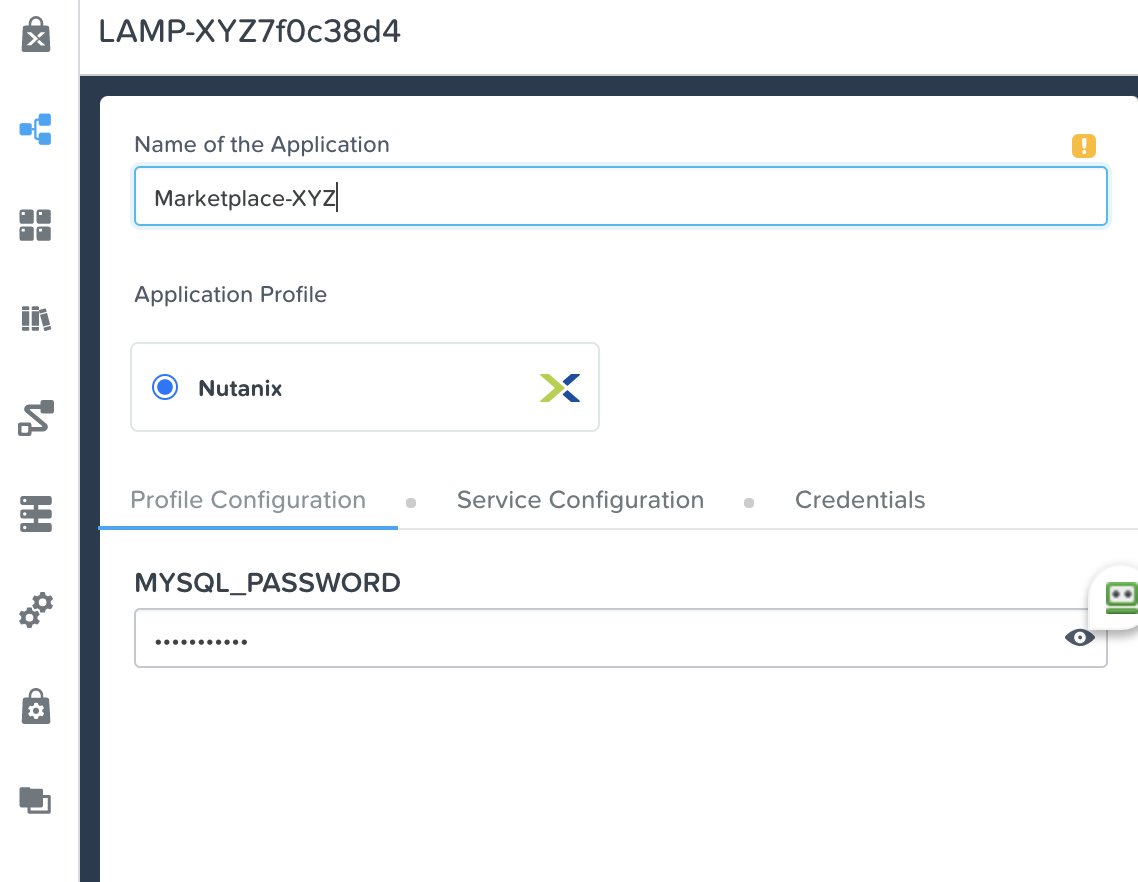
Set the MySQL password variable to your password. Otherwise nutanix/4u will be used.
Specify a unique Application Name (e.g. Marketplace*<INITIALS>*) and click Create.
Note
To see the configured Environment details, expand the VM Configurations entities.
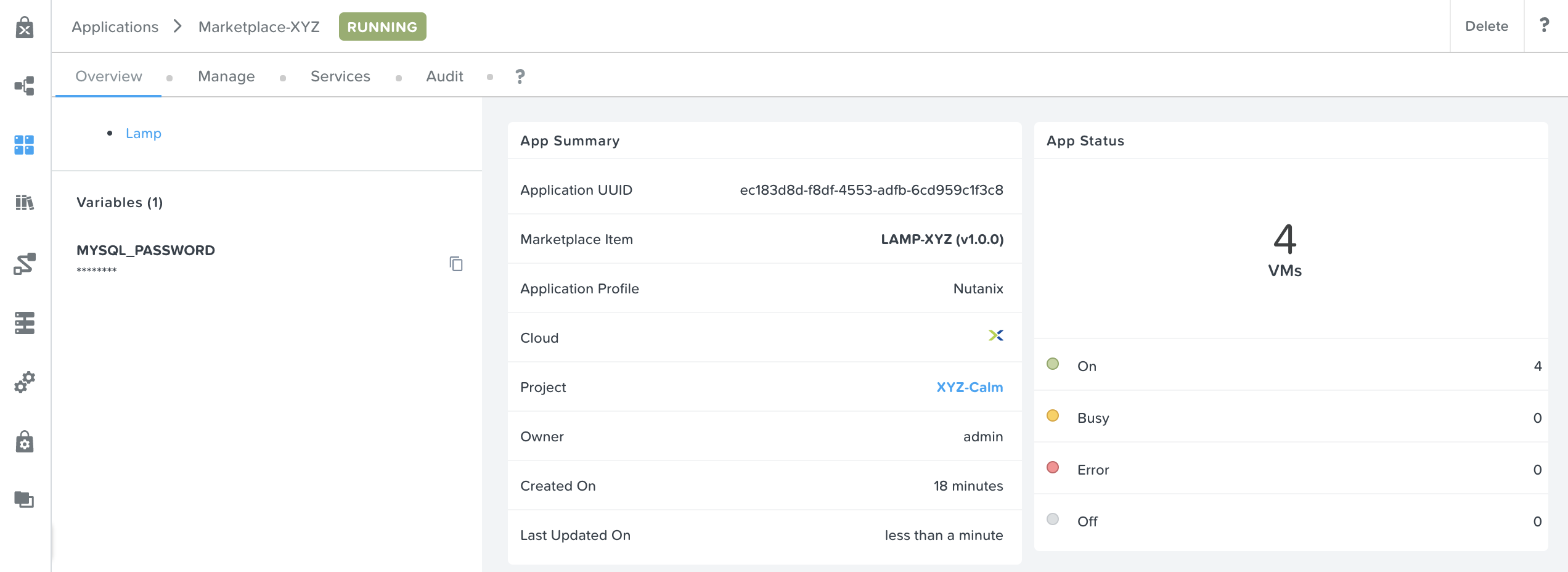
Monitor the provisioning of the Blueprint until complete.
Takeaways
By using pre-seeded Blueprints from the Nutanix Marketplace, users can quickly try out new applications.
Marketplace Blueprints can be cloned and modified to suit a user’s needs. For example, the pre-seeded LAMP Blueprint could be a starting point for a developer looking to swap PHP for a Go application server.
Marketplace Blueprints can use local disk images or automatically download associated disk images. Users can create their own keys and slipstream them into Blueprints (via cloud-init) to control access.
Developers can publish Blueprints to the Marketplace for fast and easy consumption by users.
Blueprints can be launched directly from the Marketplace with no additional configuration from users, delivering a public cloud-like SaaS experience for end users.
Administrators have control over what Blueprints are published to the Marketplace and which projects have access to published Blueprints.