DB Administration with Era
We will now see how to perform normal database admin task with Era.
In this lab you will Administor your ORACLE DB
Explore Your Database
In Era, select Databases from the dropdown menu and Sources from the lefthand menu.
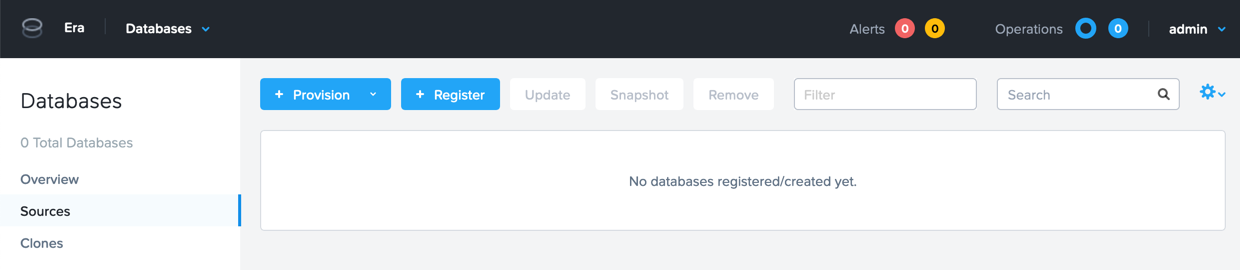
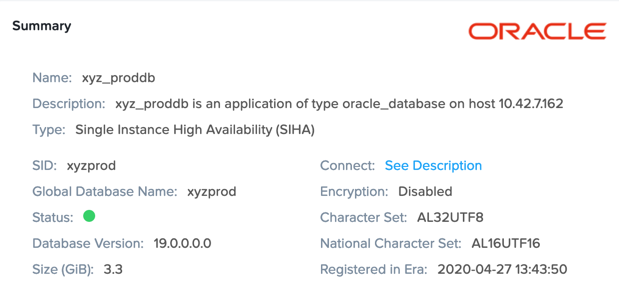
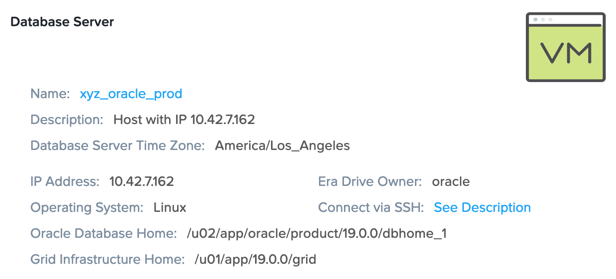
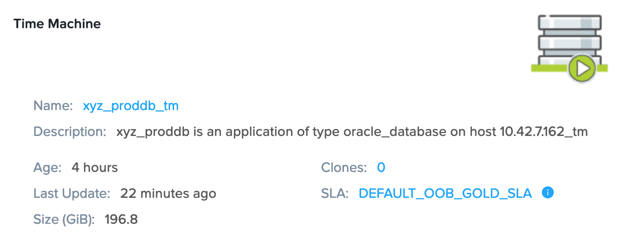
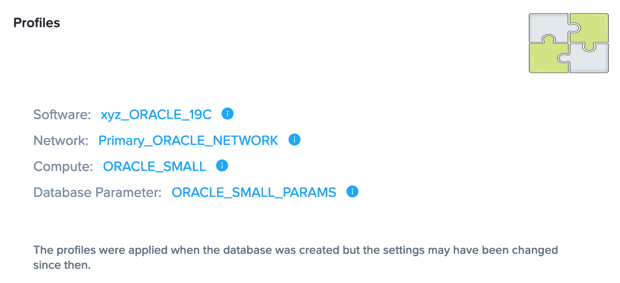
Click into your Initials-proddb, this will take you back into the Database Summary page. This page provides details of the Database, Database Server access, Time Machine schedule, Compute/Network/Software profiles used to provision.
Database Summary:
Database Server:
Time Machine:
Profiles:
Snapshot Your Database
Before we take a manual snapshot of our Database, lets write a new table into our ProdDB.
Write New Table Into Database
SSH (Terminal/Putty) into your Initials-proddb VM
User Name - oracle
Password - Nutanix/4u
ssh oracle@PRODDB IP
Launch sqlplus
sqlplus / as sysdba
Execute the following to create a table:
CREATE TABLE testlabtable
(
column1 VARCHAR(30),
column2 DATE
);
Verify the new table is there by executing the following to list the table:
select owner as schema_name,
table_name
from sys.all_tables
where table_name like 'TEST%';
Take Manual Snapshot of Database
In Era, select Databases from the dropdown menu and Sources from the lefthand menu.
Click on the Time Machine for your Database Initials-proddb_TM
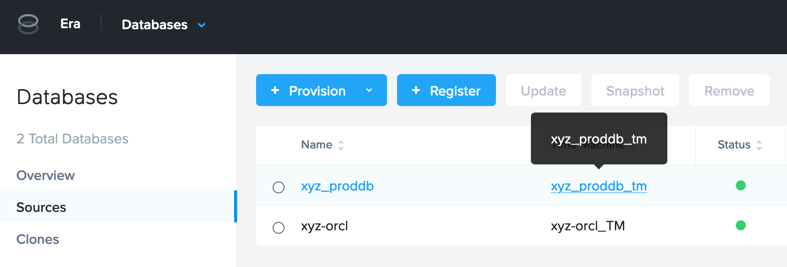
Click Actions > Log Catch Up.
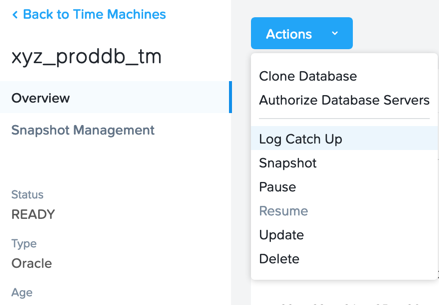
Click **Yes*
Once that is complete, click Actions > Snapshot.
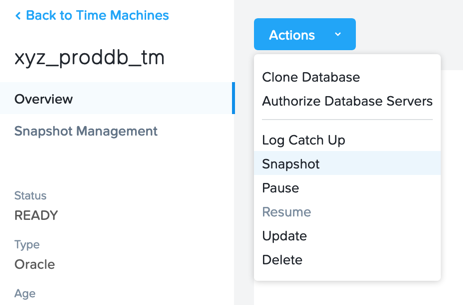
Snapshot Name - Initials-proddb-1st-Snapshot
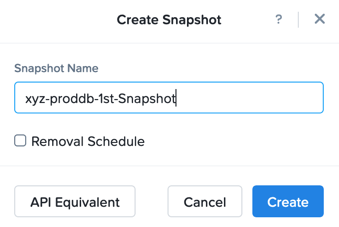
Click Create
Select Operations from the dropdown menu to monitor the registration. This process should take approximately 2-5 minutes.
Clone Your Database Server & Database
In Era, select Time Machines from the dropdown menu and select Initials-proddb_TM
Click Actions > Clone Database.
Snapshot - Initials-proddb-1st-Snapshot (Date Time)
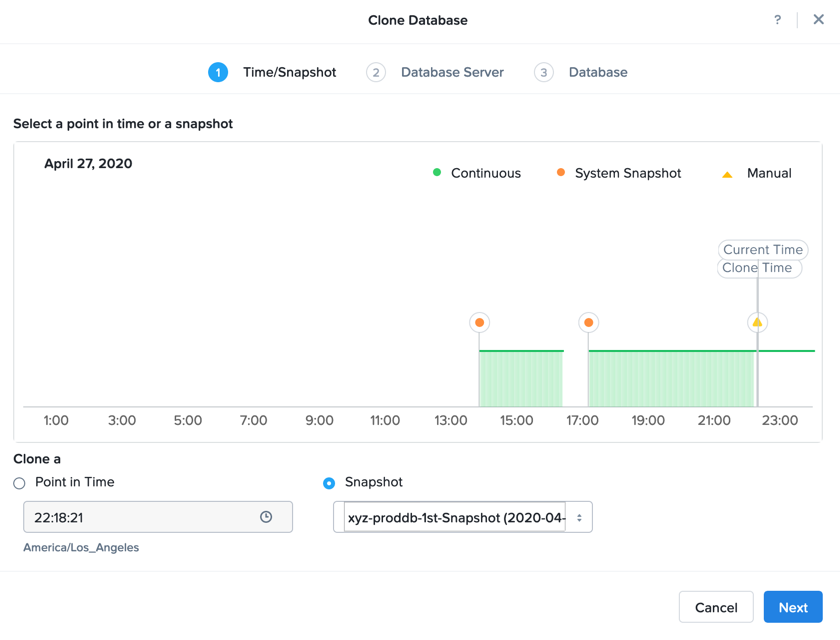
Click Next
Database Server - Create New Server
Database Server Name - Initials_oracle_prod_Clone1
Compute Profile - ORACLE_SMALL
Network Profile - Primary-ORACLE-Network
SSH Public Key Through - Select Text
ssh-rsa AAAAB3NzaC1yc2EAAAABJQAAAQEAii7qFDhVadLx5lULAG/ooCUTA/ATSmXbArs+GdHxbUWd/bNGZCXnaQ2L1mSVVGDxfTbSaTJ3En3tVlMtD2RjZPdhqWESCaoj2kXLYSiNDS9qz3SK6h822je/f9O9CzCTrw2XGhnDVwmNraUvO5wmQObCDthTXc72PcBOd6oa4ENsnuY9HtiETg29TZXgCYPFXipLBHSZYkBmGgccAeY9dq5ywiywBJLuoSovXkkRJk3cd7GyhCRIwYzqfdgSmiAMYgJLrz/UuLxatPqXts2D8v1xqR9EPNZNzgd4QHK4of1lqsNRuz2SxkwqLcXSw0mGcAL8mIwVpzhPzwmENC5Orw==
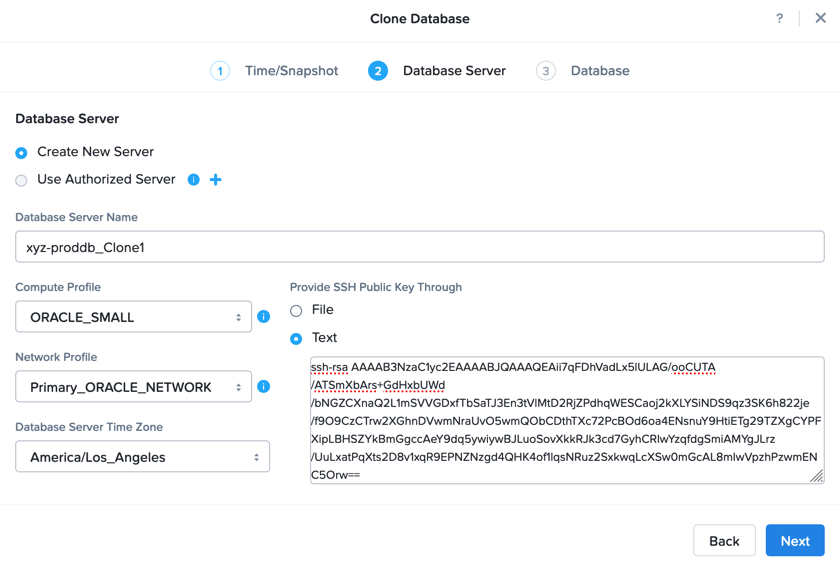
Click Next
Clone Name - Initials_proddb_Clone1
SID - Initialsprod
SYS and SYSTEM Password - Nutanix/4u
Database Parameter Profile - ORACLE_SMALL_PARAMS
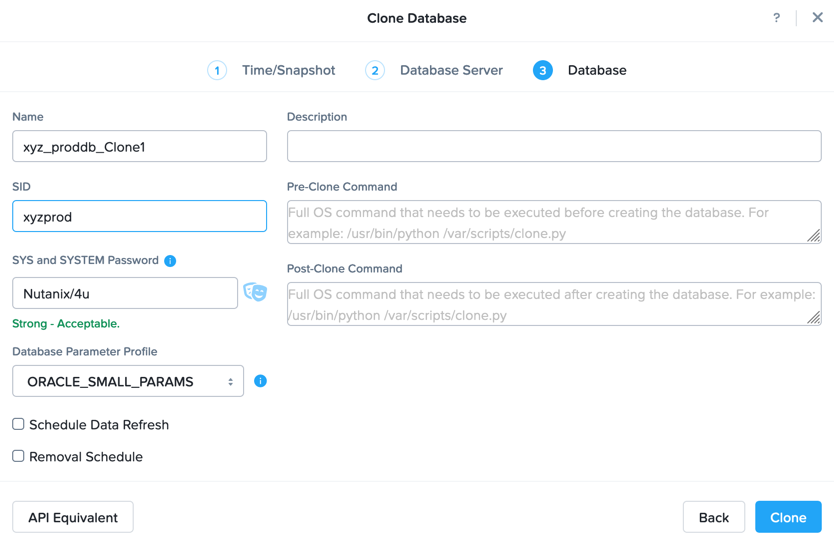
Click Clone
Select Operations from the dropdown menu to monitor the registration. This process should take approximately 30-50 minutes.
Delete Table and Clone Refresh
There are times when a table or other data gets deleted (by accident), and you would like to get it back. here we will delete a table and use the Era Clone Refresh action from the last snapshot we took.
Delete Table
SSH (Terminal/Putty) into your Initials-proddb_Clone1 VM
User Name - oracle
Password - Nutanix/4u
ssh oracle@PRODDB_Clone1 IP
Launch sqlplus
sqlplus / as sysdba
Execute the following to Drop the table:
DROP TABLE testlabtable;Verify the table is gone by executing the following to list the table:
select owner as schema_name,
table_name
from sys.all_tables
where table_name like 'TEST%';
Clone Refresh
In Era, select Databases from the dropdown menu and Clones from the lefthand menu.
Select the Clone for your Database Initials_proddb and Click Refresh.
Snapshot - Initials_proddb-1st-Snapshot (Date Time)
Click Refresh
Select Operations from the dropdown menu to monitor the registration. This process should take approximately 2-5 minutes.
Verify Table is Back
SSH (Terminal/Putty) into your Initials-proddb_Clone1 VM
User Name - oracle
Password - Nutanix/4u
ssh oracle@PRODDB_Clone1 IP
Launch sqlplus
sqlplus / as sysdba
Verify the table is back by executing the following to list the table:
select owner as schema_name,
table_name
from sys.all_tables
where table_name like 'TEST%';