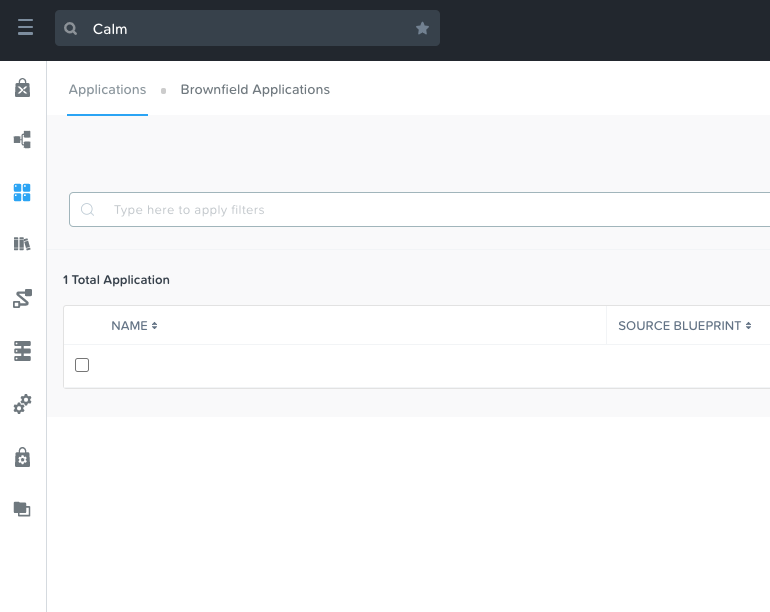
Calm: Enable
Overview
Note
Review What Is Calm before proceeding with the lab to familiarize yourself with the UI and common terminology used in Nutanix Calm.
Estimated time to complete: 10 MINUTES
In this exercise you will enable Nutanix Calm.
Enabling App Management
Calm is built into Prism Central and requires no additional appliances or consoles to manage. Before you can begin managing apps in your environment with Calm, the service must be enabled.
Important
Calm can only be enabled once per Prism Central instance. If Enable app management displays a green check mark next to it, that means Calm has already been enabled for the Prism Central instance being used. If it is, the rest of this module is for you to read. There is nothing that needs to be done. Proceed to Calm: Projects.
In Prism Central, click the ? drop down menu, expand New in Prism Central and select Enable app management.
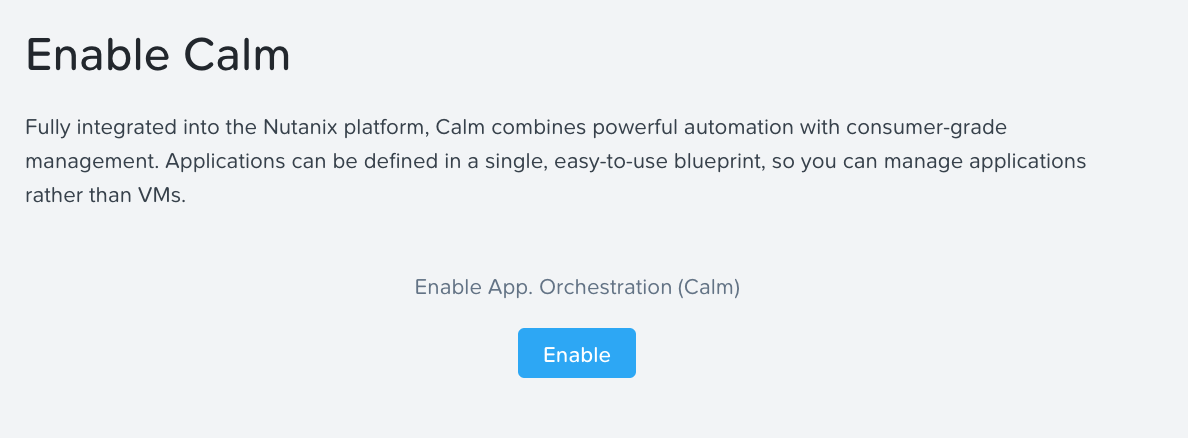
Click Enable.
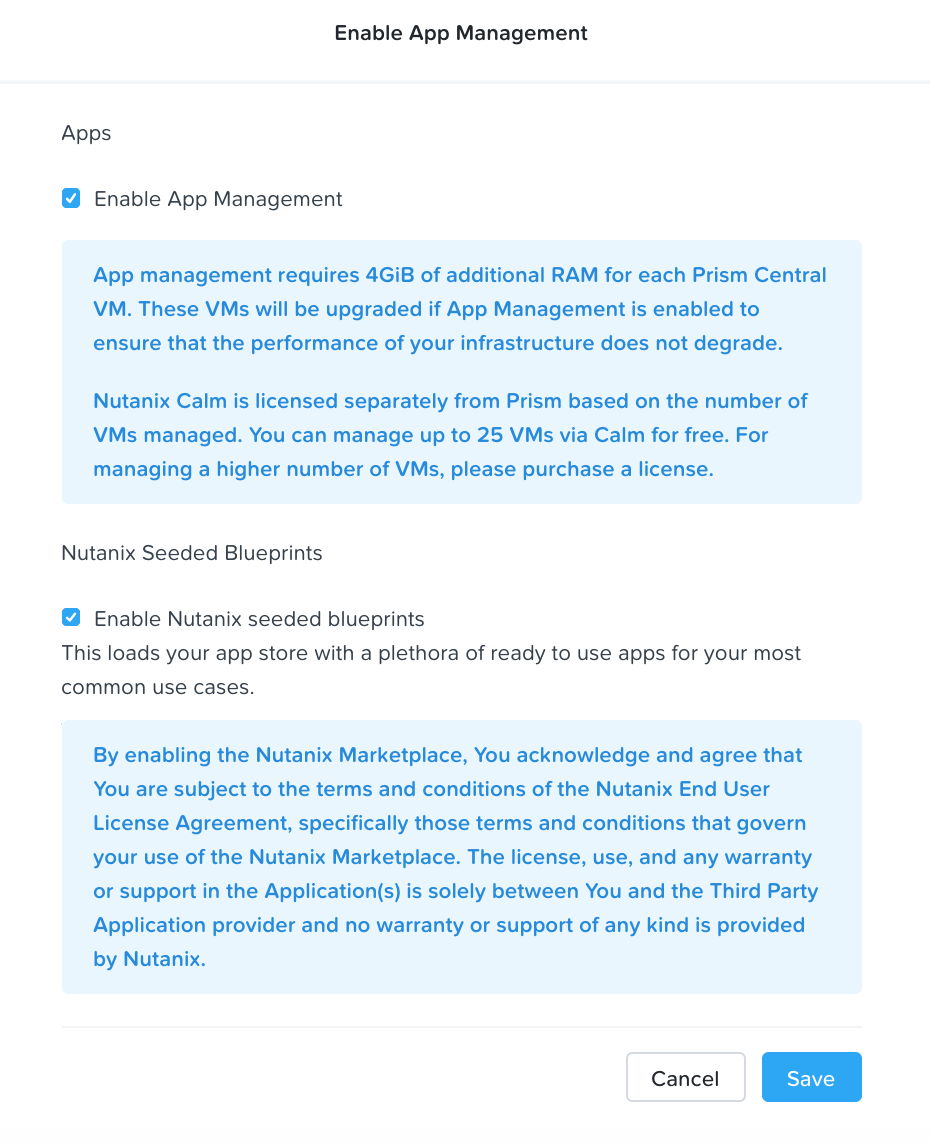
Select Enable App Management and click Save.
Note
Nutanix Calm is a separately licensed product that can be used with Acropolis Starter, Pro, or Ultimate editions.
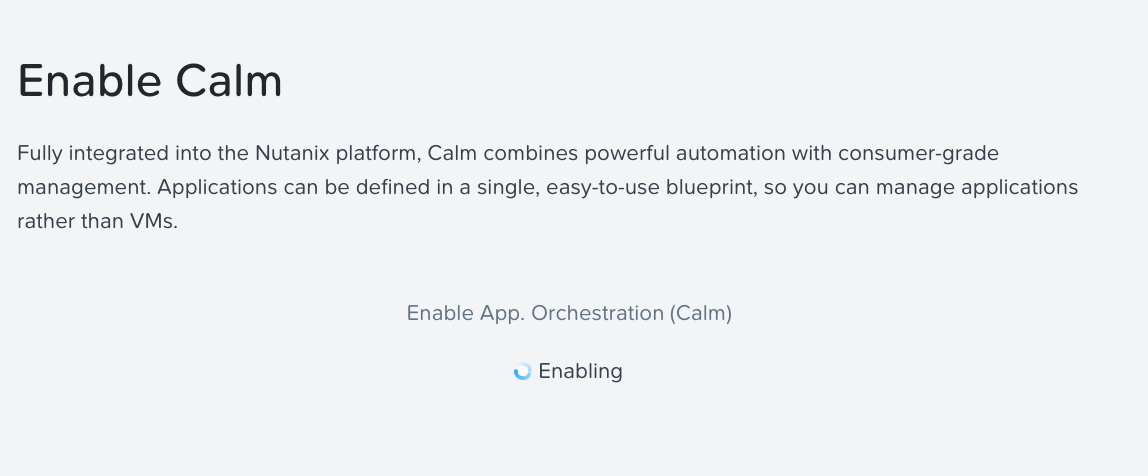
You should get verification that Calm is enabling, which will take 5 to 10 minutes.
Adding Active Directory
While we’re waiting for Calm to enable, we’ll add an Active Directory server. While this isn’t required for basic Calm use, it is required to do any Role Based Access Control, so it’s a good idea to get set up.
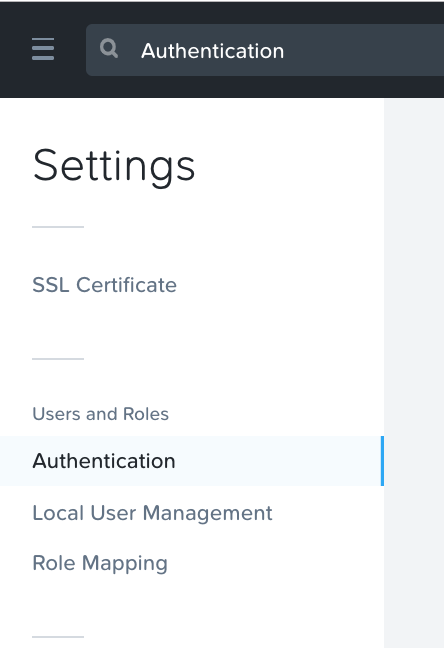
Click the Gear Icon and then Authentication.
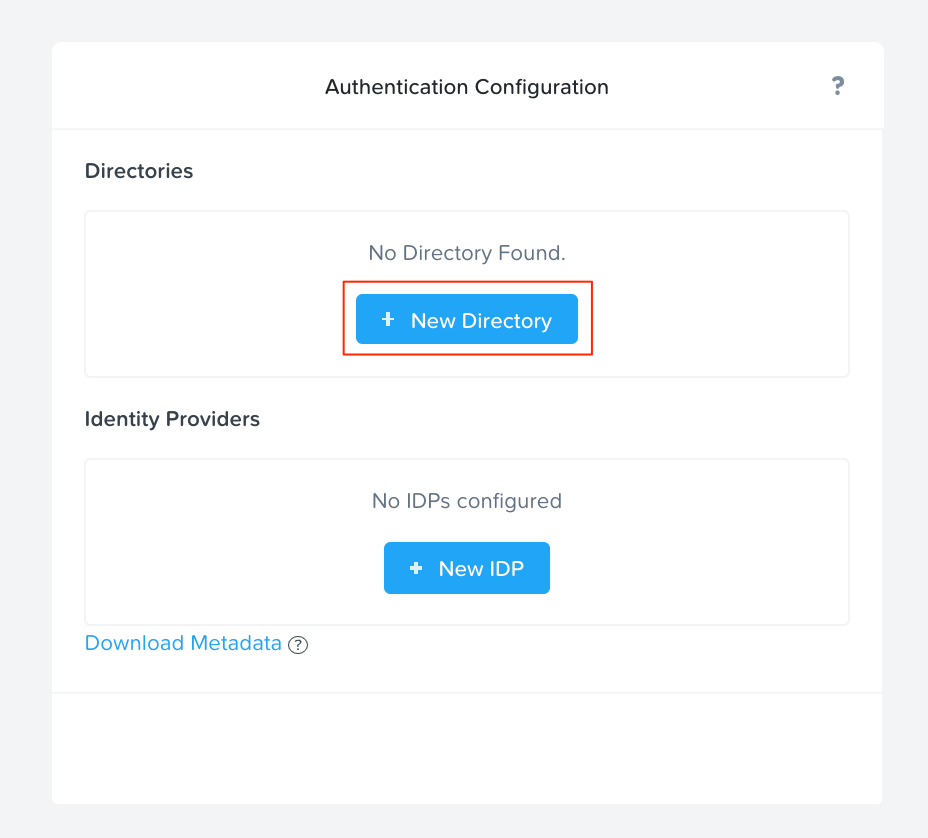
In the pop up, click New Directory.
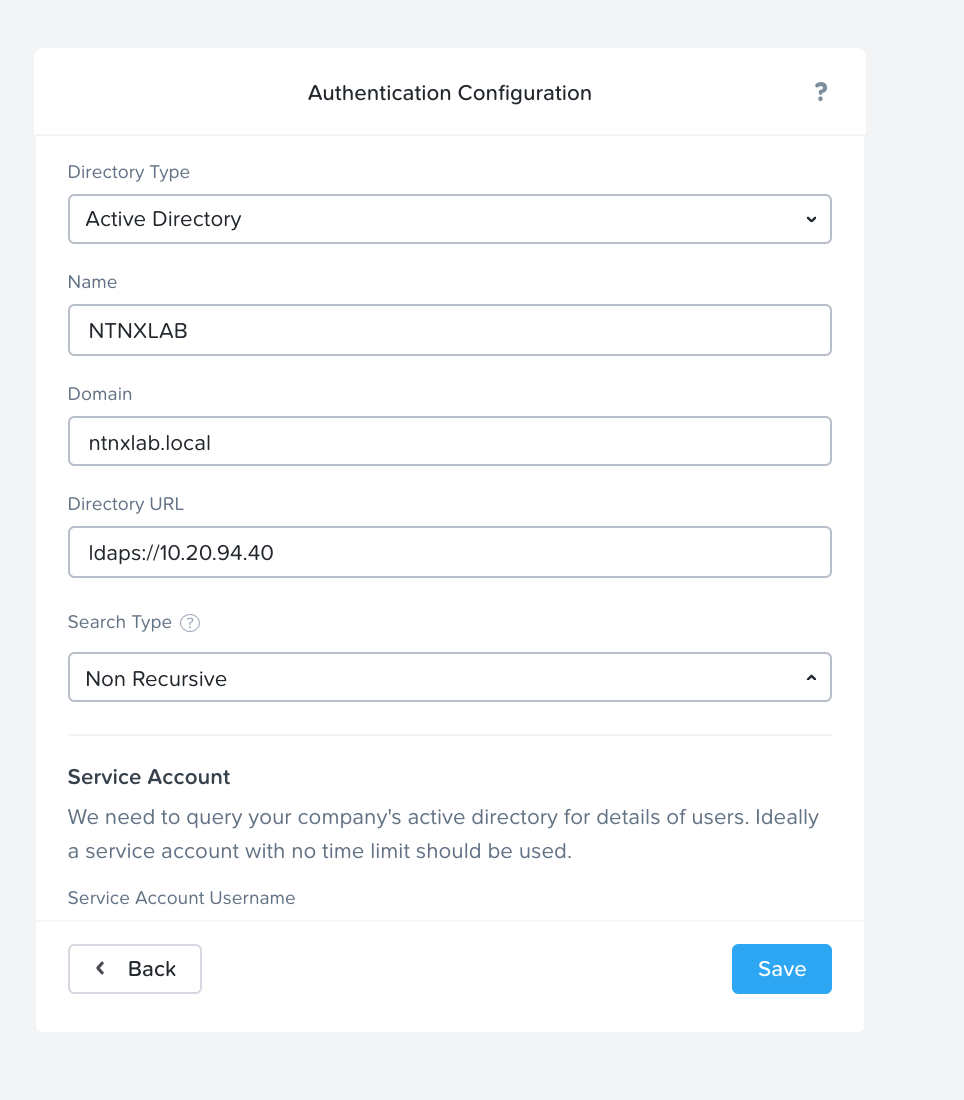
Fill out the following fields and click Save:
Directory Type - Active Directory
Name - NTNXLAB
Domain - ntnxlab.local
Directory URL - ldaps://<DC-VM-IP>
Search Type - Non Recursive
Username - Administrator@ntnxlab.local
Password - nutanix/4u
Refresh the browser and select Calm from the navigation bar. If Calm is still enabling, wait another minute, and try again.