Securing Desktops with Flow
Another benefit of running virtual desktop workloads on Nutanix AHV is the ability to take advantage of native microsegmentation capabilities with Flow. Flow provides the ability to graphically monitor and model powerful East/West firewall rules between VMs, and control inbound and outbound access. This is perfect for applications such as web servers, or even desktops, where preventing the spread of VM to VM traffic is critical to stop attacks.
In this task we will place desktop VMs into an application policy as part of an application tier that restricts VM to VM communication within the tier. The desktops will have normal inbound and outbound access, but traffic between desktops will be blocked.
Categorizing the Desktop VMs
In Prism Central, select > Virtual Infrastructure > Categories.
Select the checkbox for AppType and click Actions > Update.
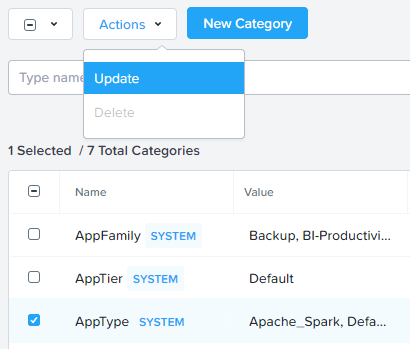
Click the icon beside the last value to add an additional Category value.
Specify Initials-Desktops as the value name.
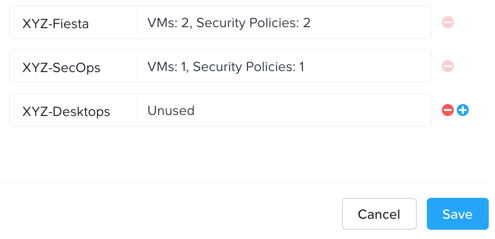
Click Save.
Select the checkbox for AppTier and click Actions > Update.
Click the icon beside the last value to add an additional Category value.
Specify Initials-PD.
Click the again and specify Initials-NPD.
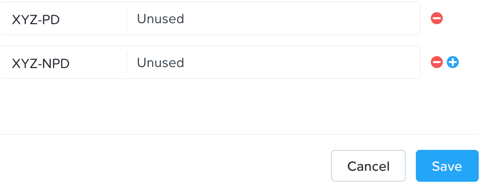
Click Save.
In Prism Central, select > Virtual Infrastructure > VMs.
Use the checkbox to select the persistent desktop VMs Initials-PD and navigate to Actions > Manage Categories.
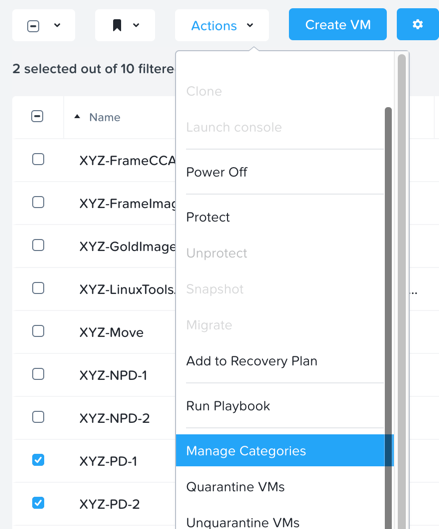
Specify AppType:Initials-Desktops in the search bar.
Click the icon beside the last value to add AppTier:Initials-PD and click the Save.
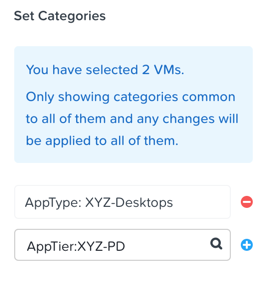
Repeat the previous steps to assign the AppType:Initials-Desktops and AppTier:Initials-NPD categories to the non-persistent desktops.
Creating a Desktop Security Policy
In Prism Central, select > Policies > Security Policies.
Click Create Security Policy > Secure Applications (App Policy) > Create.
Fill out the following fields:
Name - Initials-Desktops
Purpose - Restrict unnecessary traffic between desktops
Secure this app - AppType: Initials-Desktops
Do NOT select Filter the app type by category.
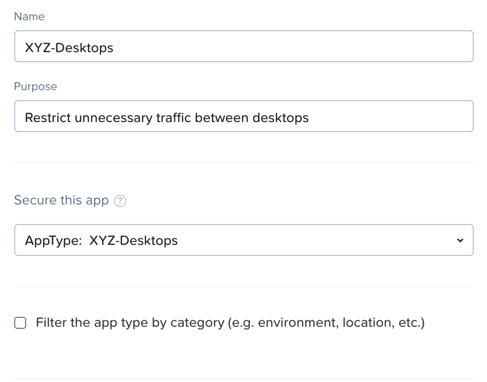
Click Next.
If prompted, click OK, Got it! on the tutorial diagram of the Create App Security Policy wizard.
To allow for more granular configuration of the security policy, click Set rules on App Tiers, instead rather than applying the same rules to all desktop groups.
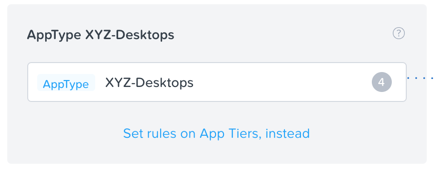
Click + Add Tier.
Select AppTier:Initials-PD from the drop down.
Repeat Steps 7-8 for AppTier:Initials-NPD.
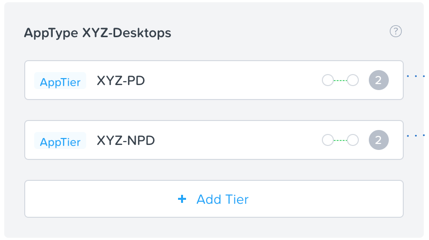
Next you will define the Inbound rules, which control which sources you will allow to communicate with your application. In this case we want to allow all inbound traffic.
On the left side of the policy edit page, change Inbound from Whitelist Only to Allow All
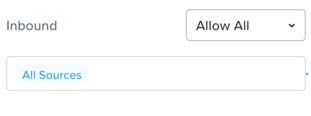
Repeat the previous step to also change Outbound to Allow All.
To define intra-desktop communication, click Set Rules within App.
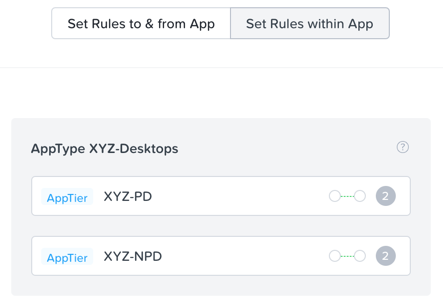
Click AppTier:Initials-PD and select No to prevent communication between VMs in this tier. This will block persistent desktops from communicating with each other.
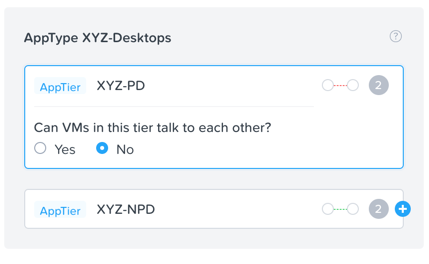
While AppTier:Initials-PD is still selected, click the icon to the right of AppTier:Initials-NPD to create a tier to tier rule.
Fill out the following fields to allow communication on TCP port 7680 between the persistent and non-persistent tiers to allow peer-to-peer Windows updates:
Protocol - TCP
Ports - 7680
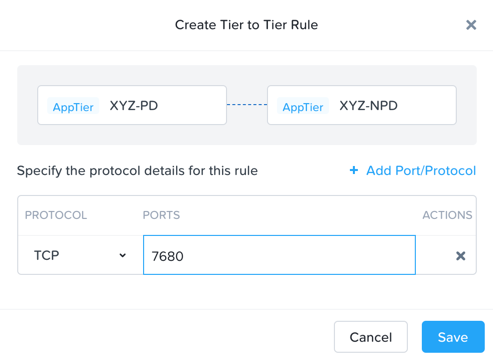
Click Save.
Select AppTier:Initials-NPD and select No to block VM to VM communication for the non-persistent desktops.
Click Next to review the security policy.
Click Save and Monitor to save the policy.
Verifying Desktop Security
Use the Prism Central VM list to note the IP addresses of your persistent desktops.
From your Initials-WinToolsVM, open http://ddc.ntnxlab.local/Citrix/NTNXLABWeb in a browser to access the Citrix StoreFront server.
Specify the following credentials and click Log On:
Username - NTNXLAB\devuser01
Password - nutanix/4u
Select the Desktops tab and click your Personal Win10 Desktop to launch the session.
In the persistent desktop, Open a Command Prompt and run
ping -t XYZ-PD-VM-IPto verify connectivity between the persistent desktops.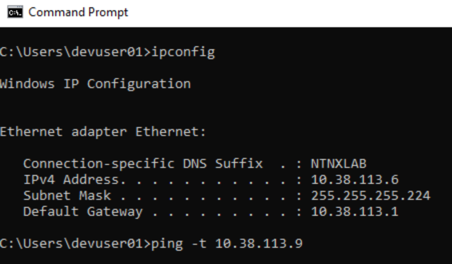
Can you ping between the desktops now? Why?
In Prism Central > Policies > Security Policies, select the Initials-Desktops policy.
Click Actions > Apply.
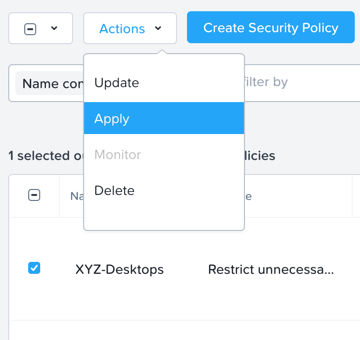
Type APPLY and click OK to apply the Desktop security policy.
What happens to the continuous ping between the desktops?
Takeaways
In this exercise you utilized Flow to block traffic between desktops to prevent the spread of malware.
Monitor mode is used to visualize traffic to the defined application, but Apply mode enforces the policy.
Application policies can be used to protect desktops as well as traditional applications.