Quarantining Desktops with Flow
Quarantine places a VM in a restricted policy, giving the admin an option to either block all network traffic or allow a limited subset of traffic. Strict quarantine blocks a VM from all communication, while forensic quarantine allows a pre-defined list of inbound and outbound traffic. This capability can be very helpful in a virtual desktop environment when a VM has been impacted by malware.
In this lab we will place a desktop VM into quarantine and observe the behavior of the VM. We will also inspect the configurable options inside the quarantine policy to simulate troubleshooting an infected VM.
Categorizing the SecOps VM
In Prism Central, select > Virtual Infrastructure > Categories.
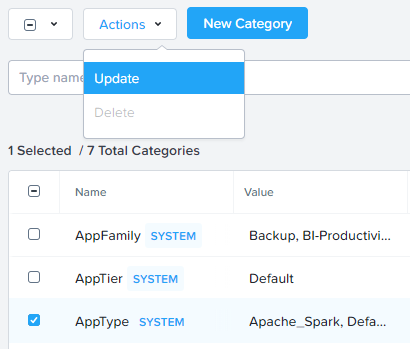
Select the checkbox for AppType and click Actions > Update.
Click the icon beside the last value to add an additional Category value.
Specify Initials-SecOps as the value name.
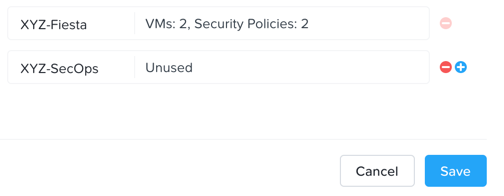
Click Save.
In Prism Central, select > Virtual Infrastructure > VMs.
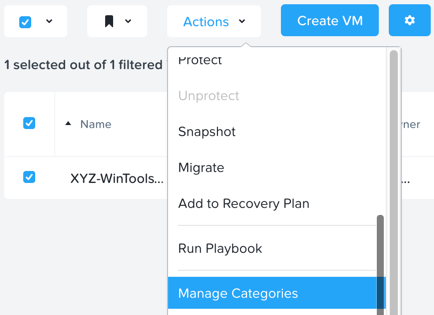
Use the checkbox to select the InitialsWinToolsVM and navigate to Actions > Manage Categories.
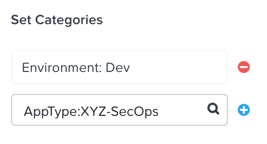
Specify AppType:Initials-SecOps in the search bar and click Save icon to assign the category to the tools VM.
Accessing and Quarantining the Desktops
From your Initials-WinToolsVM, open http://ddc.ntnxlab.local/Citrix/NTNXLABWeb in a browser to access the Citrix StoreFront server.
Specify the following credentials and click Log On:
Username - NTNXLAB\devuser01
Password - nutanix/4u
Select the Desktops tab and click your Personal Win10 Desktop to launch the session.
In addition, Open a Command Prompt on your InitialsWinToolsVM and run
ping -t XYZ-PD-1-VM-IPto verify connectivity between the windows tools client and the persistent desktop.In Prism Central > Virtual Infrastructure > VMs, select your Initials-PD-1 and Initials-PD-2 VMs .
Click Actions > Quarantine VMs.
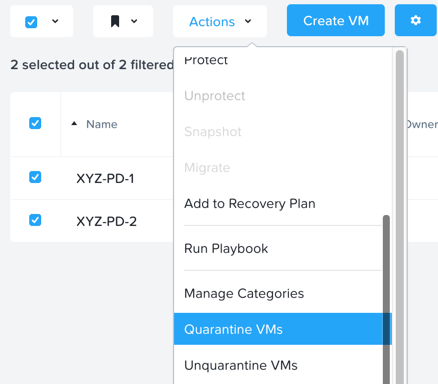
Select Forensic and click Quarantine.
What happens with the continuous ping between the Windows Tools VM and the desktop?
Creating a Custom Quarantine Policy
In Prism Central, select > Policies > Security Policies > Quarantine to view all Quarantined VMs.
Click Update to edit the Quarantine policy.
To illustrate the capabilities of this special Flow policy, you will add your Windows Tools VM as a “forensic tool”. In production, VMs allowed inbound access to quarantined VMs could be used to run security and forensic suites such as Kali Linux or SANS SIFT.
Click Next to navigate to the policy edit screen.
Under Inbound, click + Add Source.
Fill out the following fields:
Add source by: - Select Category
Specify AppType:Initials-SecOps
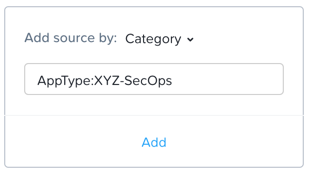
Click Add
To what targets can this source be connected? What is the difference between the Forensic and Strict quarantine mode?
Note that adding a VM to the Strict Quarantine policy disables all inbound and outbound communication to a VM. The Strict policy would apply to an VMs whose presence on the network poses a threat to the environment.
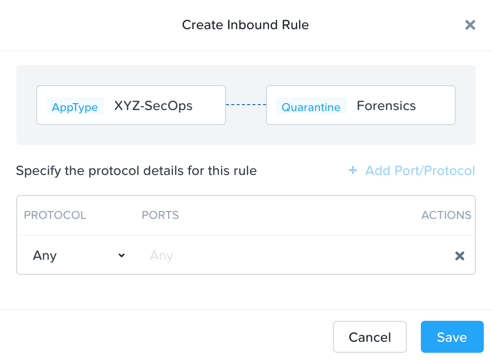
Click the icon to the left of Quarantine: Forensic to create an Inbound Rule.
Click Save to allow any protocol on any port between the SecOps VM and the Quarantine: Forensic category.
Click Next and click Apply Now to save and apply the updated policy.
What happens to the pings to the desktop after the source is added?
You can remove the desktop VM from the Quarantine: Forensic category by selecting the VMs in Prism Central and clicking Actions > Unquarantine VMs.
Takeaways
In this exercise you utilized Flow to quarantine desktop VMs using the two modes of the quarantine policy, which are strict and forensic.
Quarantine policies are evaluated at a higher priority than application policies. A quarantine policy can block traffic that would otherwise be allowed by an application policy.
Forensic mode is key to allow limited access a quarantined VM while the VM is quarantined.