File Analytics: File System Scan
Overview
File Analytics Scan
Analytics will perform an initial scan of the existing shares which will take just a couple minutes. You can see the scan by going to the gear icon within the Analytics UI and selecting Scan File System
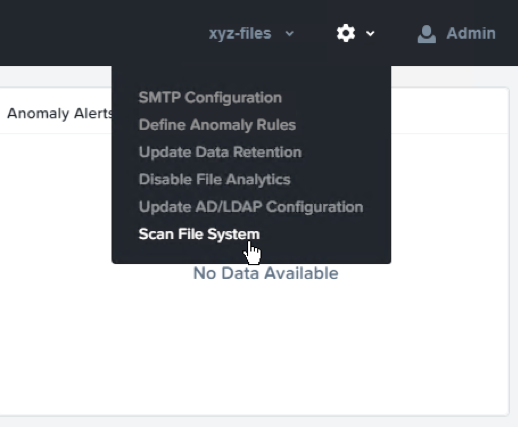
Choose Cancel to exit the scan details window
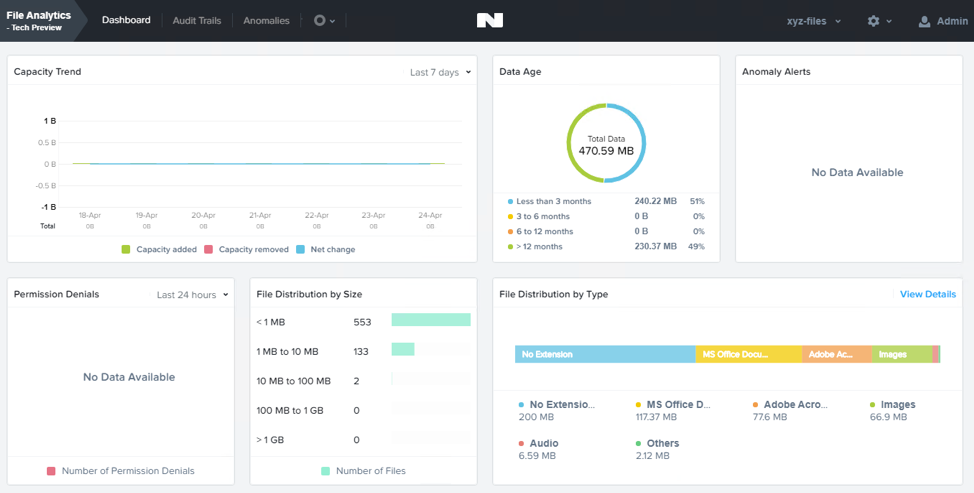
After viewing the scan details, refresh your browser. You should see the Data Age, File Distribution by Size and File Distribution by Type dashboard panels update.
Create some audit trail activity by going to the marketing share and opening one of the word files under Sample Data > Documents
Note
You may need to complete a short wizard for OpenOffice if using that application to open a file.
Refresh the Dashboard page in your browser to see the Top 5 active users, Top 5 accessed files and File Operations panels update
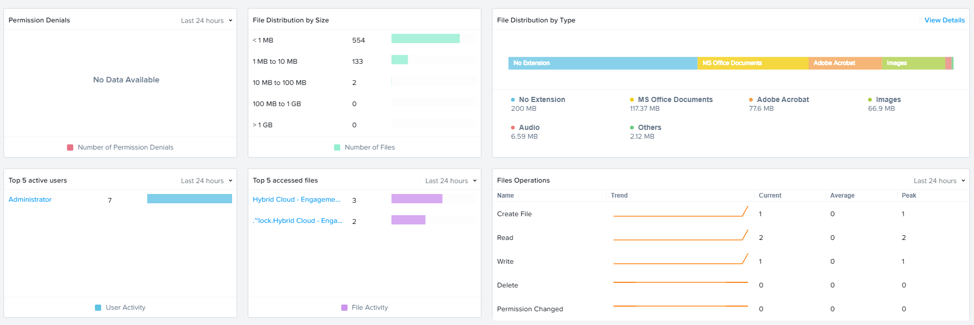
Click on your user under Top 5 active users. This will take you to the audit trail of the user.
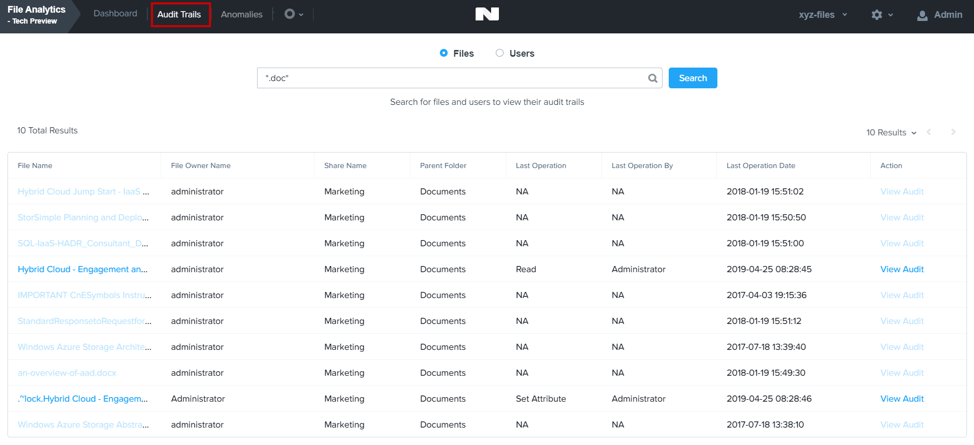
You can also click on the Audit Trails menu and search for either your user or a given file. You can use wildcards for your search, for example .doc
Takeaways
What are the key things you should know about Nutanix File Analytics?
File Analytics helps you better understand how data is utilized by your organizations to help you meet your data auditing, data access minimization and compliance requirements.