Storage Configuration Lab
Overview
In this lab we will use Prism to perform a basic container setup.
Distributed Storage Fabric
The Nutanix Distributed Storage Fabric (DSF) appears to the hypervisor like any centralized storage array, but uses the CVMs and local storage in each node to provide shared storage for the cluster - the combination of compute and distributed local storage is what is now commonly referred to as Hyperconverged Infrastructure (HCI).
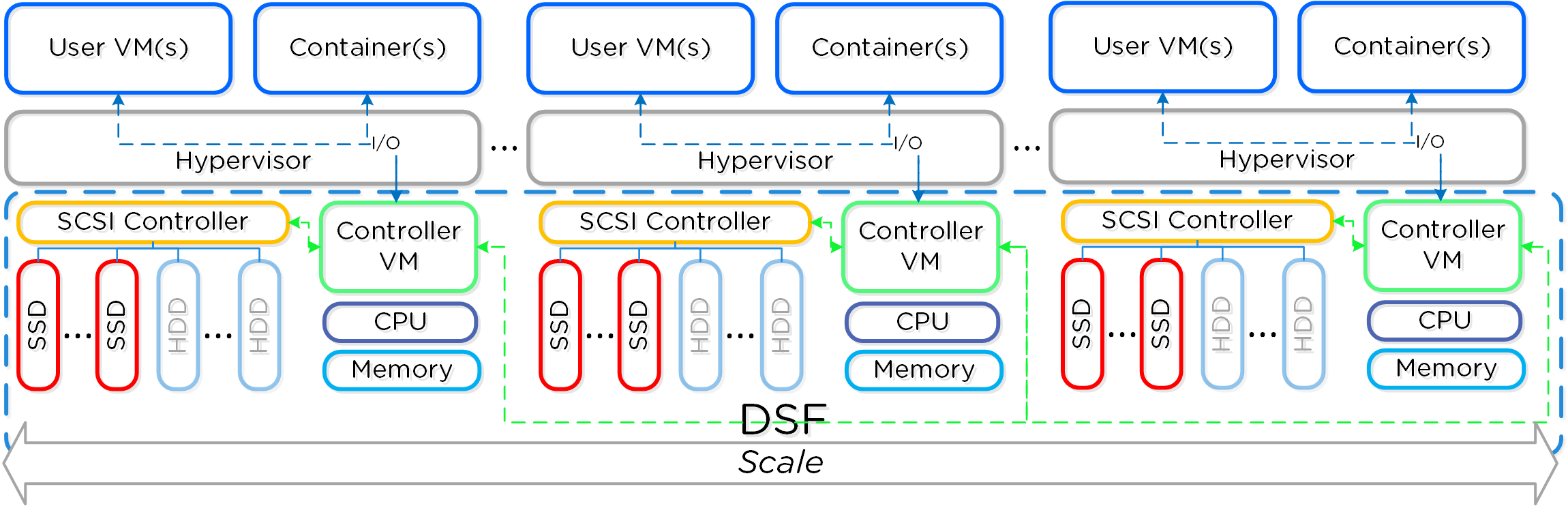
As a pioneer in the HCI space, Nutanix DSF is a mature solution capable of delivering the performance and resiliency needed to support many different workloads, including enterprise databases, virtual desktops, ROBO, Big Data, and more.
The two main storage constructs within the DSF are the Storage Pool and Storage Containers.
The Storage Pool is the aggregation of all of the physical disks within a given Nutanix cluster. The cluster manages distribution of data, so configuration of additional storage pools (like LUNs in a traditional storage environment) is not required. As new nodes are added to a cluster, disks are automatically added to the pool and the cluster will begin re-distributing data to the new disks as a background task.
Storage Containers are software-defined, logical constructs that allow you to configure storage policy for groups of VMs or vDisks. In the next exercise, you will walk through the process for creating and configuring Nutanix storage within Prism.
Note
To learn more about additional DSF constructs such as vDisks, extents, and extent groups, refer to this section of the Nutanix Bible.
In this lab we will use Prism Elements to perform a basic storage container setup.
Prism Element Storage Configuration Items
Configure Storage Containers
Let’s use Prism Element to perform a basic container setup.
In Prism Element> Storage, click Storage, click Table, then click + Storage Container.
Use the following specifications:
Name - Initials-container
Select Advanced Settings
Advertised Capacity - 500 GiB
Select Compression
Delay (In Minutes) - 0
Note
Leave other settings at their default values.
Click Save.
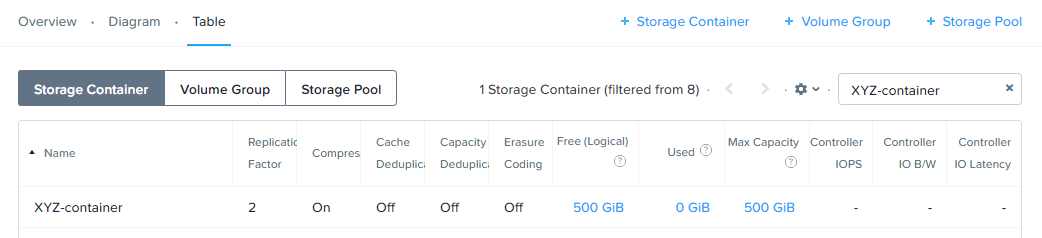
The storage container will now be available across all nodes within the cluster.
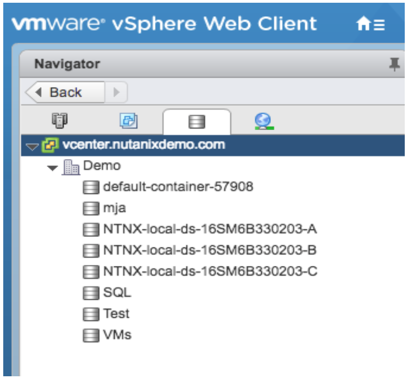
In AHV, the hypervisor creates a separate iSCSI connection to the DSF for each vDisk in use. In ESXi environments, each Storage Container is automatically mounted to the hypervisor as an NFS datastore. Similarly, in Hyper-V, each Storage Container is presented as an SMB datastore.
Note
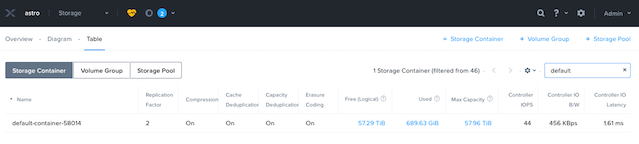
Example view of Storage Containers from Prism:
Example view of Storage Containers (datastores) from vCenter:
You can create multiple containers with different policies, all sharing capacity from the Storage Pool.
For instance, you may want to enable deduplication for a storage container used for full clone persistent virtual desktops, but deduplication wouldn’t make sense for workloads such as databases. Similarly, you may want to create a storage container with erasure coding enabled for archival data such as backups or security footage.
Explore the configuration basics further by updating your Container configuration. How would you ensure capacity availability for critical VMs on a cluster running mixed workloads?
Try selecting different storage containers on the cluster and reviewing the Storage Container Details below the table.
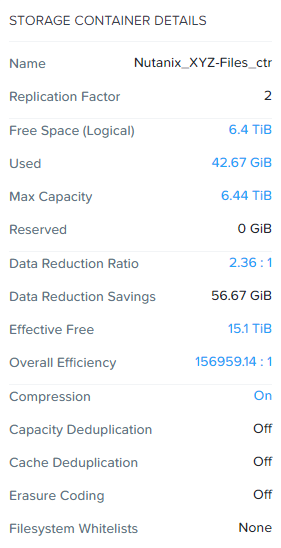
This view provides a breakdown of the savings from each available data reduction option as well as the Effective Usable Capacity of the container. Hover your mouse over any link for further details. The Data Reduction Ratio is the data efficiency when accounting for only compression, deduplication, and erasure coding. The Overall Efficiency number tracks data reduction as well as native data avoidance in DSF, specifically savings from thin provisioning and cloning.
Note
Interested in determining how much logical storage Nutanix can provide in different RF2 or RF3 configurations? Check out the Nutanix Storage Calculator.
Redundancy Factor (RF)
The Distributed Storage Fabric uses a Replication Factor (RF) approach to data protection, rather than legacy RAID techniques. By default, writes to Nutanix storage create two copies of the data with the ability to sustain a single node failure - this is called RF2. For very large clusters, or critical workloads, Nutanix can write three copies of the data with the ability to sustain two node failures - this is called RF3.
Interested in learning about how RF writes and reads work? Check out the video below!
RF policies are applied on a per storage container basis within Prism Element.
Nutanix clusters can also enforce availability domain policies at the Block or Rack level.
Block Awareness, in a sufficiently large cluster, ensures that secondary copies of data are not written to a node within the same physical enclosure as the primary copy. This allows for the loss of a multi-node block without experiencing data unavailability. The same concept can be applied using a Nutanix cluster spanning multiple racks.
The basic requirement for rack/block fault tolerance is to have minimum 3 blocks in the cluster (for RF2) as we need to store 3 copies of metadata. Starting in AOS 5.8, rack and block awareness can be supported with erasure coding enabled.
In Prism > Home, click OK in the Data Resiliency Status box.
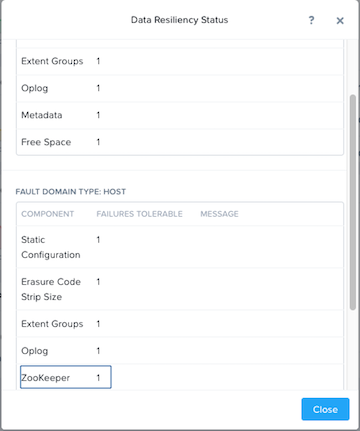
Data Resiliency Status indicates how many failures can be tolerated without impacting the cluster. Each service listed has a specific function in the cluster. For example, Zookeeper nodes maintain configuration data (service states, IPs, host information, etc.) for the cluster.
The RF of a cluster in Prism Element can be configured by clicking Redundancy State in the menu.
Note
For this exercise, please leave the redundancy factor configured as 2.
An RF2 cluster can be upgraded in place to support RF3 (with a minimum of 5 nodes). If a cluster is configured for RF3, 5 copies of metadata will be created for all data, regardless of whether or not the individual storage containers are configured as RF2 or RF3.
Takeaways
The Distributed Storage Fabric provides RF2 or RF3 shared storage to the cluster.
Storage Containers allow you to define storage policy for VMs, including RF level, compression, deduplication, and erasure coding.