API: VM Guest Customization
Overview
Note
Estimated time to complete: 20 MINUTES
In the following exercise you will create a Windows VM using Nutanix v3 APIs. In the API body you will include a unattend.xml to allow guest customization. The unattend.xml is base64 encoded. Optionally from Linux you can run “echo <base64-content> | base64 –decode” to see the raw xml.
Exercise: Create your Windows VM
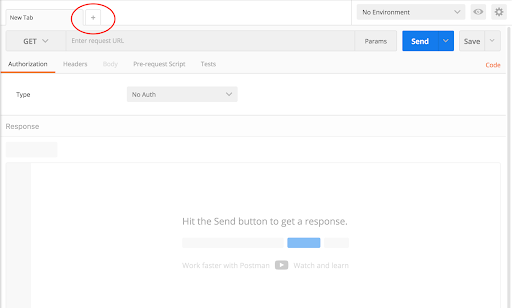
Click + in the main window to create a new tab-window
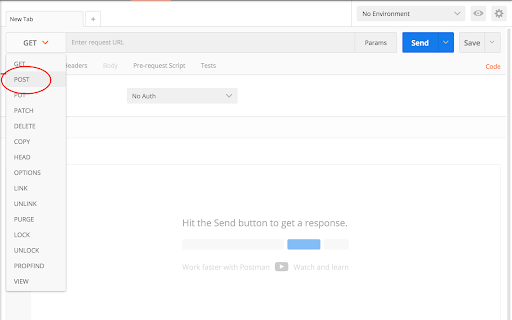
Click the dropdown and select POST
v3 is RESTful and uses standard HTTP verbs like GET, POST, PUT, DELETE
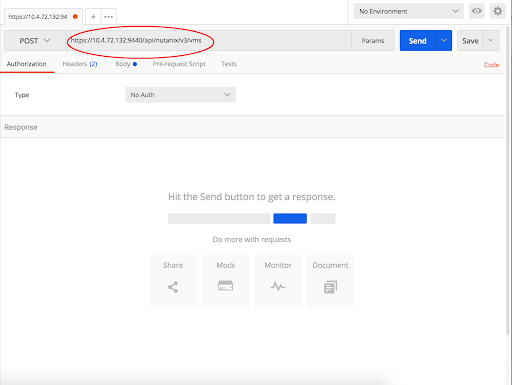
Enter the URL to create a VM
https://{{prism_central_ip}}:9440/api/nutanix/v3/vms
v3 exposes semantic URLs to make understanding and using the API easy
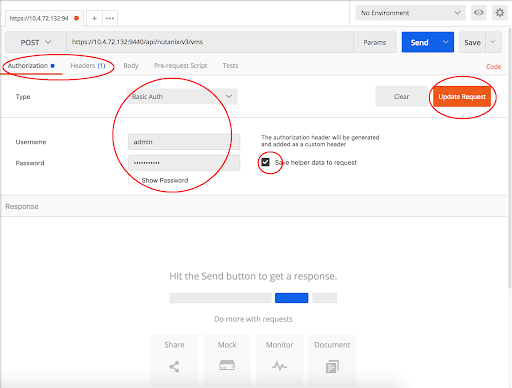
Configure basic authentication for this API call
Click the Authorization tab and select Basic Auth from the Type dropdown
- Enter Prism credentials of the cluster, and click Update Request:
Username - admin
Password - Use the “Prism login password” from handout
Set the media type to application/json
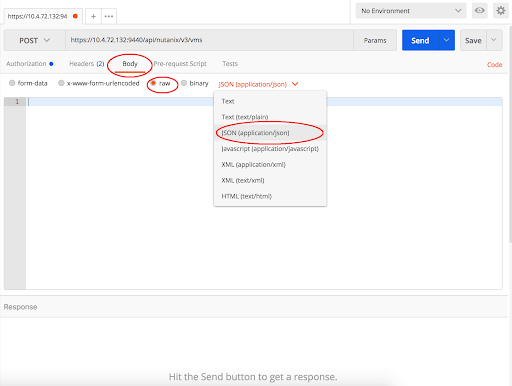
Click the Body tab
Select the radio button for raw
Click the Text dropdown and select JSON (application/json)
Fill out the body
Copy or type the following JSON as the VM intent input
{

"spec":{

"name":"win-sysprep-postman-<initial>",

"resources":{

"nic_list":[

{

"nic_type":"NORMAL_NIC",

"network_function_nic_type":"INGRESS",

"subnet_reference":


{ "kind":"subnet", "uuid":"<subnetuuid>" }

}

],

"boot_config":{

"boot_device":{

"disk_address":


{ "device_index":0, "adapter_type":"SCSI" }

}

},

"num_vcpus_per_socket":1,

"num_sockets":1,

"memory_size_mib":1024,

"power_state":"ON",

"guest_customization":{

"sysprep":


{ "install_type":"PREPARED", "unattend_xml":"PD94bWwgdmVyc2lvbj0iMS4wIiBlbmNvZGluZz0idXRmLTgiPz4NCiAgICA8dW5hdHRlbmQgeG1sbnM9InVybjpzY2hlbWFzLW1pY3Jvc29mdC1jb206dW5hdHRlbmQiPg0KICAgICAgICA8c2V0dGluZ3MgcGFzcz0ib29iZVN5c3RlbSI+DQogICAgICAgICAgICA8Y29tcG9uZW50IG5hbWU9Ik1pY3Jvc29mdC1XaW5kb3dzLVNoZWxsLVNldHVwIiBwcm9jZXNzb3JBcmNoaXRlY3R1cmU9ImFtZDY0IiBwdWJsaWNLZXlUb2tlbj0iMzFiZjM4NTZhZDM2NGUzNSIgbGFuZ3VhZ2U9Im5ldXRyYWwiIHZlcnNpb25TY29wZT0ibm9uU3hTIiB4bWxuczp3Y209Imh0dHA6Ly9zY2hlbWFzLm1pY3Jvc29mdC5jb20vV01JQ29uZmlnLzIwMDIvU3RhdGUiIHhtbG5zOnhzaT0iaHR0cDovL3d3dy53My5vcmcvMjAwMS9YTUxTY2hlbWEtaW5zdGFuY2UiPg0KICAgICAgICAgICAgICAgIDxVc2VyQWNjb3VudHM+DQogICAgICAgICAgICAgICAgICAgIDxBZG1pbmlzdHJhdG9yUGFzc3dvcmQ+DQogICAgICAgICAgICAgICAgICAgICAgICA8VmFsdWU+TnV0YW5peDEyMyM8L1ZhbHVlPg0KICAgICAgICAgICAgICAgICAgICAgICAgPFBsYWluVGV4dD50cnVlPC9QbGFpblRleHQ+DQogICAgICAgICAgICAgICAgICAgIDwvQWRtaW5pc3RyYXRvclBhc3N3b3JkPg0KICAgICAgICAgICAgICAgICAgICA8TG9jYWxBY2NvdW50cz4NCiAgICAgICAgICAgICAgICAgICAgICA8TG9jYWxBY2NvdW50IHdjbTphY3Rpb249ImFkZCI+DQogICAgICAgICAgICAgICAgICAgICAgICAgPFBhc3N3b3JkPg0KICAgICAgICAgICAgICAgICAgICAgICAgICAgIDxWYWx1ZT5OdXRhbml4MTIzIzwvVmFsdWU+DQogICAgICAgICAgICAgICAgICAgICAgICAgICAgPFBsYWluVGV4dD50cnVlPC9QbGFpblRleHQ+DQogICAgICAgICAgICAgICAgICAgICAgICAgPC9QYXNzd29yZD4NCiAgICAgICAgICAgICAgICAgICAgICAgICA8RGVzY3JpcHRpb24+VGVzdCBhY2NvdW50PC9EZXNjcmlwdGlvbj4NCiAgICAgICAgICAgICAgICAgICAgICAgICA8RGlzcGxheU5hbWU+TnV0YW5peDwvRGlzcGxheU5hbWU+DQogICAgICAgICAgICAgICAgICAgICAgICAgPEdyb3VwPkFkbWluaXN0cmF0b3JzO1Bvd2VyIFVzZXJzPC9Hcm91cD4NCiAgICAgICAgICAgICAgICAgICAgICAgICA8TmFtZT5OdXRhbml4PC9OYW1lPg0KICAgICAgICAgICAgICAgICAgICAgIDwvTG9jYWxBY2NvdW50Pg0KICAgICAgICAgICAgICAgICAgICA8L0xvY2FsQWNjb3VudHM+DQogICAgICAgICAgICAgICAgPC9Vc2VyQWNjb3VudHM+DQogICAgICAgICAgICAgICAgPE9PQkU+DQogICAgICAgICAgICAgICAgICAgIDxIaWRlRVVMQVBhZ2U+dHJ1ZTwvSGlkZUVVTEFQYWdlPg0KICAgICAgICAgICAgICAgIDwvT09CRT4NCiAgICAgICAgICAgIDwvY29tcG9uZW50Pg0KICAgICAgICAgICAgPGNvbXBvbmVudCBuYW1lPSJNaWNyb3NvZnQtV2luZG93cy1JbnRlcm5hdGlvbmFsLUNvcmUiIHByb2Nlc3NvckFyY2hpdGVjdHVyZT0iYW1kNjQiIHB1YmxpY0tleVRva2VuPSIzMWJmMzg1NmFkMzY0ZTM1IiBsYW5ndWFnZT0ibmV1dHJhbCIgdmVyc2lvblNjb3BlPSJub25TeFMiIHhtbG5zOndjbT0iaHR0cDovL3NjaGVtYXMubWljcm9zb2Z0LmNvbS9XTUlDb25maWcvMjAwMi9TdGF0ZSIgeG1sbnM6eHNpPSJodHRwOi8vd3d3LnczLm9yZy8yMDAxL1hNTFNjaGVtYS1pbnN0YW5jZSI+DQogICAgICAgICAgICAgICAgPElucHV0TG9jYWxlPmVuLVVTPC9JbnB1dExvY2FsZT4NCiAgICAgICAgICAgICAgICA8U3lzdGVtTG9jYWxlPmVuLVVTPC9TeXN0ZW1Mb2NhbGU+DQogICAgICAgICAgICAgICAgPFVJTGFuZ3VhZ2U+ZW4tVVM8L1VJTGFuZ3VhZ2U+DQogICAgICAgICAgICAgICAgPFVzZXJMb2NhbGU+ZW4tVVM8L1VzZXJMb2NhbGU+DQogICAgICAgICAgICA8L2NvbXBvbmVudD4NCiAgICAgICAgPC9zZXR0aW5ncz4NCiAgICAgICAgPHNldHRpbmdzIHBhc3M9InNwZWNpYWxpemUiPg0KICAgICAgICAgICAgPGNvbXBvbmVudCBuYW1lPSJNaWNyb3NvZnQtV2luZG93cy1TaGVsbC1TZXR1cCIgcHJvY2Vzc29yQXJjaGl0ZWN0dXJlPSJhbWQ2NCIgcHVibGljS2V5VG9rZW49IjMxYmYzODU2YWQzNjRlMzUiIGxhbmd1YWdlPSJuZXV0cmFsIiB2ZXJzaW9uU2NvcGU9Im5vblN4UyIgeG1sbnM6d2NtPSJodHRwOi8vc2NoZW1hcy5taWNyb3NvZnQuY29tL1dNSUNvbmZpZy8yMDAyL1N0YXRlIiB4bWxuczp4c2k9Imh0dHA6Ly93d3cudzMub3JnLzIwMDEvWE1MU2NoZW1hLWluc3RhbmNlIj4NCiAgICAgICAgICAgICAgICA8Q29tcHV0ZXJOYW1lPkNhbG08L0NvbXB1dGVyTmFtZT4NCiAgICAgICAgICAgICAgICA8UmVnaXN0ZXJlZE9yZ2FuaXphdGlvbj5OdXRhbml4PC9SZWdpc3RlcmVkT3JnYW5pemF0aW9uPg0KICAgICAgICAgICAgICAgIDxSZWdpc3RlcmVkT3duZXI+QWNyb3BvbGlzPC9SZWdpc3RlcmVkT3duZXI+DQogICAgICAgICAgICAgICAgPFRpbWVab25lPlBhY2lmaWMgU3RhbmRhcmQgVGltZTwvVGltZVpvbmU+DQogICAgICAgICAgICA8L2NvbXBvbmVudD4NCiAgICAgICAgPC9zZXR0aW5ncz4NCiAgICA8L3VuYXR0ZW5kPg==" }

},

"disk_list":[

{

"data_source_reference":


{ "kind":"image", "uuid": "<diskimageuuid>" }

,

"device_properties":{

"disk_address":


{ "device_index":0, "adapter_type":"SCSI" }

,

"device_type":"DISK"

}

}

]

}

},

"api_version":"3.0",

"metadata":{

"kind":"vm",

"categories":


{ "Project":"default" }

}

}
- Required edits to above body
Change the VM’s name to add your initials at the end of VM name. Replace <initial> with your initials.
Change the subnet UUID to a valid subnet UUID on your cluster. Replace <subnetuuid>
Change the disk image to the UUID of the Windows 2016 image. Replace <diskimageuuid>
- The follwoning configuration gets applied/created from the unattend.xml
Create a new user Nutanix , with password Nutanix123#
Changes the timezone to PST.
Changes the system locale to en-US
Hostname to Calm
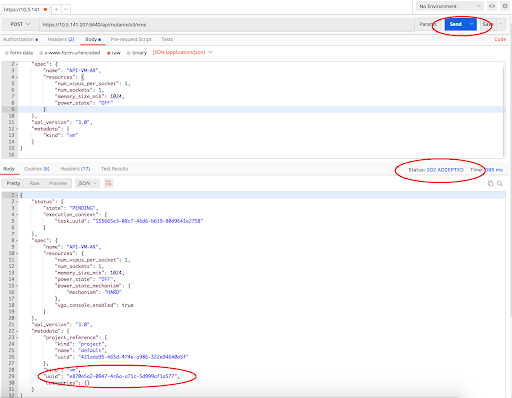
Click Send to submit the v3 API call
v3 provides a precise HTTP status and replies with the relevant intent response
Check it out in the Prism UI
Open a web browser to https://{{prism_central_ip}}:9440/console/
Enter the Prism Username and Password displayed in your lab handout to log in
Type the f key or click the search icon to open the search bar on the header
Enter the name of your VM (hint: your Initials)
Click on your VM in the table and click the Launch Console button under the table
A window will appear for the CentOS login prompt