Script Provided Below.. _calm_escript:
Calm: EScript and Task Library
Overview
In the Calm: Linux Workloads and Calm: Windows Workloads labs you explored how Calm can utilize Bash and PowerShell scripts to automate application deployments. While shell scripts can be both powerful and versatile, they require the deployment of an endpoint VM on which to copy and execute the script locally.
There are use cases that would be better served to execute code directly within Calm, such as making API calls to other RESTful services like Nutanix Era, GitHub, IFTTT, etc.
To fill this need, Calm offers a script type called EScript. Short for Epsilon Script (Epsilon is the orchestration engine that drives Calm), EScript is a sandboxed Python interpreter. It contains many commonly used modules for scripting and automation. In particular, it contains the requests module as urlreq, used to create external API calls.
Note
The interpreter is sandboxed because the script runs directly within the Calm engine, which means it runs directly within Prism Central. Allowing the user to import unknown and unvetted modules into Prism Central is a security concern.
In this lab you will leverage EScript to perform API calls against an existing web service, your Prism Central VM. You will also leverage Set Variable to set the data returned from an API call to a Calm macro, and the Task Library to understand how common code can be used across multiple blueprints or projects.
Lab Setup
This lab assumes basic familiarity with Nutanix Calm.
It does NOT require the Task Manager application deployed as part of other Calm labs. Instead, you will create a new, blank Blueprint and add a credential used to authenticate to Prism Central.
In Prism Central, select > Services > Calm > Blueprints.
Click + Create Blueprint > Multi VM/Pod Blueprint.
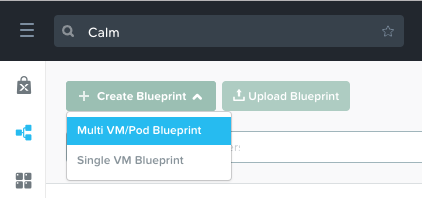
Fill out the following fields and click Proceed:
Name - Initials-EScript
Description - My First EScript Blueprint
Project - Initials-Calm
From the toolbar along the top of the blueprint, click Credentials.
Click Credentials and fill out the following fields:
Credential Name - PC_Creds
Username - admin
Secret Type - Password
Password - Your Prism Central admin Password
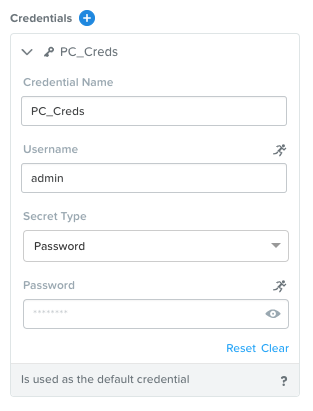
Click Save and then Back, ensuring no errors or warnings appear.
Using Existing Machine Services
In Application Overview > Services, click to add a new Service.
Under the VM tab, fill in the following fields:
Service Name
PC
VM - Name
PrismCentral
Cloud
Existing Machine
Operating System
Linux
IP Address
localhost
Check log-in upon create
Unselect
Credential
Leave default
Address
Leave default
Connection Type
Leave default
Connection Port
Leave default
Delay
Leave default
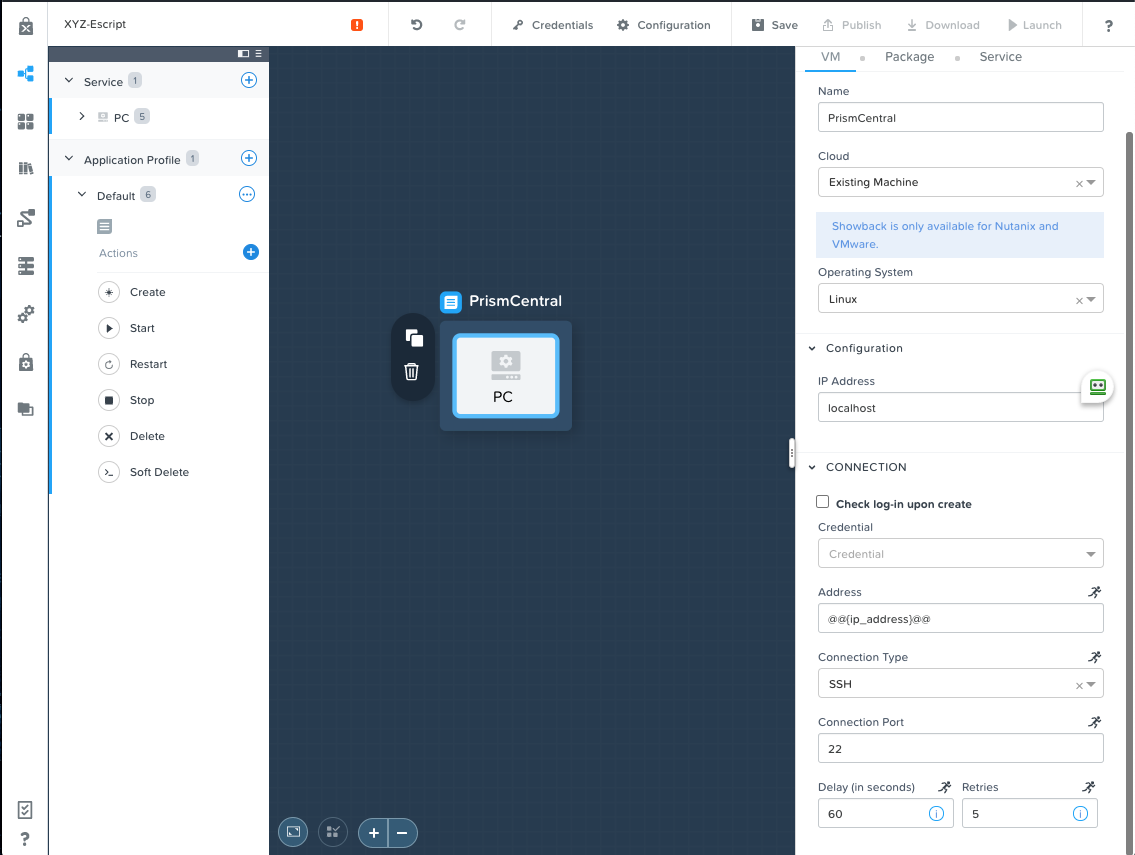
There are several new and interesting items in the above configuration:
Cloud - Instead of creating a new VM on Nutanix or a public cloud provider, we’re instead choosing to automate against an already existing machine. All that’s required for us to enter is an IP Address of the machine, which in our case is Prism Central. Depending on your use case, you may specify something like Ansible Tower, or an Era Server, as an existing machine.
IP Address - Since we’re going to be making API Calls against Prism Central, and Calm runs directly in Prism Central, we’re just entering localhost as an IP. If you were going to be automating against something like Ansible Tower or Era, you would need to put your Ansible Tower or Era Server IP addresses in this field, rather than localhost. IP Address could also be defined by a variable.
Check log-in upon create - This is the first time we’ve seen this box unselected. Since EScript tasks run directly within Calm, there’s no need to SSH in to the Service in question. Instead we’ll use credentials directly within the EScript code to authenticate our REST API call.
Click Save, and ensure no errors or warnings appear.
RESTList Custom Action
In this exercise, we’re going to be creating a custom action for our application to make a REST API call against Prism Central. Specifically, it will be a POST /list call, where the entity (kind) to be listed (e.g. apps, hosts, clusters, roles, etc.) will be defined by a variable at runtime. The results of this call will then be output.
In the Application Overview > Application Profile section, expand the Default Application Profile.
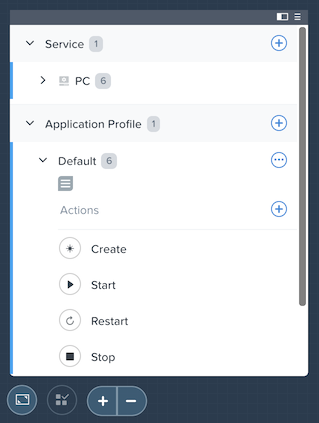
Select next to Actions to add a new, custom action.
On the Configuration Pane to the right, name the action RESTList, and add a single variable:
Name - kind
Data Type - String
Value - apps
Select Runtime by toggling the running man icon in the upper right to blue
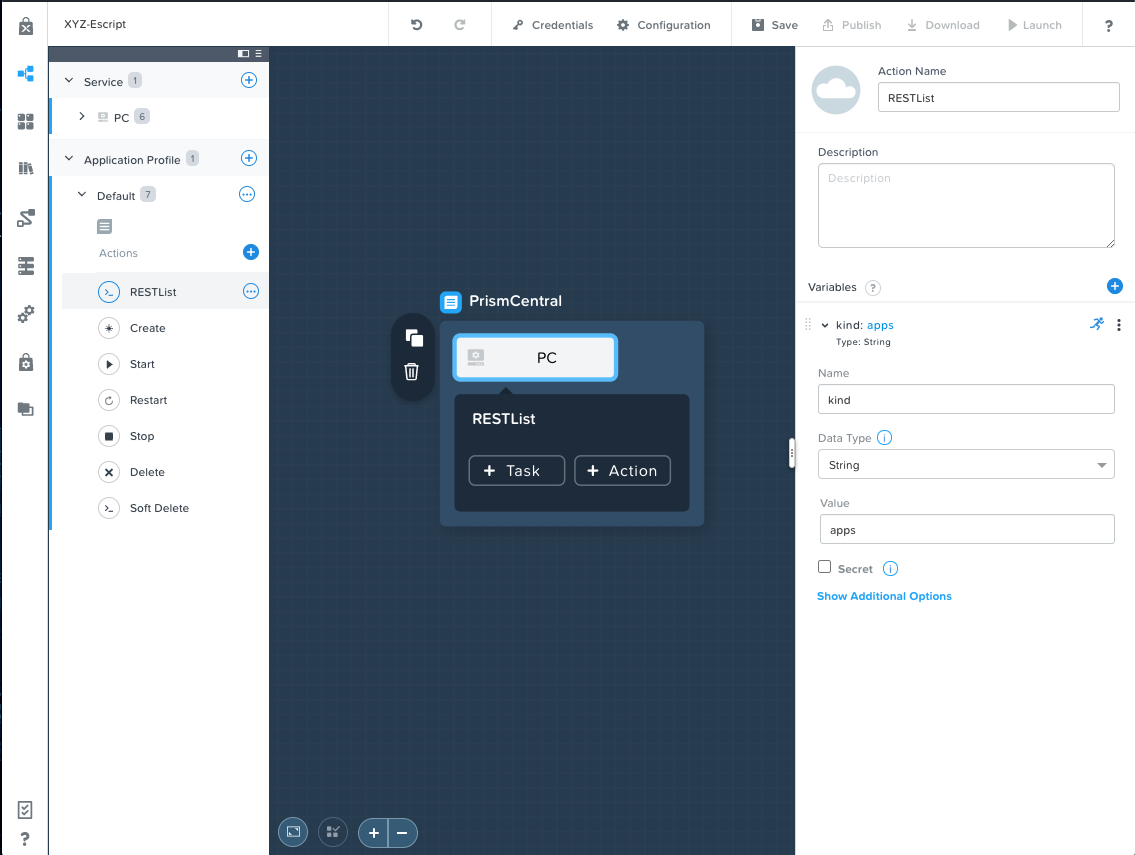
When running the custom action later, Calm will prompt the user for input. Apps will be pre-filled default value, but it can be changed prior to executing the script action.
Click the + Task button to add a task to the RESTList custom action. Fill in the following fields:
Task Name - RuntimePost
Type - Execute
Script Type - EScript
Script - Script Provided Below
# Set the credentials
pc_user = '@@{PC_Creds.username}@@'
pc_pass = '@@{PC_Creds.secret}@@'

# Set the headers, url, and payload
headers = {'Content-Type': 'application/json', 'Accept': 'application/json'}
url     = "https://@@{address}@@:9440/api/nutanix/v3/@@{kind}@@/list"
payload = {}

# Make the request
resp = urlreq(url, verb='POST', auth='BASIC', user=pc_user, passwd=pc_pass, params=json.dumps(payload), headers=headers)

# If the request went through correctly, print it out.  Otherwise error out, and print the response.
if resp.ok:
   print json.dumps(json.loads(resp.content), indent=4)
   exit(0)
else:
   print "Post request failed", resp.content
   exit(1)
Click Save, and ensure no errors or warnings appear.
Running the Custom Actions
Launch the blueprint. Name the application Initials-RestCalls, and then click Create.
The Create task should complete quickly, as no VMs are being provisioned or Package Install scripts being run.
Once the application reaches Running status, select the Manage tab and click in the Create part on the icon.
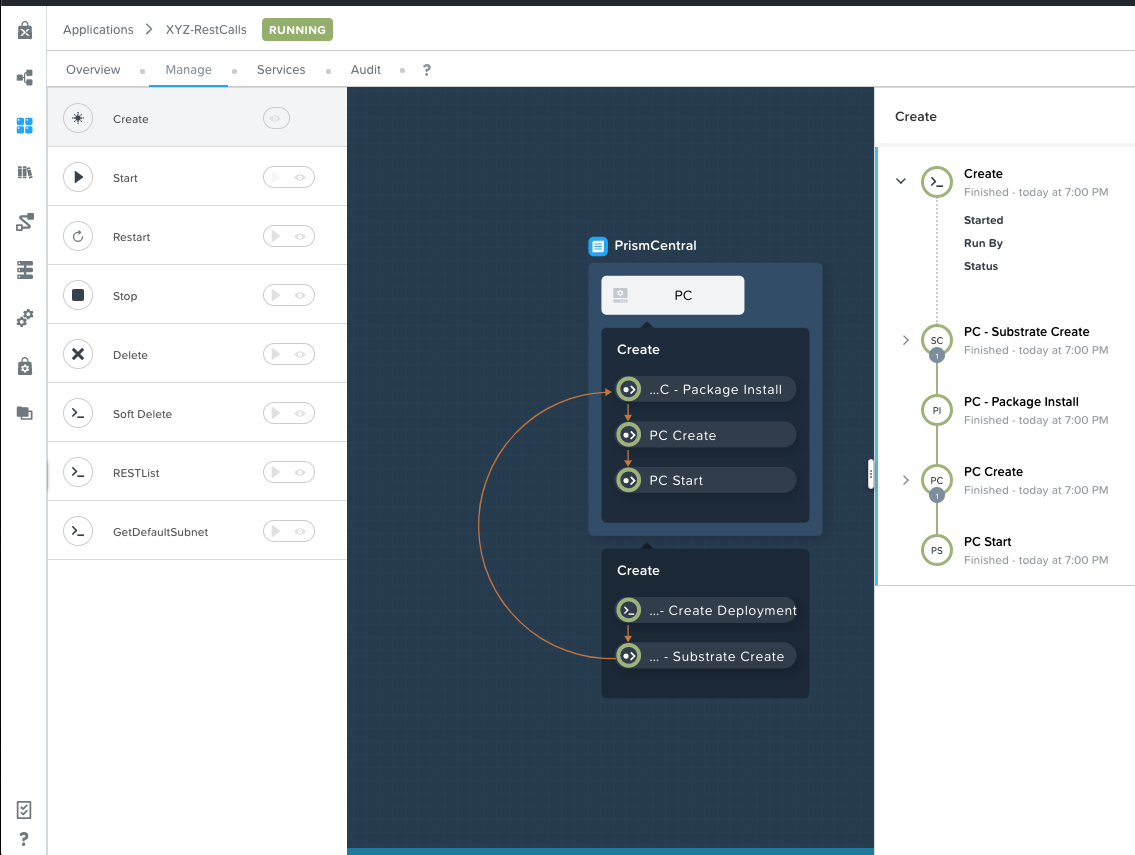
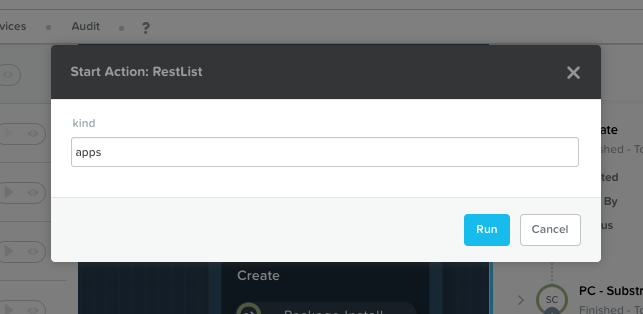
Next, run the RESTList action by clicking its icon. A new window appears displaying the kind variable and default apps value. Click Run.
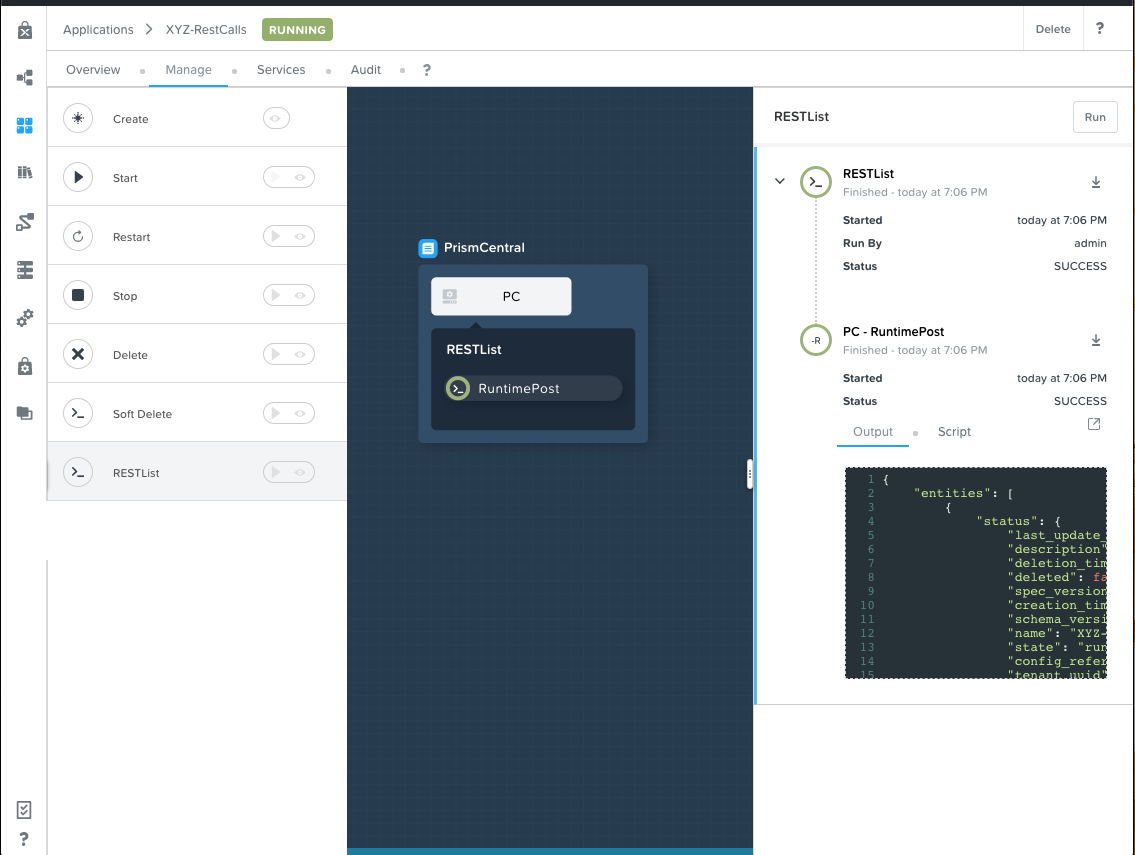
In the output on the right pane, maximize the RuntimePost task, and view the API output. The output pane can be toggled by clicking the icon. Maximize the output/script window to make viewing easier. As expected, the script returns a JSON body with an array describing each launched application in Calm.
Run the RESTList action again, altering the value to another Prism Central API entity, such as images, clusters, hosts, or vms.
Publishing to the Task Library
Tasks such as common API calls, package installations for common services, domain joins, etc. can be broadly applicable to multiple blueprints. These tasks can be used without leveraging third party tools or manually copying and pasting scripts by instead publishing into the Task Library, Calm’s central repository for code re-use.
Open your Initials-EScript blueprint in the Blueprint Editor.
In the Application Overview > Application Profile pane, select the RESTList action.
Select the RuntimePost task to open the task in the Configuration Pane.
Click Publish to Library.
In the Publish Task window, make the following changes:
Name - Initials Prism Central Runtime List
Replace address with Prism_Central_IP
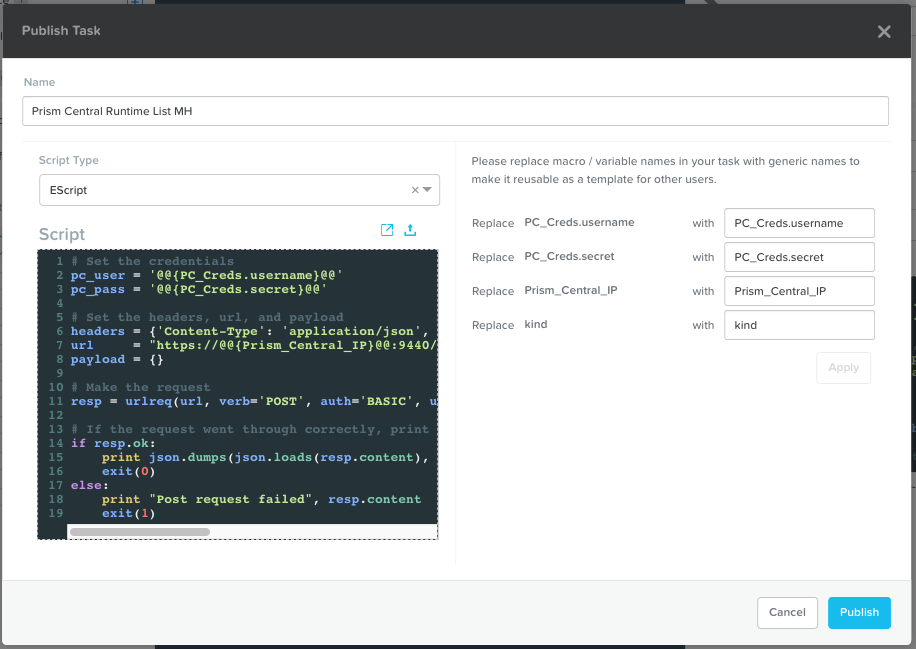
Click Apply and note that the original address macro was replaced with Prism_Central_IP in the script window. Replacing macro names allows you to be more generic or descriptive to increase task portability.
Click Publish.
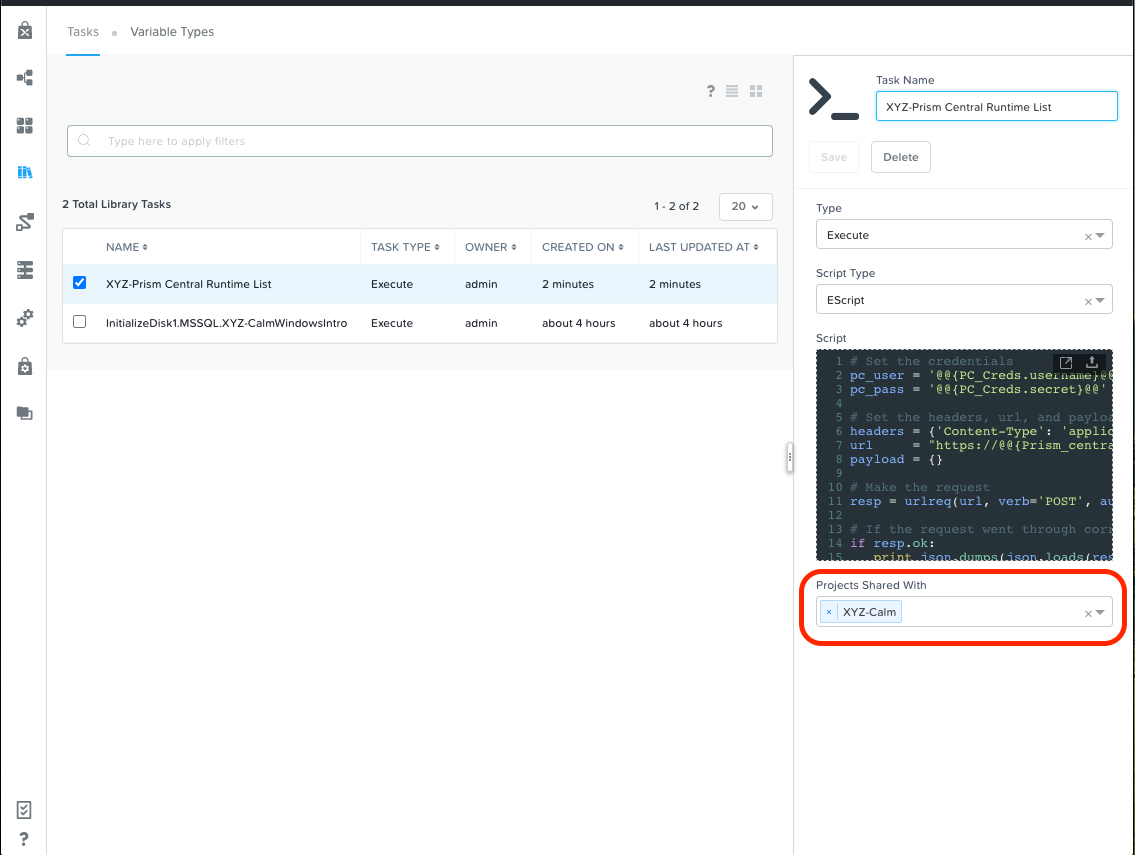
Open the Task Library in the sidebar. Select your published task. By default, the task will be available to the project from which it was originally published, but you can specify additional projects with which to share the task.
Takeaways
What are the key things you should know about Nutanix Calm?
The task library allows commonly used operations to be written once and reused over and over again. As time goes on more objects will be integrated into the task library, from Nutanix-provided common tasks to entire service objects
Since Calm version 2.7 there is the HTTP task, allowing the most common use of Escript to be more easily implemented (sending API calls)
In addition to being able to use Bash and Powershell scripts, Nutanix Calm can use EScript, which is a sandboxed Python interpreter, to provide application lifecycle management.
EScript tasks are run directly within the Calm engine, rather than being executed on the remote machine.
Shell, Powershell, and EScript tasks can all be utilized to set a variable based on script output. That variable can then be used in other portions of the blueprint.
The Task Library allows for publishing of commonly used tasks into a central repository, giving the ability to share these scripts across Projects and Blueprints.