Files: Expand Cluster
Overview
Files offers the ability to scale up and scale out a deployment. Scaling up the CPU and memory of Files VMs allows an environment to support higher storage throughput and number of concurrent sessions. Currently, Files VMs can be scaled up to a maximum of 12 vCPU and 96GB of RAM each.
The true power of Files scalability is the ability to simply add more Files VMs, scaling out much like the underlying Nutanix distributed storage fabric. An individual Files cluster can scale out up to the number of physical nodes in the Nutanix cluster, ensuring that no more than 1 Files VM runs on a single node during normal operation.
Expanding a Files Cluster
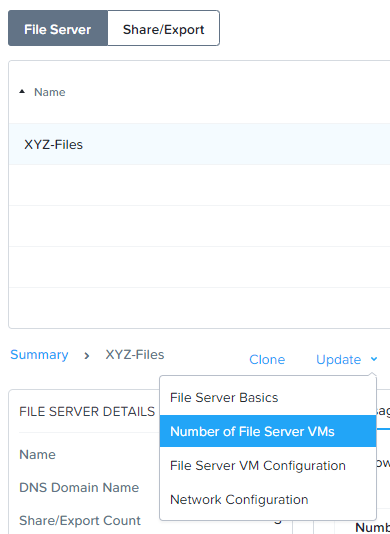
Return to Prism > File Server and select BootcampFS.
Click Update > Number of File Server VMs.
Increment the number of Files VMs from 3 to 4 and click Next.
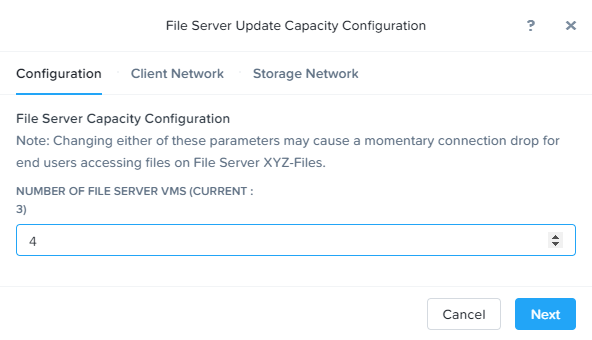
Note that an additional IP will be consumed for both the client and storage networks to support the added Files VM.
Click Next > Save.
The cluster will now deploy and power on a 4th Files VM. Status can be monitored in Prism > Tasks.
Note
Files cluster expansion should take approximately 10 minutes to complete.
Following the expansion, verify client connections can now be load balanced to the new VM.
Connect to your Initials-ToolsVM via RDP or console.
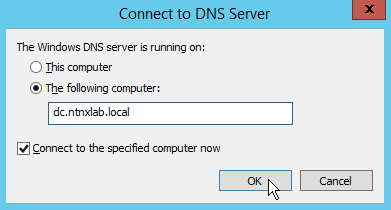
Open Control Panel > Administrative Tools > DNS.
Fill out the following fields and click OK:
Select The following computer
Specify dc.ntnxlab.local
Select Connect to the specified computer now
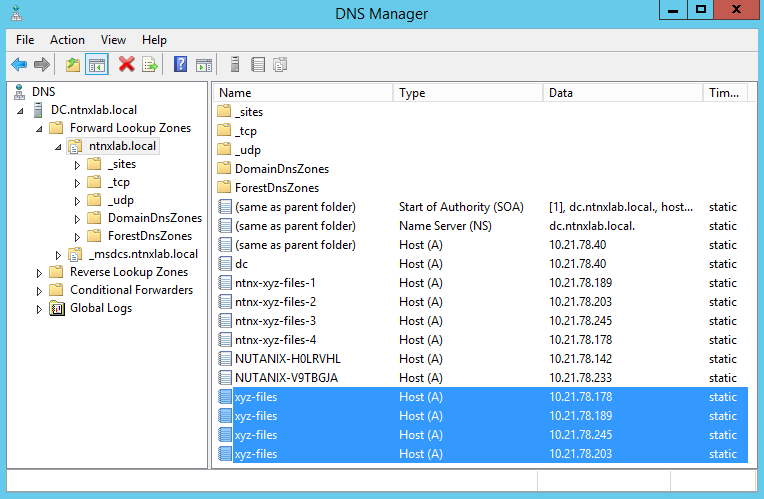
Open DC.ntnxlab.local > Forward Lookup Zones > ntnxlab.local and verify there are now four entries for BootcampFS. Files leverages round robin DNS to load balance connections across Files VMs.
Note
If only three entries are present, you can automatically update DNS entries from Prism > File Server by selecting your Files cluster and clicking DNS.
Takeaways
What are the key things you should know about Nutanix Files?
Files can scale up and scale out with One Click performance optimization.