Files: File Blocking
Selective File Blocking
In this exercise you will configure Files to block specific file extensions for the file server and the Marketing share.
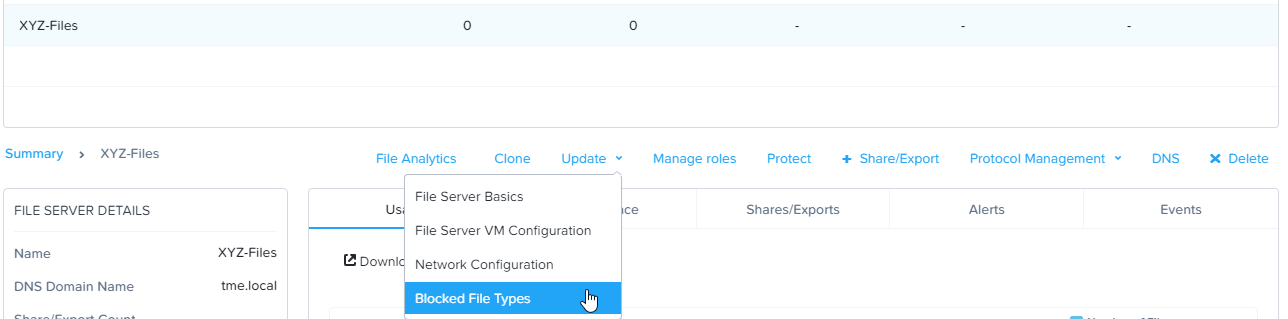
In Prism > File Server > Select your file server and click Update > then click Blocked File Types
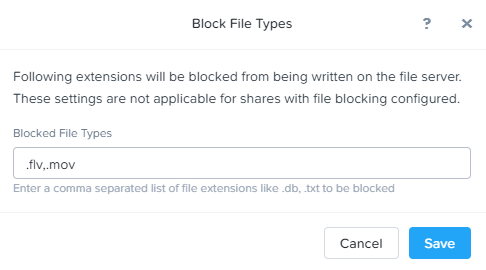
Under Blocked File Types enter a comma separated list of extensions like .flv,.mov and click Save
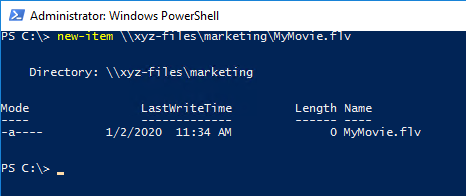
Open a PowerShell window by clicking on the PowerShell icon on the taskbar. Enter the following command where you will see an access denied error message:
new-item \\xyz-files.ntnxlab.local\marketing\MyMovie.flv

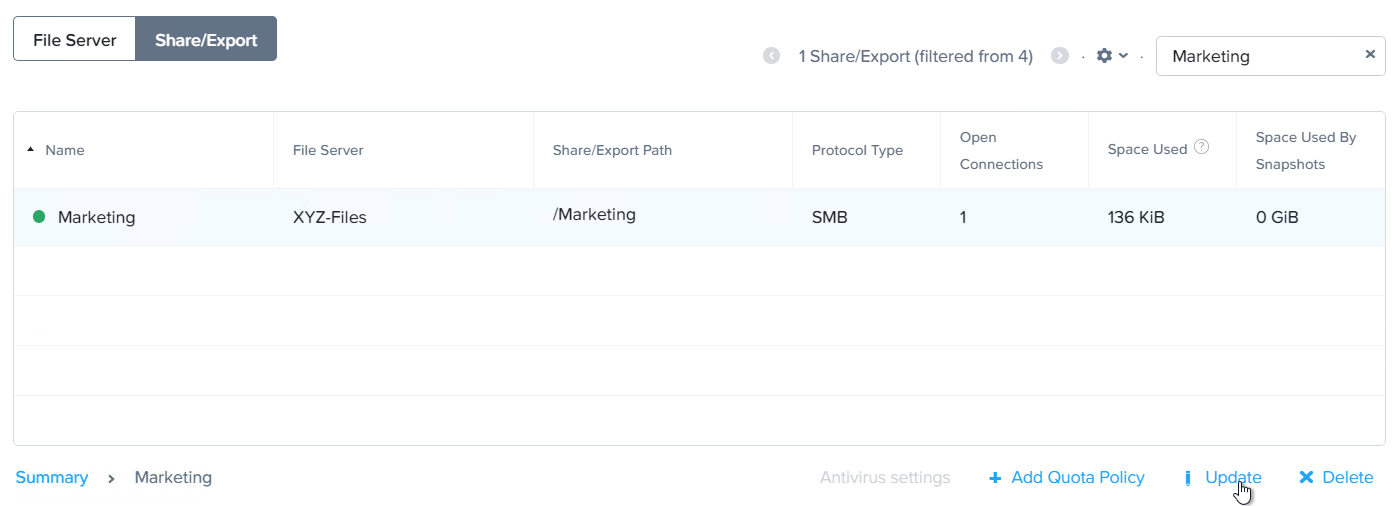
In Prism > File Server > Share/Export > click on the Marketing share and select Update
Select Next to get to the Settings page.
Check Blocked File Types and enter .none as a file extension.
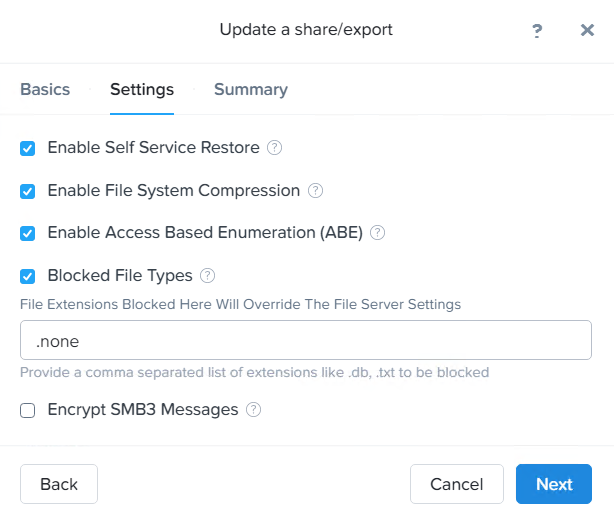
Select Next then Save on the Summary page to complete the update.
Blocked file type settings at the share level override the server level setting. Using PowerShell issue the same command as the previous step. The command will now complete successfully.