Files: Multi-Protocol
Multi-protocol
In this exercise you will configure an existing SMB share to also support NFS. Enabling multi-protocol access requires you to configure user mappings and define the native and non-native protocol for a share.
Configure User Mappings
A Nutanix Files share has the concept of a native and non-native protocol. All permissions are applied using the native protocol. Any access requests using the non-native protocol requires a user or group mapping to the permission applied from the native side. There are several ways to apply user and group mappings including rule based, explicit and default mappings. You will first configure a default mapping.
In Prism > File Server > Select your file server and click Protocol Management > then click User Mapping
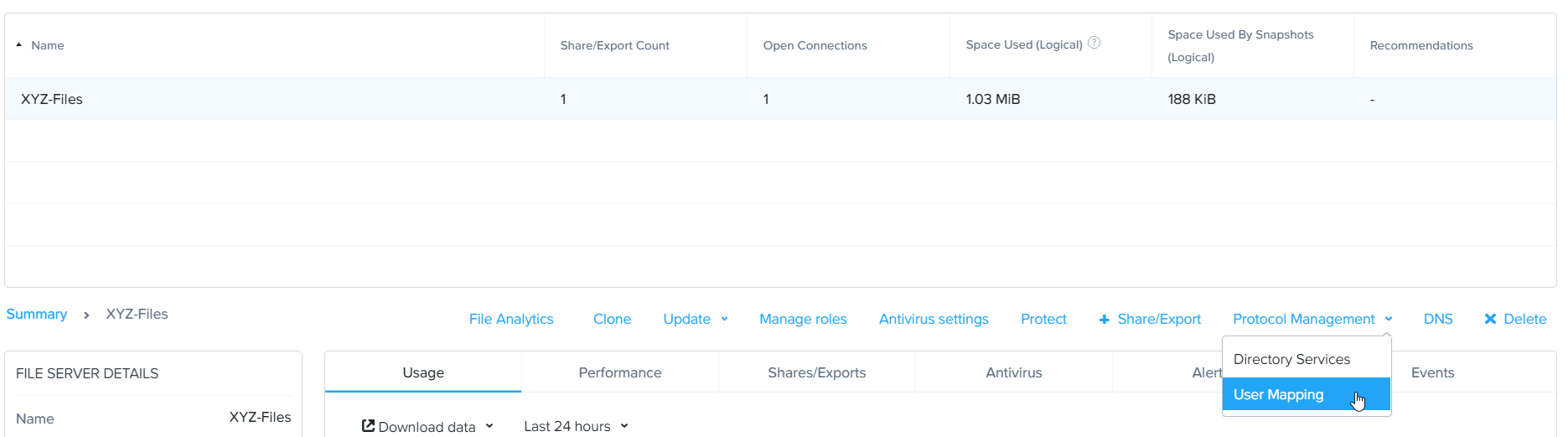
In the User Mapping dialog click Next at least two times, until you are on the Default Mapping page.
From the Default Mapping page choose both Deny access to NFS export and Deny access to SMB share as the defaults for when no mapping is found.
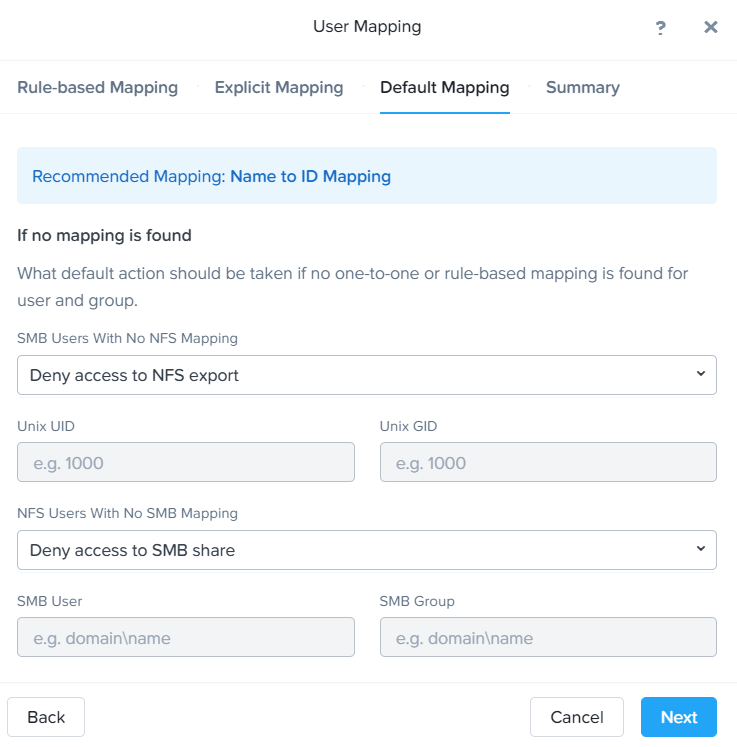
Complete the initial mapping by choosing Next and then Save on the Summary page.
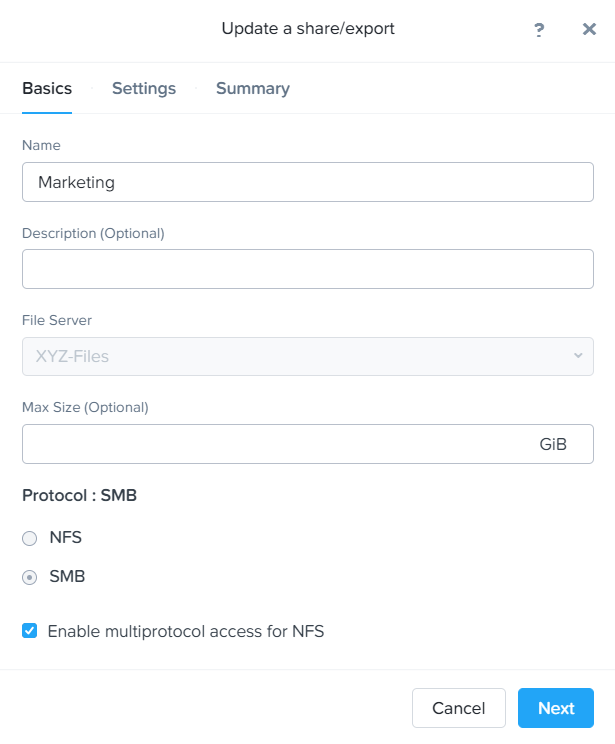
In Prism > File Server > Share/Export > click on the Marketing share and select Update.
From the Basics page check the box at the bottom which says Enable multiprotocol access for NFS.
Click Next then from the Settings* page check **Simultaneous access to the same files from both protocols.
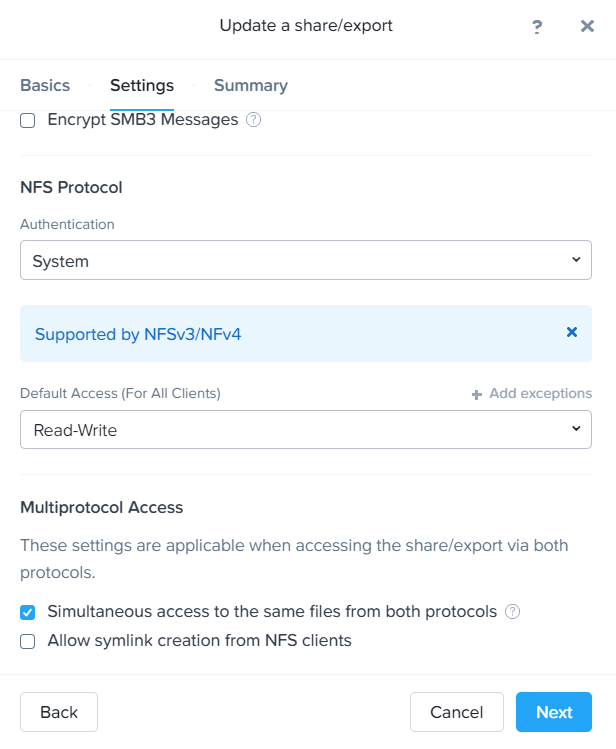
Click Next and then Save from the Summary page.
Connect via SSH to the Initials-NFS-Client VM.
Execute the following commands:
[root@CentOS ~]# mkdir /filesmulti
[root@CentOS ~]# mount.nfs4 BootcampFS.ntnxlab.local:/Marketing /filesmulti
[root@CentOS ~]# dir /filesmulti
dir: cannot open directory /filesmulti: Permission denied
[root@CentOS ~]#
Note
The mount operation is case sensitive.
Because the default mapping is to deny access the Permission denied error is expected. You will now add an explicit mapping to allow access to the non-native NFS protocol user. We will need to get the user ID (UID) to create the explicit mapping.
Execute the following command and take note of the UID:
[root@CentOS ~]# id
uid=0(root) gid=0(root) groups=0(root) context=unconfined_u:unconfined_r:unconfined_t:s0-s0:c0.c1023
[root@CentOS ~]#
In Prism > File Server > Select your file server and click Protocol Management > then click User Mapping
Click Next until you are on the Explicit Mapping page
Click + Add one-to-one mapping
Fill out the following fields:
SMB Name - ntnxlab\administrator
NFS ID - UID from previous step (0 if root)
User/Group - User
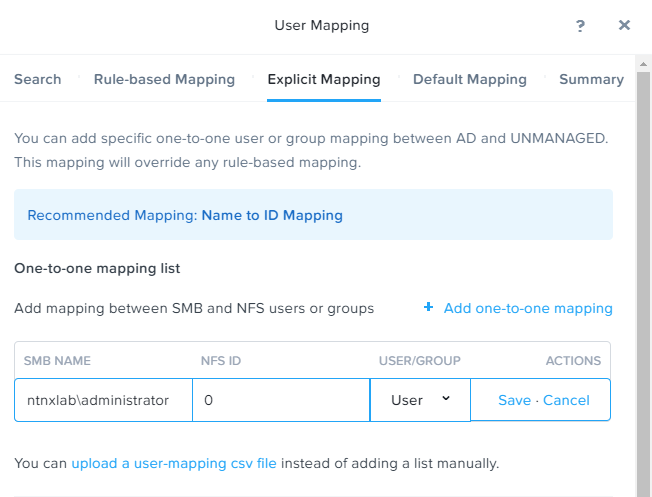
Click Save under the Actions column
Click Next until the Summary page and then click Save
Click Close
Go back to the NFS-Client VM and execute the following:
[root@CentOS ~]# dir /filesmulti
MyMovie.flv Sample\ Data
[root@CentOS ~]#